Tanium Patch Module
This chapter documents all the Tanium Modules enabled in the environment, providing an overview of their purpose, configuration notes, and integration use cases. Each page includes practical tips, feature highlights, and module-specific considerations to support efficient endpoint management, monitoring, and remediation across the lab. Use this space to track module versions, capabilities, and custom workflows aligned with your operational goals.
- 📘 Tanium Patch Blueprint
- Patch Troubleshooting – Saved Questions
- Tanium Patch Troubleshooting Guide
- Tanium Patch – Remediation Scripts
- Windows Update Error: -2145107951 WU_E_PT_SUS_SERVER_NOT_SET
📘 Tanium Patch Blueprint
This page outlines the full configuration blueprint for managing operating system patching in Tanium using standardized scanning, patching, maintenance, and deployment strategies across Windows and Linux platforms.
🔍 Scan Configuration
Windows
[Tanium Scan] - Windows
-
Configuration Technique: Tanium Scan
-
Scan when new patches are available: ✅
-
Frequency: 1 Day
-
Groups:
-
All Windows Servers - Physical
-
All Windows Workstations - Physical
-
[Tanium Scan] - Windows - Virtual
-
Configuration Technique: Tanium Scan
-
Scan when new patches are available: ✅
-
Frequency: 1 Day
-
Enable Random Scan Delay: ✅
-
Random Scan Delay Value: 120
-
Groups:
-
All Windows Servers - Virtual
-
All Windows Workstations - Virtual
-
[CAB Scan] - Windows Home and Tagged
-
Configuration Technique: Offline CAB File
-
Download and scan immediately upon new CAB release: ✅
-
Groups:
-
Windows Home and Tagged
(Is Windows contains True AND (Operating System contains Home OR Custom Tags equals Patch_Windows_Scan_CAB))
-
Linux
[Repo Scan] - Linux Repo Scan
-
Configuration Technique: Repository Scan
-
Use Repositories configured on the endpoint
-
Frequency: 1 Day
-
Enable Random Scan Delay: ✅
📝 Patch List
Windows
Patch Tuesday [<Current patch Tuesday mm/dd/yy>]
-
Platform: Windows
-
Content Set: Patch Content Set
-
Rules:
-
Name: Patch Tuesday
-
Conditions:
-
Release Date on or before <The Friday after patch Tuesday>
-
-
Linux
Linux Patch List
-
Platform: Linux
-
Content Set: Patch Content Set
-
Rules:
-
Name: First of the Month
-
Conditions:
-
Release Date on or before <First of the current month OR 7 days before the new cycle starts>
-
-
🕒 Maintenance Windows
Windows
Windows Workstation - Non-Prod
-
Recurrence: Monthly
-
Day of week: ✅
-
Starting On: Second Tuesday
-
Day offset: 2
-
-
Duration: 120 hours
-
Window Time: Use endpoint local time
-
Effective Date and Start Time: 0500
-
Target Tag: Patch_Windows_Server_Non-Prod
Windows Workstation - Prod
-
Recurrence: Monthly
-
Day of week: ✅
-
Starting On: Second Tuesday
-
Day offset: 6
-
-
Duration: 120 hours
-
Window Time: Use the endpoint local time
-
Effective Date and Start Time: 0500
-
Target Tag: Patch_Windows_Server_Prod
Windows Server - Non-Prod
-
Recurrence: Do not repeat
-
Window Time: Use the endpoint local time
-
Effective Date and Start Time: Sunday after patch Tuesday 0800
-
End Time: +8 hours from start
-
Target Tag: Patch_Windows_Workstation_Non-Prod
Windows Server - Prod
-
Recurrence: Do not repeat
-
Window Time: Use the endpoint local time
-
Effective Date and Start Time: Second Sunday after patch Tuesday 0800
-
End Time: +8 hours from start
-
Target Group: All Windows Workstations
Linux
Linux - Non-Prod
-
Recurrence: Do not repeat
-
Window Time: Use the endpoint local time
-
Effective Date and Start Time: Second Sunday of the month 0800
-
End Time: +8 hours from start
Linux - Prod
-
Recurrence: Do not repeat
-
Window Time: Use the endpoint local time
-
Effective Date and Start Time: Third Sunday of the month 0800
-
End Time: +8 hours from start
🚀 Deployments
Windows
Windows Workstations
-
Endpoints to Target: All Windows Workstations
-
Deployment Type and Schedule:
-
Ongoing
-
-
Download all package files immediately: ✅
-
Patch List: Patch Tuesday
-
Restart: ✅
-
Post-Notify Users:
-
Duration of Notification Period: 1 Day
-
Final Countdown to Deadline
-
Allow user to postpone: ✅
-
1 hour
-
2 hours
-
4 hours
-
-
Do not allow user to minimize: ✅
-
Title: Windows Update - Reboot Required
-
Body:
Critical Windows updates have been installed on this device. To finalize the update, you must reboot within 24 hours. The system will automatically reboot if the update is not completed within this time. You may postpone the reboot by clicking "Postpone" and selecting your preferred time. Any reboot will complete the process.
-
Thank you for helping to keep this system secure.
-
-
Windows Server - No Reboot
-
Endpoints to Target: All Windows Servers
-
Deployment Type and Schedule:
-
Ongoing
-
-
Patch List: Patch Tuesday
-
Download all package files immediately: ✅
Windows Server - Reboot
-
Endpoints to Target: All Windows Servers
-
Deployment Type and Schedule:
-
Ongoing
-
-
Patch List: Patch Tuesday
-
Download all package files immediately: ✅
-
Restart: ✅
Linux
Linux - Reboot
-
Content to Deploy: Install All Security Updates
-
Endpoints to Target: All Linux
-
Deployment Type and Schedule:
-
Ongoing
-
-
Deployment Settings:
-
Download all package files immediately: ✅
-
Restart: ✅
-
Linux - No Reboot
-
Content to Deploy: Install All Security Updates
-
Endpoints to Target: All Linux
-
Deployment Type and Schedule:
-
Ongoing
-
-
Deployment Settings:
-
Download all package files immediately: ✅
-
📊 Reporting
At a minimum, reporting must include the following metrics weekly:
-
Current overall compliance by platform (Windows, Linux, Mac)
-
Platform compliance by group (non-prod, prod, workstation, server, etc.)
-
Mean time to patch
Pre-Patch Audit Criteria
-
Patch scan age > 3 days
-
Patch scan errors
-
System disk free space < 5 GB
-
Uptime > 30 days
Patch Troubleshooting – Saved Questions
A. Patch Scan Issues
- Patch Scan Errors and Age with Configuration Status
Get Computer Name and Tanium Client IP Address and Operating System and Patch - Scan Errors and Patch - Scan Age and Patch - Has Enforced Scan Configuration and Patch - Is Process Running from all machines with ( Is Windows equals True and ( Patch - Scan Errors matches "^[1-9]\d+\|.*$" or ( Patch - Has Enforced Scan Configuration equals No or ( Patch - Scan Age matches "^(?!([0-2] Day|N\/A|Could not get results).*).*$" and Uptime?type=String matches "^\d+ [Dd]ays$" ) ) ) )B. Patch Installation History
- Patches Installed by Tanium (Last 30 Days by Endpoint)
Get Computer Name and Patch Installation History[30,0,1,0,0,0,0] and Operating System from all machines with Is Windows contains True- Patches Installed by Tanium (Last 30 Days Summary)
Get Patch Installation History[30,0,1,0,0,0,0] from all machines with Is Windows contains TrueC. Patch Deployment Results
- Deployment Results - Failed
Get Computer Name and Operating System and Patch - Deployment Results and Patch - Patch List Compliance[0,"",0,0,0,0,0,0,0,""] having Patch - Patch List Compliance:Patch List Name contains Patch Tues from all machines with ( Patch - Deployment Results:Result contains Fail and Is Windows contains true )- Deployment Results - Succeeded
Get Computer Name and Operating System and Patch - Deployment Results and Patch - Patch List Compliance[0,"",0,0,0,0,0,0,0,""] having Patch - Patch List Compliance:Patch List Name contains Patch Tues from all machines with ( Patch - Deployment Results:Result contains Succeeded and Is Windows contains true )E. Patch Applicability – All Microsoft
- All Applicable Patches by Endpoint (Not Block List Aware)
Get Computer Name and Tanium Client IP Address and Operating System and Applicable Patches from all machines with Is Windows contains true- All Applicable Patches Summary (Not Block List Aware)
Get Applicable Patches from all machines with Is Windows contains trueF. Patch Applicability – Patch Tuesday List
- Patch Tuesday Applicability by Endpoint
Get Computer Name and Tanium Client IP Address and Operating System and Patch - Patch List Applicability[0,1] matches "^[^|]*\b6\b[^|]*\|([^|]*\|){2}Not Installed\|.*$" from all machines with ( Is Windows contains true and Patch - Patch List Applicability[0,1] matches "^[^|]*\b6\b[^|]*\|([^|]*\|){2}Not Installed\|.*$" )- Patch Tuesday Applicability Summary
Get Patch - Patch List Applicability[0,1] matches "^[^|]*\b6\b[^|]*\|([^|]*\|){2}Not Installed\|.*$" from all machines with ( Is Windows contains true and Patch - Patch List Applicability[0,1] matches "^[^|]*\b6\b[^|]*\|([^|]*\|){2}Not Installed\|.*$" )G. Endpoint Info
- Low System Resources (1 Core or 2GB RAM)
Get Computer Name and Tanium Client IP Address and CPU and Number of Processor Cores and RAM and Operating System from all machines with ( Is Windows contains true and ( Number of Processor Cores < 2 or RAM <= 2048 MB ) )- Reboot Required & Uptime ≥ 60 Days
Get Computer Name and Tanium Client IP Address and Uptime and Reboot Required and Operating System from all machines with ( Uptime?type=String matches "^([6-9]\d|\d{3,}) [Dd]ays$" and Is Windows contains true )- System Drive Free Space ≤ 2GB
Get Computer Name and Tanium Client IP Address and System Disk Free Space and Operating System from all machines with ( Is Windows contains true and System Disk Free Space:Free Space?type=DataSize <= 2 GB )Tanium Patch Troubleshooting Guide
This guide documents how to interpret Tanium Patch health using the following questions:
-
Patch – Coverage Status Details
-
Patch – Scan Age
-
Patch – Scan Errors
-
Patch – Is Process Running
-
Endpoint Configuration – Tools Status Details (Patch)
Full Troubleshooting Sequence
Use this exact order for accuracy:
1. Patch – Coverage Status Details
This question returns three columns:
Get Patch - Coverage Status Details from all machinesExample output (like in your screenshot):
1.1 Status Values & What They Mean
✅ Optimal
⚠️ Needs Attention (Detail: Stale Scan Results)
Typical remediation for “Needs Attention / Stale Scan Results”:
🚫 Unsupported
Typical remediation for “Unsupported / CX Unsupported”:
1.2 How to Use “Coverage Status Details” in Practice
2. Patch – Is Process Running
This question returns two values:
Get Patch - Is Process Running from all machinesYes → Patch engine process is running
No → Patch engine process is running
[No Results] → Patch engine NOT running or tools missing
Example Output
What Each Result Means
✅ Yes
Meaning: The Patch engine is running normally and can perform scans and deployments.
Next Steps: None if combined with Low scan age and No scan errors
⚠️ [no results]
Meaning: The endpoint did NOT return a Patch engine status.
Possible causes:
- Patch tools not installed
- Patch tools corrupted
- Process never started
- AV/AppLocker blocked
- The OS is unsupported
What to check next:
- Tools Status Details → confirm Installed Version
- Coverage Status Details → Unsupported vs Needs Attention
- Scan Errors → likely missing
- Restart the Tanium client service
- Redeploy the Patch tools package
3. Patch – Scan Age
This question returns the number of days since the last successful patch scan.
Get Patch - Scan Age from all machinesExample Output
Interpreting Results
🟢 0 Days: Scan ran recently and is healthy.❗[no results]: The endpoint did not return scan age data.
Possible causes:
Next steps:
4. Patch – Scan Errors
This question returns:
Get Patch - Scan Errors from all machinesExample Output (your screenshot)
What Each Result Means
🟢 No Scan Errors: Patch scan succeeded or is running normally.Possible causes:
Next Steps:
5. Endpoint Configuration – Tools Status Details (Patch)
This question returns detailed tool health, including:
Get Endpoint Configuration - Tools Status Details contains patch from all machinesExample Output (your screenshot)
How to Interpret
🟢 Installed / Versions Match: Tools are installed correctly and functional.Possible causes:
Remediation:
Tanium Patch – Remediation Scripts
Tanium Patch – Scripts
A collection of remediation and automation snippets used for fixing Patch issues on endpoints.
These scripts support troubleshooting findings from:
-
Patch – Coverage Status Details
-
Patch – Scan Age
-
Patch – Scan Errors
-
Patch – Is Process Running
-
Endpoint Configuration – Tools Status Details contains patch
1. Windows Remediation Scripts
1.1 Restart Tanium Client (Fix stale scans or [no results])
Use when:
-
Patch process is not running
-
Scan Age = stale
-
Scan Errors not returning
-
Coverage Status = Needs Attention
# Restart Tanium Client on Windows

$svcNames = @('TaniumClient','Tanium Client')

foreach ($name in $svcNames) {
    $svc = Get-Service -Name $name -ErrorAction SilentlyContinue
    if ($svc) {
        Write-Host "Restarting service: $($svc.Name)"
        Restart-Service -Name $svc.Name -Force -ErrorAction Stop
    }
}
1.2 Force Patch Tools Redeploy (tools missing or corrupt)
Use when:
-
Tools Status =
[no results] -
Patch engine not running
-
Coverage: Needs Attention due to tool issues
# Force redeploy Patch Tools by removing the local tools directory

$patchToolsPath = "C:\Program Files (x86)\Tanium\Tanium Client\Tools\Patch"

if (Test-Path $patchToolsPath) {
    Write-Host "Stopping Tanium Client..."
    Stop-Service -Name 'Tanium Client' -ErrorAction SilentlyContinue

    Write-Host "Removing Patch tools directory..."
    Remove-Item -Path $patchToolsPath -Recurse -Force

    Write-Host "Starting Tanium Client..."
    Start-Service -Name 'Tanium Client'

    Write-Host "Patch tools removed. Tanium will redeploy automatically."
}
else {
    Write-Host "Patch tools directory not found: $patchToolsPath"
}
1.3 WMI Verification & Repair (fix scan errors on Windows)
Use when:
-
Scan Errors indicate WMI or inventory issues
-
Scan Age will not refresh
# Verify & salvage WMI repository

Write-Host "Verifying WMI repository..."
winmgmt /verifyrepository

Write-Host "Attempting to salvage repository..."
winmgmt /salvagerepository
⚠️ Important:
Use winmgmt /resetrepository Only under change-control—it resets WMI completely.
1.4 Endpoint Network Connectivity Check (catalog download issues)
Use when:
-
Scan Errors indicate catalog download problems
-
Patch Tools keep failing to initialize
# Adjust hostname to your environment
$taniumServer = "tanium.domain.com"

Test-Connection -ComputerName $taniumServer -Count 4
Test-NetConnection -ComputerName $taniumServer -Port 17472
1.5 Windows Quick Patch Health Check Script (single endpoint)
Ideal for hands-on triage of a single problematic device.
# Tanium Patch Quick Health Check – Windows

$results = [ordered]@{}

# Service status
$svc = Get-Service -Name 'Tanium Client' -ErrorAction SilentlyContinue
$results["TaniumClientService"] = $svc.Status

# Patch tools folder exists?
$patchToolsPath = "C:\Program Files (x86)\Tanium\Tanium Client\Tools\Patch"
$results["PatchToolsExists"] = Test-Path $patchToolsPath

# Free disk space
$sysDrive = Get-PSDrive -Name C
$results["FreeSpaceGB"] = [math]::Round($sysDrive.Free/1GB,2)

# Network to Tanium Server
$taniumServer = "tanium.domain.com"
$results["CanPingServer"] = Test-Connection -ComputerName $taniumServer -Count 1 -Quiet

$results
2. Linux Remediation Scripts
2.1 Restart Tanium Client on Linux
Useful when:
-
Patch process not running
-
Coverage = Needs Attention
-
Scan Age too old
#!/bin/bash

echo "Restarting Tanium Client..."
sudo systemctl restart taniumclient.service

echo "Checking status..."
sudo systemctl status taniumclient.service
2.2 Force Patch Tools Redeploy on Linux
Use when Linux endpoint is returning:
-
Tools Status =
[no results] -
Patch engine never starts
#!/bin/bash

TOOLS_DIR="/opt/Tanium/TaniumClient/Tools/Patch"

if [ -d "$TOOLS_DIR" ]; then
  echo "Stopping Tanium Client..."
  sudo systemctl stop taniumclient.service

  echo "Removing Patch tools directory..."
  sudo rm -rf "$TOOLS_DIR"

  echo "Starting Tanium Client..."
  sudo systemctl start taniumclient.service

  echo "Patch tools removed. Tanium will redeploy automatically."
else
  echo "Patch tools directory not found."
fi
Windows Update Error: -2145107951 WU_E_PT_SUS_SERVER_NOT_SET
In the context of Tanium Patch (or patching via Windows Update Agent/WSUS), this means the client is trying to contact a Windows Update Server, but the policy registry key pointing to the server (WUServer) isn’t set or accessible. According to Tanium’s documentation, this is a known error revealed during patch scan/deployment.
✅ What it means in practical terms
-
The machine is configured (or expects) to use a WSUS server (or other internal update source) rather than the public Microsoft Update service.
-
The registry key HKEY_LOCAL_MACHINE\SOFTWARE\Policies\Microsoft\Windows\WindowsUpdate\WUServer (and possibly WUStatusServer) is missing or empty.
-
Because the server to use is not set, the Windows Update Agent cannot proceed with patching/scan and reports this error.
-
In Tanium’s context, this shows up on the endpoint patch scan or deployment log, indicating the client cannot obtain the update source.
https://help.tanium.com/bundle/ug_patch_cloud/page/patch/ref_errors.html https://help.tanium.com/bundle/ug_patch_cloud/page/patch/troubleshooting.html
✅ Step-by-Step Checklist for Fixing:
Error: -2145107951 (0x80244011) WU_E_PT_SUS_SERVER_NOT_SET
Meaning: Windows Update Agent expects WSUS, but WUServer is missing or not configured.
1. Identify Affected Machines
In Tanium, filter endpoints where Patch scan shows:
-
WU_E_PT_SUS_SERVER_NOT_SET -
or error:
-2145107951
2. Determine Intended Update Source
You need clarity:
Option A — Endpoints SHOULD use WSUS / SCCM.
→ They must have:
WUServer
WUStatusServer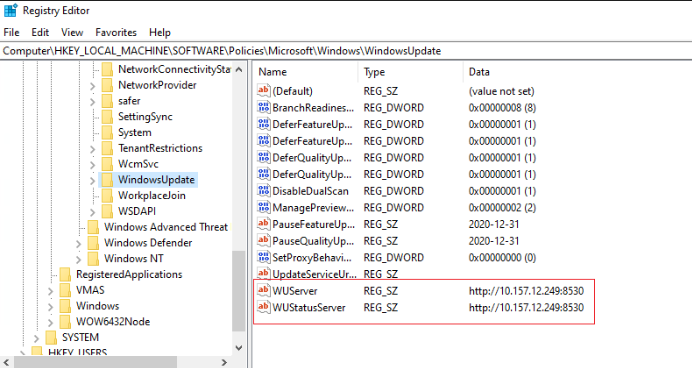
Option B — Endpoints SHOULD use Microsoft Update (cloud).
→ WSUS registry keys must be removed; otherwise scan breaks.
(Many mixed-domain environments break here.)
3. Check Registry on a Sample Machine
Path:
HKLM\SOFTWARE\Policies\Microsoft\Windows\WindowsUpdateLook for:
-
WUServer -
WUStatusServer
If missing AND WSUS is intended → fix.
If present AND the machine should use cloud updates → remove.
4. Apply Fix (Choose A or B)
🛠 A. Remediate for WSUS Environments (Set the server values)
Use this when Tanium Patch relies on your WSUS/SCCM SUP.
PowerShell: Set WSUS server
$WUServer = "http://YOUR-WSUS-SERVER:8530"
$RegPath = "HKLM:\SOFTWARE\Policies\Microsoft\Windows\WindowsUpdate"

If (-not (Test-Path $RegPath)) {
    New-Item -Path $RegPath -Force | Out-Null
}

Set-ItemProperty -Path $RegPath -Name WUServer -Value $WUServer -Type String
Set-ItemProperty -Path $RegPath -Name WUStatusServer -Value $WUServer -Type String

# Required subkey
$AUPath = "$RegPath\AU"
If (-not (Test-Path $AUPath)) {
    New-Item -Path $AUPath -Force | Out-Null
}

Set-ItemProperty -Path $AUPath -Name UseWUServer -Value 1 -Type DWord

# Reload configuration
gpupdate /force | Out-Null
Use when:
✔ Domain-joined
✔ SCCM or WSUS controlling updates
✔ Tanium Patch configured to use internal WSUS
🛠 B. Remediate for Cloud / Internet Update Environments
Use this when:
-
You are using Tanium Cloud Patch only
-
No WSUS/SCCM in the environment
-
Machines should hit Microsoft Update directly
PowerShell: Remove WSUS keys
$RegPath = "HKLM:\SOFTWARE\Policies\Microsoft\Windows\WindowsUpdate"

If (Test-Path $RegPath) {
    Remove-Item -Path $RegPath -Recurse -Force
}

gpupdate /force | Out-Null
Why this works:
Cloud-only environments break when WSUS keys exist but are empty or ghosted.
5. Trigger Update Scan
Run:
wuauclt.exe /detectnowOr simply reboot.
Then re-run the Tanium Patch scan.
6. Validate
Success means:
In Tanium Cloud using Microsoft Update, the ONLY correct configuration is:
✅ No WSUS registry keys at all.
(If they exist, even empty, Windows Update breaks and Tanium Patch errors.)
Below is the clean, safe remediation path for cloud-only environments.
✅ What your environment should look like
The following registry path should not exist:
HKLM\SOFTWARE\Policies\Microsoft\Windows\WindowsUpdateNo:
When these keys exist, the Windows Update agent thinks WSUS is required → But Tanium Cloud doesn’t set WSUS → error appears.
🛠 Final Remediation Script (Cloud Only)
This is the script you should deploy through Tanium Deploy, RMM, or manually.
✔ Safe
✔ MSP-friendly
✔ Removes ONLY WSUS configuration
✔ Leaves all other policies untouched
PowerShell: Remove WSUS Policies for Tanium Cloud
# Path to Windows Update policy key
$RegPath = "HKLM:\SOFTWARE\Policies\Microsoft\Windows\WindowsUpdate"

# Remove WSUS configuration if present
if (Test-Path $RegPath) {
    Write-Host "WSUS policy folder found. Removing it for Microsoft Update compatibility..."
    Remove-Item -Path $RegPath -Recurse -Force
} else {
    Write-Host "No WSUS policies found. Nothing to remove."
}

# Force policy refresh
gpupdate /force | Out-Null

# Force Windows Update detection
Write-Host "Triggering update scan..."
Invoke-Expression "wuauclt.exe /detectnow"

Write-Host "Remediation complete."
🔍 After Running: What You Should See
Within 5–15 minutes:
clean Tanium sensor that detects ANY WSUS configuration on endpoints — perfect for Tanium Cloud + Microsoft Update environments.
It reports:
-
Compliant → No WSUS keys (correct for Tanium Cloud)
-
Non-Compliant → WSUS keys found (will cause patch errors)
-
Includes the actual values found, so you know exactly what to fix.
You can paste this directly into Tanium → Sensors → Create New Sensor.
✅ Tanium Sensor: Detect WSUS Configuration (Cloud Patch Compliance)
Name: WSUS_Configuration_Status
Category: Patch / Compliance
Platform: Windows
Sensor Script (Copy/Paste into Tanium)
# Sensor: WSUS Configuration Status

$regPath = "HKLM:\SOFTWARE\Policies\Microsoft\Windows\WindowsUpdate"
$result = @{}

if (Test-Path $regPath) {
    # WSUS config exists → Non-Compliant for Tanium Cloud
    $values = Get-ItemProperty -Path $regPath | Select-Object *

    $result["Status"] = "Non-Compliant"

    # Extract meaningful values
    $wsusServer      = $values.WUServer
    $wsusStatusServer = $values.WUStatusServer

    if ($wsusServer)       { $result["WUServer"]      = $wsusServer }
    if ($wsusStatusServer) { $result["WUStatusServer"] = $wsusStatusServer }

} else {
    # Ideal state for Tanium Cloud → No WSUS keys
    $result["Status"] = "Compliant"
}

# Output the result in key/value format
$result.GetEnumerator() | ForEach-Object { "$($_.Key)=$($_.Value)" }
🧪 Sample Outputs
✔ Compliant system
Status=Compliant❌ Non-Compliant system (Has WSUS keys)
Status=Non-Compliant
WUServer=http://old-wsus01.contoso.local:8530
WUStatusServer=http://old-wsus01.contoso.local:8530
📊 Recommended Tanium Filter in Grid
You can create a saved Question:
Get WSUS_Configuration_Status from all machinesAdd a filter:
-
Status equals Non-Compliant
This gives you a real-time list of machines that need remediation.
---------------------------------------------------------
✅ Tanium Package: Remove WSUS Configuration (for Tanium Cloud Patch)
clean, safe, Tanium-Cloud-approved remediation package that removes WSUS configuration and forces endpoints back to Microsoft Update, eliminating:
-
WU_E_PT_SUS_SERVER_NOT_SET -
-2145107951
-
Scan failures
-
Patch deployment failures
This is formatted exactly the way Tanium expects so you can paste it directly into Tanium → Packages → Import.
Package Name: Remediate_WSUS_Config_For_Tanium_Cloud
Description:
Removes WSUS policy registry keys so endpoints use Microsoft Update as required for Tanium Cloud Patch. Fixes error WU_E_PT_SUS_SERVER_NOT_SET.
Command: PowerShell
Deploy to: Windows only
📦 PACKAGE CONTENT (COPY/PASTE INTO TANIUM)
1. Command (PowerShell)
Paste the following into the Command field of the package:
# Remediation package for Tanium Cloud - Remove WSUS config

$RegPath = "HKLM:\SOFTWARE\Policies\Microsoft\Windows\WindowsUpdate"

Write-Host "Checking for WSUS policy keys..."

if (Test-Path $RegPath) {
    Write-Host "WSUS configuration detected. Removing..."
    Remove-Item -Path $RegPath -Recurse -Force
} else {
    Write-Host "No WSUS configuration detected. No action needed."
}

# Force Group Policy refresh (non-intrusive)
gpupdate /target:computer /force | Out-Null

Start-Sleep -Seconds 3

# Trigger Windows Update detection cycle
Write-Host "Triggering Windows Update scan..."
Invoke-Expression "wuauclt.exe /detectnow"

Write-Host "WSUS remediation complete."
exit 0
🧪 2. Detection Rule (Optional but Recommended)
This prevents running on clean machines.
Create a detection rule:
IF File Exists → HKEY_LOCAL_MACHINE\SOFTWARE\Policies\Microsoft\Windows\WindowsUpdate
OR (use "Registry Value Exists"):
-
Registry key path:
HKEY_LOCAL_MACHINE\SOFTWARE\Policies\Microsoft\Windows\WindowsUpdate-
Condition: Exists
This ensures only non-compliant machines get the fix.
🔁 3. Post-Action Recommendation
After the package runs, trigger a Tanium Patch "Scan and Deploy" or schedule automatic scanning.
🧩 4. Optional: Reporting Tag
If you want a tag so you know the machine was fixed, add:
New-Item -Path "HKLM:\Software\Tanium\Remediation" -Force | Out-Null
Set-ItemProperty -Path "HKLM:\Software\Tanium\Remediation" -Name "RemovedWSUS" -Value (Get-Date).ToString()
Then you can build a sensor around this.