Tanium
This book contains all scripts related to Tanium installation, configuration, and automation tasks within my lab environment.
Contents May Include:
-
Agent deployment scripts
- Sensor and package creation
-
Module configuration helpers
-
Scheduled task automation
-
Role-based access setup
- Tanium Packages
- Creating a Tanium Package with a PowerShell Script
- Remove Folder via URL-Encoded Path
- Start-Cleanup Function
- Run DISM and SFC for System Repair
- Scan for Component Store Corruption (DISM)
- Microsoft Edge Cleanup and Reinstall Script
- Microsoft Teams - Full Removal Script
- Force Patch Scan
- Start Windows Service If Stopped
- Restart a Windows Service (Parameterized Tanium Package)
- Tanium Sensors
- Tanium Sensor: MD5 Hash of Installed Applications
- Tanium Sensor: Parameterized Service State & Start Mode
- Tanium Sensor: Windows Update Overall Health
- Tanium Sensor App Config Dot Net Map
- Dump
- Tanium Patch Module
Tanium Packages
This chapter contains a collection of Tanium Packages used for deploying and executing tasks across managed endpoints. Each package includes detailed instructions, command-line parameters, and associated scripts—primarily in PowerShell—to automate administrative actions, remediation tasks, and system maintenance. Ideal for managing package logic, reusability, and rapid deployment in enterprise environments.
Creating a Tanium Package with a PowerShell Script
-
Prepare Your PowerShell Script
Create and save your script, e.g.,Name.ps1. -
Access the Tanium Console
Go to:Administration > Content > Packages -
Create a New Package
Click “Create Package” to open the package configuration window. -
Configure the Package
-
Command:
cmd.exe /d /c powershell.exe -ExecutionPolicy Bypass -WindowStyle Hidden -NonInteractive -NoProfile -File .\Name.ps1 -
Upload Script:
Attach theName.ps1script file to the package.
-
-
Save the Package
Click Save to create your new Tanium package.
Remove Folder via URL-Encoded Path
This PowerShell script is designed to remove a folder when its path is provided in a URL-encoded format. It can be especially useful in automation pipelines or tools where folder paths are passed as encoded parameters.
Features
-
Accepts a folder path as a parameter (
$FolderPath) -
Automatically unescapes URL-encoded characters (e.g.,
%20becomes a space) -
Removes the specified folder and all its contents, if it exists
📜 Script
param (
    [string]$FolderPath = ""
)

# Unescape the URL-encoded path
$unescapedFolderPath = [Uri]::UnescapeDataString($FolderPath)

if (Test-Path -Path $unescapedFolderPath) {
    Remove-Item -Path $unescapedFolderPath -Recurse -Force
}
This script permanently deletes the folder and its contents. Ensure the path provided is correct and safe to delete.
Ideal for use in cleanup tasks, temp directory deletion, or post-deployment teardown processes.
Start-Cleanup Function
This PowerShell function automates disk cleanup tasks to help reclaim space on the C: drive, targeting common sources of junk like Windows temporary files, the SoftwareDistribution folder, IIS logs, user temp folders, and more. A detailed log is created in $env:TEMP, and cleanup only targets files older than a specified age (default is 7 days).
⚙️ Features
-
Deletes:
-
Windows temp files
-
C:\Windows\SoftwareDistribution -
User profile temp folders
-
IIS logs (if installed)
-
Recycle Bin contents
-
-
Automatically logs deletions to a timestamped file in
$env:TEMP -
Supports
-WhatIffor safe testing -
Configurable:
-
$DaysToDelete -
$LogFile -
$VerbosePreference -
$ErrorActionPreference
-
📜 Script
Function Start-Cleanup {
<#
.SYNOPSIS
   Automate cleaning up a C:\ drive with low disk space

.DESCRIPTION
   Cleans the C: drive's Window Temperary files, Windows SoftwareDistribution folder,
   the local users Temperary folder, IIS logs(if applicable) and empties the recycling bin.
   All deleted files will go into a log transcript in $env:TEMP. By default this
   script leaves files that are newer than 7 days old however this variable can be edited.

.EXAMPLE
   PS C:\> .\Start-Cleanup.ps1
   Save the file to your hard drive with a .PS1 extention and run the file from an elavated PowerShell prompt.

.NOTES
   This script will typically clean up anywhere from 1GB up to 15GB of space from a C: drive.

.FUNCTIONALITY
   PowerShell v3+
#>

## Allows the use of -WhatIf
[CmdletBinding(SupportsShouldProcess=$True)]

param(
    ## Delete data older then $daystodelete
    [Parameter(Mandatory=$false,ValueFromPipelineByPropertyName=$true,Position=0)]
    $DaysToDelete = 7,

    ## LogFile path for the transcript to be written to
    [Parameter(Mandatory=$false,ValueFromPipelineByPropertyName=$true,Position=1)]
    $LogFile = ("$env:TEMP\" + (get-date -format "MM-d-yy-HH-mm") + '.log'),

    ## All verbose outputs will get logged in the transcript($logFile)
    [Parameter(Mandatory=$false,ValueFromPipelineByPropertyName=$true,Position=2)]
    $VerbosePreference = "Continue",

    ## All errors should be withheld from the console
    [Parameter(Mandatory=$false,ValueFromPipelineByPropertyName=$true,Position=3)]
    $ErrorActionPreference = "SilentlyContinue"
)

    ## Begin the timer
    $Starters = (Get-Date)

    ## Check $VerbosePreference variable, and turns -Verbose on
    Function global:Write-Verbose ( [string]$Message ) {
        if ( $VerbosePreference -ne 'SilentlyContinue' ) {
            Write-Host "$Message" -ForegroundColor 'Green'
        }
    }

    ## Tests if the log file already exists and renames the old file if it does exist
    if(Test-Path $LogFile){
        ## Renames the log to be .old
        Rename-Item $LogFile $LogFile.old -Verbose -Force
    } else {
        ## Starts a transcript in C:\temp so you can see which files were deleted
        Write-Host (Start-Transcript -Path $LogFile) -ForegroundColor Green
    }

    ## Writes a verbose output to the screen for user information
    Write-Host "Retriving current disk percent free for comparison once the script has completed.                 " -NoNewline -ForegroundColor Green
    Write-Host "[DONE]" -ForegroundColor Green -BackgroundColor Black

    ## Gathers the amount of disk space used before running the script
    $Before = Get-WmiObject Win32_LogicalDisk | Where-Object { $_.DriveType -eq "3" } | Select-Object SystemName,
    @{ Name = "Drive" ; Expression = { ( $_.DeviceID ) } },
    @{ Name = "Size (GB)" ; Expression = {"{0:N1}" -f ( $_.Size / 1gb)}},
    @{ Name = "FreeSpace (GB)" ; Expression = {"{0:N1}" -f ( $_.Freespace / 1gb ) } },
    @{ Name = "PercentFree" ; Expression = {"{0:P1}" -f ( $_.FreeSpace / $_.Size ) } } |
        Format-Table -AutoSize |
        Out-String

    ## Stops the windows update service so that c:\windows\softwaredistribution can be cleaned up
    Get-Service -Name wuauserv | Stop-Service -Force -ErrorAction SilentlyContinue -WarningAction SilentlyContinue -Verbose

    # Sets the SCCM cache size to 1 GB if it exists.
    if ((Get-WmiObject -namespace root\ccm\SoftMgmtAgent -class CacheConfig) -ne "$null"){
        # if data is returned and sccm cache is configured it will shrink the size to 1024MB.
        $cache = Get-WmiObject -namespace root\ccm\SoftMgmtAgent -class CacheConfig
        $Cache.size = 1024 | Out-Null
        $Cache.Put() | Out-Null
        Restart-Service ccmexec -ErrorAction SilentlyContinue -WarningAction SilentlyContinue
    }

    ## Deletes the contents of windows software distribution.
    Get-ChildItem "C:\Windows\SoftwareDistribution\*" -Recurse -Force -ErrorAction SilentlyContinue | Remove-Item -recurse -ErrorAction SilentlyContinue -Verbose
    Write-Host "The Contents of Windows SoftwareDistribution have been removed successfully!                      " -NoNewline -ForegroundColor Green
    Write-Host "[DONE]" -ForegroundColor Green -BackgroundColor Black

    ## Deletes the contents of the Windows Temp folder.
    Get-ChildItem "C:\Windows\Temp\*" -Recurse -Force -Verbose -ErrorAction SilentlyContinue |
        Where-Object { ($_.CreationTime -lt $(Get-Date).AddDays( - $DaysToDelete)) } | Remove-Item -force -recurse -ErrorAction SilentlyContinue -Verbose
    Write-host "The Contents of Windows Temp have been removed successfully!                                      " -NoNewline -ForegroundColor Green
    Write-Host "[DONE]" -ForegroundColor Green -BackgroundColor Black


    ## Deletes all files and folders in user's Temp folder older then $DaysToDelete
    Get-ChildItem "C:\users\*\AppData\Local\Temp\*" -Recurse -Force -ErrorAction SilentlyContinue |
        Where-Object { ($_.CreationTime -lt $(Get-Date).AddDays( - $DaysToDelete))} |
        Remove-Item -force -recurse -ErrorAction SilentlyContinue -Verbose
    Write-Host "The contents of `$env:TEMP have been removed successfully!                                         " -NoNewline -ForegroundColor Green
    Write-Host "[DONE]" -ForegroundColor Green -BackgroundColor Black

    ## Removes all files and folders in user's Temporary Internet Files older then $DaysToDelete
    Get-ChildItem "C:\users\*\AppData\Local\Microsoft\Windows\Temporary Internet Files\*" `
        -Recurse -Force -Verbose -ErrorAction SilentlyContinue |
        Where-Object {($_.CreationTime -lt $(Get-Date).AddDays( - $DaysToDelete))} |
        Remove-Item -Force -Recurse -ErrorAction SilentlyContinue -Verbose
    Write-Host "All Temporary Internet Files have been removed successfully!                                      " -NoNewline -ForegroundColor Green
    Write-Host "[DONE]" -ForegroundColor Green -BackgroundColor Black

    ## Removes *.log from C:\windows\CBS
    if(Test-Path C:\Windows\logs\CBS\){
    Get-ChildItem "C:\Windows\logs\CBS\*.log" -Recurse -Force -ErrorAction SilentlyContinue |
        remove-item -force -recurse -ErrorAction SilentlyContinue -Verbose
    Write-Host "All CBS logs have been removed successfully!                                                      " -NoNewline -ForegroundColor Green
    Write-Host "[DONE]" -ForegroundColor Green -BackgroundColor Black
    } else {
        Write-Host "C:\inetpub\logs\LogFiles\ does not exist, there is nothing to cleanup.                         " -NoNewline -ForegroundColor DarkGray
        Write-Host "[WARNING]" -ForegroundColor DarkYellow -BackgroundColor Black
    }

    ## Cleans IIS Logs older then $DaysToDelete
    if (Test-Path C:\inetpub\logs\LogFiles\) {
        Get-ChildItem "C:\inetpub\logs\LogFiles\*" -Recurse -Force -ErrorAction SilentlyContinue |
            Where-Object { ($_.CreationTime -lt $(Get-Date).AddDays(-60)) } | Remove-Item -Force -Verbose -Recurse -ErrorAction SilentlyContinue
        Write-Host "All IIS Logfiles over $DaysToDelete days old have been removed Successfully!                  " -NoNewline -ForegroundColor Green
        Write-Host "[DONE]" -ForegroundColor Green -BackgroundColor Black
    }
    else {
        Write-Host "C:\Windows\logs\CBS\ does not exist, there is nothing to cleanup.                                 " -NoNewline -ForegroundColor DarkGray
        Write-Host "[WARNING]" -ForegroundColor DarkYellow -BackgroundColor Black
    }

    ## Removes C:\Config.Msi
    if (test-path C:\Config.Msi){
        remove-item -Path C:\Config.Msi -force -recurse -Verbose -ErrorAction SilentlyContinue
    } else {
        Write-Host "C:\Config.Msi does not exist, there is nothing to cleanup.                                        " -NoNewline -ForegroundColor DarkGray
        Write-Host "[WARNING]" -ForegroundColor DarkYellow -BackgroundColor Black
    }

    ## Removes c:\Intel
    if (test-path c:\Intel){
        remove-item -Path c:\Intel -force -recurse -Verbose -ErrorAction SilentlyContinue
    } else {
        Write-Host "c:\Intel does not exist, there is nothing to cleanup.                                             " -NoNewline -ForegroundColor DarkGray
        Write-Host "[WARNING]" -ForegroundColor DarkYellow -BackgroundColor Black
    }

    ## Removes c:\PerfLogs
    if (test-path c:\PerfLogs){
        remove-item -Path c:\PerfLogs -force -recurse -Verbose -ErrorAction SilentlyContinue
    } else {
        Write-Host "c:\PerfLogs does not exist, there is nothing to cleanup.                                          " -NoNewline -ForegroundColor DarkGray
        Write-Host "[WARNING]" -ForegroundColor DarkYellow -BackgroundColor Black
    }

    ## Removes $env:windir\memory.dmp
    if (test-path $env:windir\memory.dmp){
        remove-item $env:windir\memory.dmp -force -Verbose -ErrorAction SilentlyContinue
    } else {
        Write-Host "C:\Windows\memory.dmp does not exist, there is nothing to cleanup.                                " -NoNewline -ForegroundColor DarkGray
        Write-Host "[WARNING]" -ForegroundColor DarkYellow -BackgroundColor Black
    }

    ## Removes rouge folders
    Write-host "Deleting Rouge folders                                                                            " -NoNewline -ForegroundColor Green
    Write-Host "[DONE]" -ForegroundColor Green -BackgroundColor Black

    ## Removes Windows Error Reporting files
    if (test-path C:\ProgramData\Microsoft\Windows\WER){
        Get-ChildItem -Path C:\ProgramData\Microsoft\Windows\WER -Recurse | Remove-Item -force -recurse -Verbose -ErrorAction SilentlyContinue
            Write-host "Deleting Windows Error Reporting files                                                            " -NoNewline -ForegroundColor Green
            Write-Host "[DONE]" -ForegroundColor Green -BackgroundColor Black
        } else {
            Write-Host "C:\ProgramData\Microsoft\Windows\WER does not exist, there is nothing to cleanup.            " -NoNewline -ForegroundColor DarkGray
            Write-Host "[WARNING]" -ForegroundColor DarkYellow -BackgroundColor Black
    }

    ## Removes System and User Temp Files - lots of access denied will occur.
    ## Cleans up c:\windows\temp
    if (Test-Path $env:windir\Temp\) {
        Remove-Item -Path "$env:windir\Temp\*" -Force -Recurse -Verbose -ErrorAction SilentlyContinue
    } else {
            Write-Host "C:\Windows\Temp does not exist, there is nothing to cleanup.                                 " -NoNewline -ForegroundColor DarkGray
            Write-Host "[WARNING]" -ForegroundColor DarkYellow -BackgroundColor Black
    }

    ## Cleans up minidump
    if (Test-Path $env:windir\minidump\) {
        Remove-Item -Path "$env:windir\minidump\*" -Force -Recurse -Verbose -ErrorAction SilentlyContinue
    } else {
            Write-Host "$env:windir\minidump\ does not exist, there is nothing to cleanup.                           " -NoNewline -ForegroundColor DarkGray
            Write-Host "[WARNING]" -ForegroundColor DarkYellow -BackgroundColor Black
    }

    ## Cleans up prefetch
    if (Test-Path $env:windir\Prefetch\) {
        Remove-Item -Path "$env:windir\Prefetch\*" -Force -Recurse -Verbose -ErrorAction SilentlyContinue
    } else {
            Write-Host "$env:windir\Prefetch\ does not exist, there is nothing to cleanup.                           " -NoNewline -ForegroundColor DarkGray
            Write-Host "[WARNING]" -ForegroundColor DarkYellow -BackgroundColor Black
    }

    ## Cleans up each users temp folder
    if (Test-Path "C:\Users\*\AppData\Local\Temp\") {
        Remove-Item -Path "C:\Users\*\AppData\Local\Temp\*" -Force -Recurse -Verbose -ErrorAction SilentlyContinue
    } else {
            Write-Host "C:\Users\*\AppData\Local\Temp\ does not exist, there is nothing to cleanup.                  " -NoNewline -ForegroundColor DarkGray
            Write-Host "[WARNING]" -ForegroundColor DarkYellow -BackgroundColor Black
    }

    ## Cleans up all users windows error reporting
    if (Test-Path "C:\Users\*\AppData\Local\Microsoft\Windows\WER\") {
        Remove-Item -Path "C:\Users\*\AppData\Local\Microsoft\Windows\WER\*" -Force -Recurse -Verbose -ErrorAction SilentlyContinue
    } else {
            Write-Host "C:\ProgramData\Microsoft\Windows\WER does not exist, there is nothing to cleanup.            " -NoNewline -ForegroundColor DarkGray
            Write-Host "[WARNING]" -ForegroundColor DarkYellow -BackgroundColor Black
    }

    ## Cleans up users temporary internet files
    if (Test-Path "C:\Users\*\AppData\Local\Microsoft\Windows\Temporary Internet Files\") {
        Remove-Item -Path "C:\Users\*\AppData\Local\Microsoft\Windows\Temporary Internet Files\*" -Force -Recurse -Verbose -ErrorAction SilentlyContinue
    } else {
            Write-Host "C:\Users\*\AppData\Local\Microsoft\Windows\Temporary Internet Files\ does not exist.              " -NoNewline -ForegroundColor DarkGray
            Write-Host "[WARNING]" -ForegroundColor DarkYellow -BackgroundColor Black
    }

    ## Cleans up Internet Explorer cache
    if (Test-Path "C:\Users\*\AppData\Local\Microsoft\Windows\IECompatCache\") {
        Remove-Item -Path "C:\Users\*\AppData\Local\Microsoft\Windows\IECompatCache\*" -Force -Recurse -Verbose -ErrorAction SilentlyContinue
    } else {
            Write-Host "C:\Users\*\AppData\Local\Microsoft\Windows\IECompatCache\ does not exist.                         " -NoNewline -ForegroundColor DarkGray
            Write-Host "[WARNING]" -ForegroundColor DarkYellow -BackgroundColor Black
    }

    ## Cleans up Internet Explorer cache
    if (Test-Path "C:\Users\*\AppData\Local\Microsoft\Windows\IECompatUaCache\") {
        Remove-Item -Path "C:\Users\*\AppData\Local\Microsoft\Windows\IECompatUaCache\*" -Force -Recurse -Verbose -ErrorAction SilentlyContinue
    } else {
            Write-Host "C:\Users\*\AppData\Local\Microsoft\Windows\IECompatUaCache\ does not exist.                       " -NoNewline -ForegroundColor DarkGray
            Write-Host "[WARNING]" -ForegroundColor DarkYellow -BackgroundColor Black
    }

    ## Cleans up Internet Explorer download history
    if (Test-Path "C:\Users\*\AppData\Local\Microsoft\Windows\IEDownloadHistory\") {
        Remove-Item -Path "C:\Users\*\AppData\Local\Microsoft\Windows\IEDownloadHistory\*" -Force -Recurse -Verbose -ErrorAction SilentlyContinue
    } else {
            Write-Host "C:\Users\*\AppData\Local\Microsoft\Windows\IEDownloadHistory\ does not exist.                     " -NoNewline -ForegroundColor DarkGray
            Write-Host "[WARNING]" -ForegroundColor DarkYellow -BackgroundColor Black
    }

    ## Cleans up Internet Cache
    if (Test-Path "C:\Users\*\AppData\Local\Microsoft\Windows\INetCache\") {
        Remove-Item -Path "C:\Users\*\AppData\Local\Microsoft\Windows\INetCache\*" -Force -Recurse -Verbose -ErrorAction SilentlyContinue
    } else {
            Write-Host "C:\Users\*\AppData\Local\Microsoft\Windows\INetCache\ does not exist.                             " -NoNewline -ForegroundColor DarkGray
            Write-Host "[WARNING]" -ForegroundColor DarkYellow -BackgroundColor Black
    }

    ## Cleans up Internet Cookies
    if (Test-Path "C:\Users\*\AppData\Local\Microsoft\Windows\INetCookies\") {
        Remove-Item -Path "C:\Users\*\AppData\Local\Microsoft\Windows\INetCookies\*" -Force -Recurse -Verbose -ErrorAction SilentlyContinue
    } else {
            Write-Host "C:\Users\*\AppData\Local\Microsoft\Windows\INetCookies\ does not exist.                           " -NoNewline -ForegroundColor DarkGray
            Write-Host "[WARNING]" -ForegroundColor DarkYellow -BackgroundColor Black
    }

    ## Cleans up terminal server cache
    if (Test-Path "C:\Users\*\AppData\Local\Microsoft\Terminal Server Client\Cache\") {
        Remove-Item -Path "C:\Users\*\AppData\Local\Microsoft\Terminal Server Client\Cache\*" -Force -Recurse -Verbose -ErrorAction SilentlyContinue
    } else {
            Write-Host "C:\Users\*\AppData\Local\Microsoft\Terminal Server Client\Cache\ does not exist.                  " -NoNewline -ForegroundColor DarkGray
            Write-Host "[WARNING]" -ForegroundColor DarkYellow -BackgroundColor Black
    }

    Write-host "Removing System and User Temp Files                                                               " -NoNewline -ForegroundColor Green
    Write-Host "[DONE]" -ForegroundColor Green -BackgroundColor Black

    ## Removes the hidden recycling bin.
    if (Test-path 'C:\$Recycle.Bin'){
        Remove-Item 'C:\$Recycle.Bin' -Recurse -Force -Verbose -ErrorAction SilentlyContinue
    } else {
        Write-Host "C:\`$Recycle.Bin does not exist, there is nothing to cleanup.                                      " -NoNewline -ForegroundColor DarkGray
        Write-Host "[WARNING]" -ForegroundColor DarkYellow -BackgroundColor Black
    }

    ## Turns errors back on
    $ErrorActionPreference = "Continue"

    ## Checks the version of PowerShell
    ## If PowerShell version 4 or below is installed the following will process
    if ($PSVersionTable.PSVersion.Major -le 4) {

        ## Empties the recycling bin, the desktop recyling bin
        $Recycler = (New-Object -ComObject Shell.Application).NameSpace(0xa)
        $Recycler.items() | ForEach-Object {
            ## If PowerShell version 4 or bewlow is installed the following will process
            Remove-Item -Include $_.path -Force -Recurse -Verbose
            Write-Host "The recycling bin has been cleaned up successfully!                                        " -NoNewline -ForegroundColor Green
            Write-Host "[DONE]" -ForegroundColor Green -BackgroundColor Black
        }
    } elseif ($PSVersionTable.PSVersion.Major -ge 5) {
         ## If PowerShell version 5 is running on the machine the following will process
         Clear-RecycleBin -DriveLetter C:\ -Force -Verbose
         Write-Host "The recycling bin has been cleaned up successfully!                                               " -NoNewline -ForegroundColor Green
         Write-Host "[DONE]" -ForegroundColor Green -BackgroundColor Black
    }

    ## Starts cleanmgr.exe
    Function Start-CleanMGR {
        Try{
            Write-Host "Windows Disk Cleanup is running.                                                                  " -NoNewline -ForegroundColor Green
            Start-Process -FilePath Cleanmgr -ArgumentList '/sagerun:1' -Wait -Verbose
            Write-Host "[DONE]" -ForegroundColor Green -BackgroundColor Black
        }
        Catch [System.Exception]{
            Write-host "cleanmgr is not installed! To use this portion of the script you must install the following windows features:" -ForegroundColor Red -NoNewline
            Write-host "[ERROR]" -ForegroundColor Red -BackgroundColor black
        }
    } Start-CleanMGR

    ## gathers disk usage after running the cleanup cmdlets.
    $After = Get-WmiObject Win32_LogicalDisk | Where-Object { $_.DriveType -eq "3" } | Select-Object SystemName,
    @{ Name = "Drive" ; Expression = { ( $_.DeviceID ) } },
    @{ Name = "Size (GB)" ; Expression = {"{0:N1}" -f ( $_.Size / 1gb)}},
    @{ Name = "FreeSpace (GB)" ; Expression = {"{0:N1}" -f ( $_.Freespace / 1gb ) } },
    @{ Name = "PercentFree" ; Expression = {"{0:P1}" -f ( $_.FreeSpace / $_.Size ) } } |
        Format-Table -AutoSize | Out-String

    ## Restarts wuauserv
    Get-Service -Name wuauserv | Start-Service -ErrorAction SilentlyContinue

    ## Stop timer
    $Enders = (Get-Date)

    ## Calculate amount of seconds your code takes to complete.
    Write-Verbose "Elapsed Time: $(($Enders - $Starters).totalseconds) seconds

"
    ## Sends hostname to the console for ticketing purposes.
    Write-Host (Hostname) -ForegroundColor Green

    ## Sends the date and time to the console for ticketing purposes.
    Write-Host (Get-Date | Select-Object -ExpandProperty DateTime) -ForegroundColor Green

    ## Sends the disk usage before running the cleanup script to the console for ticketing purposes.
    Write-Verbose "
Before: $Before"

    ## Sends the disk usage after running the cleanup script to the console for ticketing purposes.
    Write-Verbose "After: $After"

    ## Prompt to scan for large ISO, VHD, VHDX files.
    Function PromptforScan {
        param(
            $ScanPath,
            $title = (Write-Host "Search for large files" -ForegroundColor Green),
            $message = (Write-Host "Would you like to scan $ScanPath for ISOs or VHD(X) files?" -ForegroundColor Green)
        )
        $yes = New-Object System.Management.Automation.Host.ChoiceDescription "&Yes", "Scans $ScanPath for large files."
        $no = New-Object System.Management.Automation.Host.ChoiceDescription "&No", "Skips scanning $ScanPath for large files."
        $options = [System.Management.Automation.Host.ChoiceDescription[]]($yes, $no)
        $prompt = $host.ui.PromptForChoice($title, $message, $options, 0)
        switch ($prompt) {
            0 {
                Write-Host "Scanning $ScanPath for any large .ISO and or .VHD\.VHDX files per the Administrators request." -ForegroundColor Green
                Write-Verbose ( Get-ChildItem -Path $ScanPath -Include *.iso, *.vhd, *.vhdx -Recurse -ErrorAction SilentlyContinue |
                        Sort-Object Length -Descending | Select-Object Name, Directory,
                    @{Name = "Size (GB)"; Expression = { "{0:N2}" -f ($_.Length / 1GB) }} | Format-Table |
                        Out-String -verbose )
            }
            1 {
                Write-Host "The Administrator chose to not scan $ScanPath for large files." -ForegroundColor DarkYellow -Verbose
            }
        }
    }
    PromptforScan -ScanPath C:\  # end of function

    ## Completed Successfully!
    Write-Host (Stop-Transcript) -ForegroundColor Green

    Write-host "
Script finished                                                                                   " -NoNewline -ForegroundColor Green
    Write-Host "[DONE]" -ForegroundColor Green -BackgroundColor Black

}
Start-Cleanup
⚠️ Caution
-
Run from an elevated PowerShell prompt
-
Ensure no critical data exists in cleanup paths
-
Always test with
-WhatIfin production environments
Run DISM and SFC for System Repair
This PowerShell script performs a two-step process to repair system integrity issues on Windows. It first runs the DISM tool to restore the system image and then executes SFC to scan and repair system files, only if DISM completes successfully.
⚙️ Features
-
Automates the standard DISM + SFC repair sequence
-
Color-coded console messages for success or failure
-
Check DISM completion before running SFC to avoid redundant operations
💻 Script
# Run DISM to repair the system image
Write-Host "Running DISM repair..." -ForegroundColor Green
dism /online /cleanup-image /restorehealth

# Check if DISM was successful before running SFC
if ($?) {
    Write-Host "DISM completed successfully. Running SFC..." -ForegroundColor Green
    # Run SFC to scan and repair system files
    sfc /scannow
} else {
    Write-Host "DISM failed. Please check the DISM logs for errors." -ForegroundColor Red
}
📝 Notes
-
Requires Administrator privileges
-
Best used when:
-
Windows features aren't working correctly
-
Updates fail repeatedly
-
System file corruption is suspected
-
-
Log files:
-
DISM:
%windir%\Logs\DISM\dism.log -
SFC:
%windir%\Logs\CBS\CBS.log
-
Suitable for ad‑hoc remediation or targeted deployments.
-
Recommended for systems with suspected component store corruption, repeated update failures, or unexplained instability.
-
Because these operations can be lengthy and resource‑intensive, schedule deployments during maintenance windows where possible and monitor Tanium results for completion and error codes.
Alternative Method
Create a Tanium package and enter the following in the command field. This method does not require uploading a script.
cmd /c ..\..\Tools\StdUtils\TPowershell.exe -ExecutionPolicy Bypass -Command "DISM /ONLINE /CLEANUP-IMAGE /SCANHEALTH;DISM /ONLINE /CLEANUP-IMAGE /CHECKHEALTH;DISM.exe /Online /Cleanup-image /Restorehealth;dism.exe /Online /Cleanup-Image /StartComponentCleanup;sfc /scannow"
TPowershell.exe runs a PowerShell context that sequentially executes DISM /ScanHealth, /CheckHealth, /RestoreHealth, /StartComponentCleanup, and then sfc /scannow, in a single remediation action.
Scan for Component Store Corruption (DISM)
This PowerShell script uses DISM /ScanHealth to check for corruption in the Windows Component Store. It captures the output and searches the logs for any corruption-related entries, optionally saving details to a text file for review.
🔍 Features
-
Runs
DISM /ScanHealthto check system health -
Logs output to a temporary file
-
Searches for corruption-related entries
-
Saves details about corrupted files (if found) to a text file
-
Useful for early detection of system integrity issues
💻 Script
# Run DISM to check for component store corruption
$logFile = "$env:TEMP\DISM.log"
$corruptFileList = "$env:TEMP\CorruptFiles.txt"

# Run the DISM command and capture the output
$DISMOutput = dism /Online /Cleanup-Image /ScanHealth 2>&1 | Tee-Object -FilePath $logFile

# Look for corruption indicators in the DISM log
$corruptEntries = $DISMOutput | Select-String "corrupt"

# Extract corrupted file paths (if any)
if ($corruptEntries) {
    Write-Output "Corrupt files detected. Extracting details..."

    # Read DISM logs to locate potential corrupt files
    $dismLogPath = "C:\Windows\Logs\DISM\dism.log"
    $foundFiles = Select-String -Path $dismLogPath -Pattern "(.+corrupt:.+)" -AllMatches | ForEach-Object { $_.Matches.Groups[1].Value }

    if ($foundFiles) {
        $foundFiles | Out-File -FilePath $corruptFileList
        Write-Output "Corrupt files list saved to: $corruptFileList"
        Get-Content $corruptFileList
    } else {
        Write-Output "Corruption detected, but no specific files were listed in the logs."
    }
} else {
    Write-Output "No corruption found."
}
📝 Notes
-
Admin rights are required to run this script.
-
Output files:
-
DISM Output:
$env:TEMP\DISM.log -
Corrupt File List:
$env:TEMP\CorruptFiles.txt
-
-
Log parsing may not identify every type of corruption. Always review
C:\Windows\Logs\DISM\dism.logmanually for critical diagnostics.
Use this script proactively to detect and investigate potential system health problems before they escalate.
Microsoft Edge Cleanup and Reinstall Script
This page documents a robust PowerShell script used to completely remove an application (like Microsoft Edge) and reinstall it cleanly. It's especially useful when traditional uninstallation or update processes fail, leaving broken traces behind.
📄 About
This script helps remove:
-
Registry entries
-
Scheduled tasks
-
Background services
-
Running processes
-
Residual folders and files
🔧 Configuration Tips
Finding Configurations:
-
Search online for:
-
Uninstall GUIDs
-
File paths
-
Registry keys
-
-
Define:
-
$regNameToMatch -
$knownUninstallers -
$knownPathsToDelete, etc.
-
-
Repeat if needed: leftover services or background tasks can require multiple runs.
Get-ItemProperty "HKLM:\SOFTWARE\WOW6432Node\Microsoft\Windows\CurrentVersion\Uninstall\*" -ErrorAction SilentlyContinue |
    Where-Object { $_.DisplayName -eq "Microsoft Edge" } |
    Select-Object PSChildName, DisplayName, DisplayVersion, SystemComponent, UninstallString, WindowsInstaller |
    Format-List
powershell.exe -NoProfile -EncodedCommand JABrACAAPQAgAEcAZQB0AC0ASQB0AGUAbQBQAHIAbwBwAGUAcgB0AHkAIAAnAEgASwBMAE0AOgBcAFMATwBGAFQAVwBBAFIARQBcAFcATwBXADYANAAzADIATgBvAGQAZQBcAE0AaQBjAHIAbwBzAG8AZgB0AFwAVwBpAG4AZABvAHcAcwBcAEMAdQByAHIAZQBuAHQAVgBlAHIAcwBpAG8AbgBcAFUAbgBpAG4AcwB0AGEAbABsAFwATQBpAGMAcgBvAHMAbwBmAHQAIABFAGQAZwBlACcAIAAtAEUAcgByAG8AcgBBAGMAdABpAG8AbgAgAFMAaQBsAGUAbgB0AGwAeQBDAG8AbgB0AGkAbgB1AGUACgBpAGYAIAAoACQAawApACAAewAKACAAIAAgACAAJABlAHgAZQBQAGEAdABoACAAPQAgACQAawAuAFUAbgBpAG4AcwB0AGEAbABsAFMAdAByAGkAbgBnACAALQByAGUAcABsAGEAYwBlACAAJwBeACIAKABbAF4AIgBdACsAKQAiAC4AKgAnACwAJwAkADEAJwAKACAAIAAgACAAIgBTAHkAcwB0AGUAbQBDAG8AbQBwAG8AbgBlAG4AdAA9ACQAKAAkAGsALgBTAHkAcwB0AGUAbQBDAG8AbQBwAG8AbgBlAG4AdAApACAAfAAgAEUAeABlAEUAeABpAHMAdABzAD0AJAAoAFQAZQBzAHQALQBQAGEAdABoACAAJABlAHgAZQBQAGEAdABoACkAIAB8ACAARQB4AGUAUABhAHQAaAA9ACQAZQB4AGUAUABhAHQAaAAiAAoAfQAgAGUAbABzAGUAIAB7AAoAIAAgACAAIAAnAEsAZQB5ACAAbgBvAHQAIABwAHIAZQBzAGUAbgB0ACcACgB9AA==Remove duplicate key
powershell.exe -NoProfile -EncodedCommand JABwACAAPQAgACcASABLAEwATQA6AFwAUwBPAEYAVABXAEEAUgBFAFwAVwBPAFcANgA0ADMAMgBOAG8AZABlAFwATQBpAGMAcgBvAHMAbwBmAHQAXABXAGkAbgBkAG8AdwBzAFwAQwB1AHIAcgBlAG4AdABWAGUAcgBzAGkAbwBuAFwAVQBuAGkAbgBzAHQAYQBsAGwAXABNAGkAYwByAG8AcwBvAGYAdAAgAEUAZABnAGUAJwAKAGkAZgAgACgAVABlAHMAdAAtAFAAYQB0AGgAIAAkAHAAKQAgAHsACgAgACAAIAAgAFIAZQBtAG8AdgBlAC0ASQB0AGUAbQAgAC0AUABhAHQAaAAgACQAcAAgAC0ARgBvAHIAYwBlAAoAIAAgACAAIAAiAFIAZQBtAG8AdgBlAGQAIABkAHUAcABsAGkAYwBhAHQAZQAgAGsAZQB5ADoAIAAkAHAAIgAKAH0AIABlAGwAcwBlACAAewAKACAAIAAgACAAIgBLAGUAeQAgAG4AbwB0ACAAcAByAGUAcwBlAG4AdAAgAC0AIABuAG8AdABoAGkAbgBnACAAdABvACAAcgBlAG0AbwB2AGUAIgAKAH0A
Remove-Item "HKLM:\SOFTWARE\WOW6432Node\Microsoft\Windows\CurrentVersion\Uninstall\Microsoft Edge" -Force🛠️ Script
###
### About
###
#    Application Cleanup and Reinstall
#   What is this?
#       This PowerShell script helps remove most traces of an installed application
#       so you can reinstall it cleanly. It targets leftover files, folders, and registry
#       entries that can block updates or fresh installs. It was originally built to
#       remove problematic versions of Microsoft Edge that failed to update.
#   How to find configurations?
#       1. Search online for uninstall GUIDs, file paths, and registry keys related to
#       your application. Official docs or forums often list these details.
#       2. Use RegShot (on GitHub) to capture "before" and "after" system snapshots.
#       Compare them to see which files and registry entries the installer added.
#       3. In the script, specify top-level folders, file patterns, and registry keys you
#       want removed. It will also scan the usual uninstall locations by name.
#       4. If the first run doesn’t catch everything, repeat the process. Look for
#       background processes, services, or custom registry keys not covered initially.
#   Having issues?
#       Please email me with detailed information:
#       • RegShot comparison report
#       • Script output or action log
#       • List of running processes
#       • Your script configurations
#       The more data you provide, the faster we can diagnose and fix the problem.
######################################################################################################################
######################################################################################################################
###
### Configurations
###
######################################################################################################################
$regNameToMatch = "Microsoft Edge"
#   This setting tells the script what application name to look for when scanning standard uninstall registry
#   locations. It uses a "match" operation against the Name, DisplayName, and ProductName properties in those
#   registry keys. Use a clear, unique identifier for your app so you don’t accidentally remove other software.
#   Example usage
#       $regNameToMatch = "Microsoft Edge"
#   This will match any registry entries whose Name, DisplayName, or ProductName contains "Microsoft Edge"
######################################################################################################################
$knownUninstallers = @('"C:\Program Files (x86)\Microsoft\Edge\Application\*\Installer\setup.exe" --uninstall --system-level --force-uninstall')
#   Define known uninstaller paths Add any known uninstaller executable locations to this array. You can use PowerShell
#   wildcards (\*) to match varying folder names. If the path includes spaces, wrap it in single quotes on the outside
#   and double quotes for the executable path.
#   Example usage
#       $knownUninstallers = @(
#           '"C:\Program Files (x86)\Microsoft\Edge\Application\*\Installer\setup.exe" --uninstall --system-level --force-uninstall'
#       )
######################################################################################################################
$scheduledTasksNameToRemove = "Edge"
#   Configure scheduled task removalThis array specifies a name pattern to search for in Scheduled Tasks.The script
#   uses a "like" operator, adding wildcards (*) before and afterthe name you provide to match any part of the task name.
#   Example usage
#       $scheduledTasksNameToRemove = "Edge"
#   This will match tasks containing "Edge" anywhere in their names.
######################################################################################################################
$processNamesToStop = @("msedge","msedgewebview2","widget","msiexec","MicrosoftEdgeUpdate")
#   Define processes to stop List any running process names that should be terminated at the start of cleanup.
#   You can include wildcards (*) for partial matches.
#   Example usage
#      $processNamesToStop = @("msedge","msedgewebview2","widget","msiexec","MicrosoftEdgeUpdate")
#   This will stop any processes matching those names before uninstall steps begin.
######################################################################################################################
$knownPathsToDelete = @(
    "HKLM:\SOFTWARE\Microsoft\EdgeUpdate",
    "HKLM:\SOFTWARE\WOW6432Node\Microsoft\EdgeUpdate",
    "HKLM:\SOFTWARE\Microsoft\Edge",
    "HKLM:\SOFTWARE\WOW6432Node\Microsoft\Edge",
    "C:\Program Files (x86)\Microsoft\Edge",
    "C:\ProgramData\Microsoft\EdgeUpdate"
)
#   Define known paths to delete. Specify any registry keys or file paths to remove during cleanup.
#   Use PowerShell paths for registry (e.g., HKLM:...) and standard file paths. Wildcards (*) can be used.
#   Example usage
#        $knownPathsToDelete = @(
#           "HKLM:\SOFTWARE\Microsoft\EdgeUpdate",
#           "HKLM:\SOFTWARE\WOW6432Node\Microsoft\EdgeUpdate",
#           "C:\Program Files (x86)\Microsoft\Edge"
#        )
######################################################################################################################
$knownsServicesToDelete = @()
#   Define services to delete List any service names to remove during cleanup. The script uses sc.exe to delete
#   matching services. Wildcards (*) are supported.
#   Example usage
#      $knownServicesToDelete = @("*Soup*")
#   This will delete any service whose name contains "Soup"
######################################################################################################################
$installerStrings = @("msiexec.exe /i MicrosoftEdgeEnterpriseX64.msi /qn")
#   Define install commands for reinstallation If you plan to reinstall the application, list the full install
#   commands here. Include the executable and all arguments. Installer files must reside in the script’s working
#   directory, so you can call them by name without a full path.
#   Example usage
#      $installerStrings = @("msiexec.exe /i MicrosoftEdgeEnterpriseX64.msi /qn")
######################################################################################################################
$executableTimeoutSeconds = 300
#   Configure executable timeout This setting defines the maximum time (in seconds) the script will wait for any
#   executable to finish. Keep this value as low as possible to avoid hanging on installers that launch interactive GUIs.
#   Example usage
#      $executableTimeoutSeconds = 300
#   This sets a 5-minute timeout for each executable call.
######################################################################################################################
######################################################################################################################
###
### Main function can be modified to change the order of operation or additional rounds
###
######################################################################################################################
function Main {
    SetLog("Starting Cleanup")
    Stop-AppProcessesByName($processNamesToStop)
    Remove-ScheduledActions($scheduledTasksNameToRemove)
    Remove-KnownServices($knownsServicesToDelete)
    Invoke-KnownUninstallStrings($knownUninstallers)
    $cleanupPaths = Find-AllRegistryLocations($regNameToMatch)
    $GUIDs =  Get-GUIDFromRegPath($cleanupPaths)
    $cleanupPaths = $cleanupPaths +  (Expand-GUIDPaths($GUIDs))
    Invoke-MSIUninstall($GUIDs)
    Invoke-UninstallStrings($cleanupPaths)
    Remove-CleanupItems($knownPathsToDelete)
    Remove-CleanupItems($cleanupPaths)
    Invoke-InstallStrings($installerStrings)
    SetLog("Cleanup complete")
}
######################################################################################################################
######################################################################################################################
###
### Working function below this point. If you find modifications are needed, please
### reach out for assistance or share your changes. This will allow others to avoid
### and benefit from the issues you  encountered. jeff@chuco.com
###
######################################################################################################################
function SetLog($logline){
    Write-Host ("[{0:MM/dd/yy} {0:HH:mm:ss}]" -f (Get-Date) + $logline)
}

function Remove-KnownServices($services){
    if($services.count -eq 0){
        return
    }
    SetLog("Removing Services")
    foreach($service in $services){
        $svcs = Get-Service $service
        SetLog("Found $($svcs.count) service(s) using $service")
        #looping through if multiple services are found
        foreach($svc in $svcs){
            $thisName = $svc.Name
            if($svc.status -eq "Running"){
                SetLog("Service $thisName is running. Attempting to stop before removal.")
                $svc | Stop-Service -ErrorAction SilentlyContinue
            }
            SetLog("Attempting to remove: $thisName")
            sc.exe delete ($thisName)
            if((Get-Service $thisName).count -eq 0){
                SetLog("Service removed")
            } else {
                SetLog("Failed to remove service")
            }
        }
    }
}

function Invoke-KnownUninstallStrings($strings){
    Invoke-ExecutableStrArr -arr $strings -msg "Starting known uninstall strings"
}
function Invoke-ExecutableStrArr{
    param(
        [array]$arr,
        [string]$msg
    )
    if($arr.count -eq 0){
        return
    }
    SetLog($msg)
    foreach($string in $arr){
        $stringParts = Expand-ExecutableString($string)
        Invoke-Executable @($stringParts.path,$stringParts.args)
    }
}

function Invoke-InstallStrings($installers){
    Invoke-ExecutableStrArr -arr $installers -msg "Starting installer(s)"
}

function Stop-AppProcessesByName($procNames){
    SetLog("Stopping Application Processes")
    $procNames = ConvertTo-Array $procNames
    foreach($procName in $procNames){
        SetLog("Looking for processes with name $procName")
        $attempt = 0
        do{
            if($attempt -gt 0 ){
                SetLog("Attempt number $($attempt+1) to stop processes for $procName")
            }

            $procs = Get-Process | Where-Object {$_.Name -match $procName}
            foreach($proc in $procs){
                try{
                    SetLog("Stopping process $($proc.processname) PID $($proc.id)")
                    Stop-Process -Id $proc.Id -Force -ErrorAction SilentlyContinue
                }catch{
                    SetLog("ERROR stopping process: $($Error[0].Exception.Message)")
                    SetLog("ERROR NAME: $($error[0].Exception.GetType().FullName)")
                }
            }
            Start-Sleep 1
            $attempt++
        }while(Get-Process | Where-Object {$_.Name -match $procName})
    }
}

function Invoke-MSIUninstall($GUIDs){
    if($GUIDs.count -eq 0){
        return
    }
    SetLog("Uninstall by GUID")
    foreach($GUID in $GUIDs){
        Invoke-Executable @("msiexec.exe","/x $GUID /q")
    }
}

function Invoke-UninstallStrings($cleanupObj){
    foreach($path in $cleanupObj){
        $targetStrings = New-Object System.Collections.ArrayList
        foreach($props in (Get-ItemProperty $path)){
            $propKeys = $props.PSObject.Properties.Name
            #Locate any well know uninstall string locations
            if($propKeys -contains "UninstallString"){
                $targetStrings.add($props.UninstallString) | Out-Null
            }
            if($propKeys -contains "QuietUninstallString"){
                $targetStrings.add($props.QuietUninstallString) | Out-Null
            }
            if($targetStrings.count -eq 0){
                SetLog("Unhandled potential props: $($propKeys -join ", ")")
            }
        }

        foreach($targetString in $targetStrings){
            if($targetString -match "MsiExec"){
                if($targetString -match ".*({.*}).*"){
                    Invoke-MSIUninstall @($Matches[1])
                }else{
                    Invoke-Executable @("msiexec.exe","/X $($targetString) /q")
                }
            } else {
                #Regex to extract the executable and arguments
                $exeStrings = Expand-ExecutableString($targetString)
                if($exeStrings){
                    Invoke-Executable @($exeStrings['Path'],$exeStrings['Args'])
                } else {
                    SetLog("Unable to process uninstall string: $($targetString)")
                }
            }
        }
    }
}

function Expand-ExecutableString($str){
    $pattern = '(?:"(?<Path>[A-Za-z]:\\[^"\\]+(?:\\[^"\\]+)*)"|(?<Path>[A-Za-z]:\\\S+(?:\\\S+)*)|(?<Path>[\w\.-]+\.exe))(?:\s+(?<Args>.*))?'
    if($str -match $pattern){
      return [PSCustomObject]@{
            Path = $Matches['Path']
            Args = $Matches['Args']
        }
    }
    return $false
}

function Expand-GUIDPaths($GUIDs){
    $results = New-Object System.Collections.ArrayList
    foreach($GUID in $GUIDs){
        $productCode = Convert-GUIDToMsiProductCode($GUID)
        $productCodeRegistryPath = (Get-Item "HKLM:\SOFTWARE\Microsoft\Windows\CurrentVersion\Installer\UserData\S-1-5-18\Products\$productCode").PSPath
        $results.add(($productCodeRegistryPath))|Out-Null
        $results + (Find-AllRegistryLocations($GUID)) + (Find-AllRegistryLocations($productCode))
    }
    return $results
}

function Get-GUIDFromRegPath($pathsObj){
    $results = New-Object System.Collections.ArrayList
    foreach($path in $pathsObj){
        if($path -match ".*({.*}).*"){
            $results.add($Matches[1])|Out-Null
        }
    }
    if($results.Count -gt 0){
        return $results
    } else {
        return $null
    }
}

Function Find-AllRegistryLocations($appName){
    SetLog("Locating all application registry values for $appName")
    $results = New-Object System.Collections.ArrayList
    $paths = @(
            "HKLM:\SOFTWARE\Microsoft\Windows\CurrentVersion\Uninstall",
            "HKLM:\SOFTWARE\WOW6432Node\Microsoft\Windows\CurrentVersion\Uninstall",
            "HKLM:\SOFTWARE\Classes\Installer\Products",
            "HKLM:\SOFTWARE\Classes\Installer\UpgradeCodes",
            "HKLM:\SOFTWARE\Microsoft\Windows\CurrentVersion\Installer\Folders"
        )
    #To work with the asterisk path needed for HKU an additional loop is required
    foreach($path in @("Registry::HKEY_USERS\*\SOFTWARE\Microsoft\Windows\CurrentVersion\Uninstall","Registry::HKEY_USERS\*\SOFTWARE\Wow6432Node\Microsoft\Windows\CurrentVersion\Uninstall")){
        Get-ChildItem $path | ForEach-Object {$paths += $_.PSPath}
    }
    $valuesOfInterest = @("Name","DisplayName","ProductName")
     foreach ($path in $paths){
        if (Test-Path $path){
            $regHive = Get-ChildItem -Path $path
            foreach($regKey in $regHive){
                $thisPSPath = $regKey.PSPath
                if($thisPSPath -match $appName){
                    SetLog("FOUND: $thisPSPath")
                    $results.Add($thisPSPath)|Out-Null
                    continue
                }
                foreach($value in $valuesOfInterest){
                    try{
                        $foundValue = Get-ItemPropertyValue -Path $thisPSPath -Name $value
                        if($foundValue -match $appName){
                            $results.Add($thisPSPath)|Out-Null
                        }
                    }catch [System.Management.Automation.PSArgumentException]{
                        #Nothing to do - This reg did not have one of the values
                    }catch{
                        #Log it for later review
                        SetLog("ERROR: $($Error[0].Exception.Message)")
                        SetLog("ERROR NAME: $($error[0].Exception.GetType().FullName)")
                    }

                }
            }
        }
    }
    return $results | Select-Object -Unique
}

function Convert-GUIDToMsiProductCode {
    param([string]$Guid)
    $ProductIDChars = [regex]::replace($GUID, "[^a-zA-Z0-9]", "")
    $RearrangedCharIndex = 7,6,5,4,3,2,1,0,11,10,9,8,15,14,13,12,17,16,19,18,21,20,23,22,25,24,27,26,29,28,31,30
    Return -join ($RearrangedCharIndex | ForEach-Object{$ProductIDChars[$_]})
}

function ConvertTo-Array($in){
    if(-not($in -is [array])){
        return @($in)
    }
    return $in
}

function Invoke-Executable($un){
    SetLog("Expanding: $un")
    try{
        $thisPaths = Get-Item $un[0] -ErrorAction SilentlyContinue
    }catch{
        #nothing to do. catch to silence errors
    }
    if($thisPaths.count -eq 0 -and -not($un[0] -match "\*")){
        $thisPaths = @{}
        $thisPaths.FullName = $un[0]
    }
    if($thisPaths.count -eq 0){
        SetLog("No executable found")
        return
    }
    #Looping through to handle variable paths returning multiple
    foreach($thisPath in $thisPaths){
        $exePath = $thisPath.fullname
        if($null -eq $exePath -or $exePath -eq ""){
            continue
        }
        SetLog("Starting command: $exePath $($un[1])")
        if($un[1]){
            $thisPoc = Start-Process $exePath -ArgumentList ($un[1]) -PassThru -ErrorAction SilentlyContinue
        } else {
            $thisPoc = Start-Process $exePath -PassThru -ErrorAction SilentlyContinue
        }
        if ($thisPoc){
            try{
                Wait-Process -Id $thisPoc.Id -Timeout $executableTimeoutSeconds
            }catch{
                SetLog("ERROR: executable exceeded timed out (max: $executableTimeoutSeconds)")
                Stop-Process -Id $thisPoc.Id -Force
            }
        } else {
            SetLog("Failed to start executable process")
        }
        SetLog("ExitCode: $($thisPoc.ExitCode)")
    }
}

function Remove-ScheduledActions($name){
    SetLog("Checking for scheduled tasks with task name like: $name")
    $tasks = Get-ScheduledTask | Where-Object { $_.TaskName -like "*$name*" }
    if ($tasks) {
        foreach ($task in $tasks) {
            SetLog("Removing scheduled task: $($task.TaskName)")
            Unregister-ScheduledTask -TaskName $task.TaskName -Confirm:$false -ErrorAction SilentlyContinue
        }
    } else {
        SetLog("No scheduled tasks found with task name like: $name")
    }
}

function Remove-CleanupItems($paths){
    if($paths.count -eq 0){
        return
    }
    SetLog("Removing items by path")
    $paths = ConvertTo-Array $paths
    foreach($path in $paths){
        if(Test-Path $path){
            SetLog("Found and removing item: $path")
            Remove-Item -Path $path -Recurse -Force -Erroraction SilentlyContinue
            SetLog("Item removed: $(-not(Test-Path $path))")
        } else {
            SetLog("Item found during scan no longer exists: $path")
        }
    }
}

Main
<#
.SYNOPSIS
    Converts a self-updating (setup.exe-based) Microsoft Edge system-level install
    to the MSI Enterprise build, so Tanium has authoritative control over the version.

.DESCRIPTION
    Targets endpoints where Edge was installed via the Chromium standalone/self-update
    installer (registers under HKLM Uninstall as "Microsoft Edge" with a setup.exe
    UninstallString, no MSI ProductCode). It:
      1. Detects that install type (skips machines already on MSI - nothing to do).
      2. Stops/disables the EdgeUpdate service + scheduled tasks so they can't
         re-trigger an install or fight the uninstall mid-flight.
      3. Force-uninstalls the existing Edge using its own registered uninstall string.
      4. Installs the Enterprise MSI (must be staged in the same Tanium package).
      5. Optionally re-enables EdgeUpdate afterwards (see $ReenableEdgeUpdate below) -
         decide this based on whether Tanium alone should own patching, or whether
         you want EdgeUpdate as a safety net between Tanium cycles.

.NOTES
    Package this script + the Enterprise MSI (Stable x64) in the same Tanium package.
    Download the MSI from https://www.microsoft.com/edge/business/download
    Run as SYSTEM (standard Tanium package context).
#>

[CmdletBinding()]
param(
    # Name of the MSI file staged alongside this script in the Tanium package.
    # Tanium extracts package files into the working directory the action runs from,
    # so a relative name is normally sufficient - adjust if your package structure differs.
    [string]$MsiName = "MicrosoftEdgeEnterpriseX64.msi",

    # Set to $true if you want EdgeUpdate re-enabled after the MSI install
    # (lets Edge self-patch between Tanium cycles). $false leaves Tanium as the
    # sole patch authority - recommended if "silent drift" is what caused this
    # problem in the first place.
    [bool]$ReenableEdgeUpdate = $false,

    [string]$LogPath = "$env:ProgramData\_TaniumLogs\Convert-Edge-to-MSI.log"
)

$ErrorActionPreference = "Stop"
New-Item -ItemType Directory -Path (Split-Path $LogPath) -Force | Out-Null
Start-Transcript -Path $LogPath -Append | Out-Null

function Write-Log { param($msg) Write-Host "[$(Get-Date -Format 'yyyy-MM-dd HH:mm:ss')] $msg" }

# ---------------------------------------------------------------------------
# 1. Detect current install type
# ---------------------------------------------------------------------------
$uninstallKeyPaths = @(
    "HKLM:\SOFTWARE\WOW6432Node\Microsoft\Windows\CurrentVersion\Uninstall\Microsoft Edge",
    "HKLM:\SOFTWARE\Microsoft\Windows\CurrentVersion\Uninstall\Microsoft Edge"
)

$edgeKey = $null
foreach ($p in $uninstallKeyPaths) {
    if (Test-Path $p) { $edgeKey = Get-ItemProperty -Path $p; break }
}

if (-not $edgeKey) {
    Write-Log "No self-update Edge install found under expected uninstall keys. Nothing to convert. Exiting 0."
    Stop-Transcript | Out-Null
    exit 0
}

$uninstallString = $edgeKey.UninstallString
if (-not $uninstallString -or $uninstallString -notmatch "setup\.exe") {
    Write-Log "Edge is registered, but UninstallString doesn't look like the self-update setup.exe form ($uninstallString). Likely already MSI-based. Exiting 0."
    Stop-Transcript | Out-Null
    exit 0
}

Write-Log "Self-update Edge detected. UninstallString: $uninstallString"

# ---------------------------------------------------------------------------
# 2. Disable EdgeUpdate service + scheduled tasks so nothing re-triggers
#    a background install/update mid-conversion
# ---------------------------------------------------------------------------
Write-Log "Stopping EdgeUpdate service and scheduled tasks..."

Stop-Service -Name "edgeupdate" -Force -ErrorAction SilentlyContinue
Set-Service  -Name "edgeupdate" -StartupType Disabled -ErrorAction SilentlyContinue
Stop-Service -Name "edgeupdatem" -Force -ErrorAction SilentlyContinue
Set-Service  -Name "edgeupdatem" -StartupType Disabled -ErrorAction SilentlyContinue

Get-ScheduledTask -TaskName "MicrosoftEdgeUpdateTaskMachineCore*" -ErrorAction SilentlyContinue | Disable-ScheduledTask -ErrorAction SilentlyContinue | Out-Null
Get-ScheduledTask -TaskName "MicrosoftEdgeUpdateTaskMachineUA*"   -ErrorAction SilentlyContinue | Disable-ScheduledTask -ErrorAction SilentlyContinue | Out-Null

# ---------------------------------------------------------------------------
# 3. Force-uninstall existing Edge
# ---------------------------------------------------------------------------
# Parse "path arg1 arg2..." out of the UninstallString (it's quoted exe + args)
if ($uninstallString -match '^"([^"]+)"\s*(.*)$') {
    $exePath = $matches[1]
    $exeArgs = $matches[2]
} else {
    $split = $uninstallString.Split(" ", 2)
    $exePath = $split[0]
    $exeArgs = $split[1]
}

if (-not (Test-Path $exePath)) {
    Write-Log "ERROR: setup.exe not found at $exePath. Cannot uninstall. Exiting 1603."
    Stop-Transcript | Out-Null
    exit 1603
}

# --force-uninstall is required, otherwise Edge's own setup.exe blocks removal
# when it's the last/default browser or when EdgeUpdate is still fighting it.
$fullArgs = "$exeArgs --force-uninstall"
Write-Log "Running: `"$exePath`" $fullArgs"

$proc = Start-Process -FilePath $exePath -ArgumentList $fullArgs -Wait -PassThru -WindowStyle Hidden
Write-Log "Uninstall exit code: $($proc.ExitCode)"

if ($proc.ExitCode -ne 0) {
    Write-Log "WARNING: Non-zero uninstall exit code. Continuing to MSI install anyway (setup.exe often returns nonzero on partial cleanup even when removal succeeded) - will validate at the end."
}

Start-Sleep -Seconds 5

# ---------------------------------------------------------------------------
# 4. Install the Enterprise MSI
# ---------------------------------------------------------------------------
$msiPath = Join-Path $PSScriptRoot $MsiName
if (-not (Test-Path $msiPath)) {
    Write-Log "ERROR: MSI not found at $msiPath. Verify it's staged in the Tanium package alongside this script. Exiting 1603."
    Stop-Transcript | Out-Null
    exit 1603
}

$msiLog = "$env:ProgramData\_TaniumLogs\EdgeMSI_Install.log"
$msiArgs = "/i `"$msiPath`" /qn /norestart DONOTCREATEDESKTOPSHORTCUT=TRUE /log `"$msiLog`""
Write-Log "Running: msiexec.exe $msiArgs"

$msiProc = Start-Process -FilePath "msiexec.exe" -ArgumentList $msiArgs -Wait -PassThru
Write-Log "MSI install exit code: $($msiProc.ExitCode)"

if ($msiProc.ExitCode -notin @(0, 3010)) {
    Write-Log "ERROR: MSI install failed. See $msiLog for details."
    Stop-Transcript | Out-Null
    exit $msiProc.ExitCode
}

# ---------------------------------------------------------------------------
# 5. Optionally re-enable EdgeUpdate; otherwise leave it disabled so Tanium
#    stays the single source of truth for the version on this endpoint
# ---------------------------------------------------------------------------
if ($ReenableEdgeUpdate) {
    Write-Log "Re-enabling EdgeUpdate service/tasks per `$ReenableEdgeUpdate."
    Set-Service -Name "edgeupdate" -StartupType Automatic -ErrorAction SilentlyContinue
    Start-Service -Name "edgeupdate" -ErrorAction SilentlyContinue
    Get-ScheduledTask -TaskName "MicrosoftEdgeUpdateTaskMachineCore*" -ErrorAction SilentlyContinue | Enable-ScheduledTask -ErrorAction SilentlyContinue | Out-Null
    Get-ScheduledTask -TaskName "MicrosoftEdgeUpdateTaskMachineUA*"   -ErrorAction SilentlyContinue | Enable-ScheduledTask -ErrorAction SilentlyContinue | Out-Null
} else {
    Write-Log "Leaving EdgeUpdate disabled - Tanium/MSI is now the sole patch path for Edge on this endpoint."
    # Belt-and-suspenders: also block EdgeUpdate from re-registering itself
    # for the Stable channel via policy, in case anything re-enables the service later.
    $edgeUpdatePolicyPath = "HKLM:\SOFTWARE\Policies\Microsoft\EdgeUpdate"
    New-Item -Path $edgeUpdatePolicyPath -Force | Out-Null
    New-ItemProperty -Path $edgeUpdatePolicyPath -Name "Update{56EB18F8-B008-4CBD-B6D2-8C97FE7E9062}" -PropertyType DWord -Value 0 -Force | Out-Null
}

# ---------------------------------------------------------------------------
# Validate: confirm MSI ProductCode is now registered (Tanium sensor target)
# ---------------------------------------------------------------------------
$msiRegistered = Get-ItemProperty "HKLM:\SOFTWARE\WOW6432Node\Microsoft\Windows\CurrentVersion\Uninstall\*" -ErrorAction SilentlyContinue |
    Where-Object { $_.DisplayName -eq "Microsoft Edge" -and $_.WindowsInstaller -eq 1 }

if ($msiRegistered) {
    Write-Log "SUCCESS: MSI-based Edge confirmed - version $($msiRegistered.DisplayVersion), ProductCode $($msiRegistered.PSChildName)."
    Stop-Transcript | Out-Null
    exit 0
} else {
    Write-Log "ERROR: MSI product not found in registry after install - conversion did not complete cleanly."
    Stop-Transcript | Out-Null
    exit 1603
}
<#
.SYNOPSIS
Converts a self-updating (setup.exe-based) Microsoft Edge system-level install
to the MSI Enterprise build, so Tanium has authoritative control over the version.
.DESCRIPTION
Targets endpoints where Edge was installed via the Chromium standalone/self-update
installer (registers under HKLM Uninstall as "Microsoft Edge" with a setup.exe
UninstallString, no MSI ProductCode). It:
1. Detects that install type (skips machines already on MSI - nothing to do).
2. Stops/disables the EdgeUpdate service + scheduled tasks so they can't
re-trigger an install or fight the uninstall mid-flight.
3. Force-uninstalls the existing Edge using its own registered uninstall string.
4. Installs the Enterprise MSI (must be staged in the same Tanium package).
5. Optionally re-enables EdgeUpdate afterwards (see $ReenableEdgeUpdate below) -
decide this based on whether Tanium alone should own patching, or whether
you want EdgeUpdate as a safety net between Tanium cycles.
.NOTES
Package this script + the Enterprise MSI (Stable x64) in the same Tanium package.
Download the MSI from https://www.microsoft.com/edge/business/download
Run as SYSTEM (standard Tanium package context).
#>
[CmdletBinding()]
param(
# Name of the MSI file staged alongside this script in the Tanium package.
# Tanium extracts package files into the working directory the action runs from,
# so a relative name is normally sufficient - adjust if your package structure differs.
[string]$MsiName = "MicrosoftEdgeEnterpriseX64.msi",
# Set to $true if you want EdgeUpdate re-enabled after the MSI install
# (lets Edge self-patch between Tanium cycles). $false leaves Tanium as the
# sole patch authority - recommended if "silent drift" is what caused this
# problem in the first place.
[bool]$ReenableEdgeUpdate = $false,
[string]$LogPath = "$env:ProgramData\_TaniumLogs\Convert-Edge-to-MSI.log"
)
$ErrorActionPreference = "Stop"
New-Item -ItemType Directory -Path (Split-Path $LogPath) -Force | Out-Null
Start-Transcript -Path $LogPath -Append | Out-Null
function Write-Log { param($msg) Write-Host "[$(Get-Date -Format 'yyyy-MM-dd HH:mm:ss')] $msg" }
# ---------------------------------------------------------------------------
# 1. Detect current install state.
# IMPORTANT: "not found" is NOT the same as "already converted, skip."
# A prior cleanup pass (or a failed earlier attempt) can leave a machine
# with NO Edge registration at all - that machine still needs the MSI
# installed, it just doesn't need the uninstall step first.
# ---------------------------------------------------------------------------
$uninstallKeyPaths = @(
"HKLM:\SOFTWARE\WOW6432Node\Microsoft\Windows\CurrentVersion\Uninstall\Microsoft Edge",
"HKLM:\SOFTWARE\Microsoft\Windows\CurrentVersion\Uninstall\Microsoft Edge"
)
$edgeKey = $null
foreach ($p in $uninstallKeyPaths) {
if (Test-Path $p) { $edgeKey = Get-ItemProperty -Path $p; break }
}
$alreadyMsi = Get-ItemProperty "HKLM:\SOFTWARE\WOW6432Node\Microsoft\Windows\CurrentVersion\Uninstall\*" -ErrorAction SilentlyContinue |
Where-Object { $_.DisplayName -eq "Microsoft Edge" -and $_.WindowsInstaller -eq 1 }
if ($alreadyMsi) {
Write-Log "MSI-based Edge already installed (version $($alreadyMsi.DisplayVersion)). Nothing to do. Exiting 0."
Stop-Transcript | Out-Null
exit 0
}
$needsUninstall = $false
if ($edgeKey -and $edgeKey.UninstallString -match "setup\.exe") {
$needsUninstall = $true
$uninstallString = $edgeKey.UninstallString
Write-Log "Self-update Edge detected. UninstallString: $uninstallString"
} else {
Write-Log "No self-update Edge registration found (likely already removed by a prior cleanup pass). Skipping uninstall step and proceeding straight to MSI install."
}
# ---------------------------------------------------------------------------
# 2. Disable EdgeUpdate service + scheduled tasks so nothing re-triggers
# a background install/update mid-conversion
# ---------------------------------------------------------------------------
Write-Log "Stopping EdgeUpdate service and scheduled tasks..."
Stop-Service -Name "edgeupdate" -Force -ErrorAction SilentlyContinue
Set-Service -Name "edgeupdate" -StartupType Disabled -ErrorAction SilentlyContinue
Stop-Service -Name "edgeupdatem" -Force -ErrorAction SilentlyContinue
Set-Service -Name "edgeupdatem" -StartupType Disabled -ErrorAction SilentlyContinue
Get-ScheduledTask -TaskName "MicrosoftEdgeUpdateTaskMachineCore*" -ErrorAction SilentlyContinue | Disable-ScheduledTask -ErrorAction SilentlyContinue | Out-Null
Get-ScheduledTask -TaskName "MicrosoftEdgeUpdateTaskMachineUA*" -ErrorAction SilentlyContinue | Disable-ScheduledTask -ErrorAction SilentlyContinue | Out-Null
# ---------------------------------------------------------------------------
# 3. Force-uninstall existing Edge (only if one was actually detected)
# ---------------------------------------------------------------------------
if ($needsUninstall) {
# Parse "path arg1 arg2..." out of the UninstallString (it's quoted exe + args)
if ($uninstallString -match '^"([^"]+)"\s*(.*)$') {
$exePath = $matches[1]
$exeArgs = $matches[2]
} else {
$split = $uninstallString.Split(" ", 2)
$exePath = $split[0]
$exeArgs = $split[1]
}
if (-not (Test-Path $exePath)) {
Write-Log "setup.exe not found at $exePath (likely already removed). Skipping uninstall step, proceeding to install."
} else {
# --force-uninstall is required, otherwise Edge's own setup.exe blocks removal
# when it's the last/default browser or when EdgeUpdate is still fighting it.
$fullArgs = "$exeArgs --force-uninstall"
Write-Log "Running: `"$exePath`" $fullArgs"
$proc = Start-Process -FilePath $exePath -ArgumentList $fullArgs -Wait -PassThru -WindowStyle Hidden
Write-Log "Uninstall exit code: $($proc.ExitCode)"
if ($proc.ExitCode -ne 0) {
Write-Log "WARNING: Non-zero uninstall exit code. Continuing to MSI install anyway (setup.exe often returns nonzero on partial cleanup even when removal succeeded) - will validate at the end."
}
Start-Sleep -Seconds 5
}
} else {
Write-Log "No uninstall needed - proceeding directly to MSI install."
}
# ---------------------------------------------------------------------------
# 4. Install the Enterprise MSI
# ---------------------------------------------------------------------------
$msiPath = Join-Path $PSScriptRoot $MsiName
if (-not (Test-Path $msiPath)) {
Write-Log "ERROR: MSI not found at $msiPath. Verify it's staged in the Tanium package alongside this script. Exiting 1603."
Stop-Transcript | Out-Null
exit 1603
}
$msiLog = "$env:ProgramData\_TaniumLogs\EdgeMSI_Install.log"
$msiArgs = "/i `"$msiPath`" /qn /norestart DONOTCREATEDESKTOPSHORTCUT=TRUE /log `"$msiLog`""
Write-Log "Running: msiexec.exe $msiArgs"
$msiProc = Start-Process -FilePath "msiexec.exe" -ArgumentList $msiArgs -Wait -PassThru
Write-Log "MSI install exit code: $($msiProc.ExitCode)"
if ($msiProc.ExitCode -notin @(0, 3010)) {
Write-Log "ERROR: MSI install failed. See $msiLog for details."
Stop-Transcript | Out-Null
exit $msiProc.ExitCode
}
# ---------------------------------------------------------------------------
# 5. Optionally re-enable EdgeUpdate; otherwise leave it disabled so Tanium
# stays the single source of truth for the version on this endpoint
# ---------------------------------------------------------------------------
if ($ReenableEdgeUpdate) {
Write-Log "Re-enabling EdgeUpdate service/tasks per `$ReenableEdgeUpdate."
Set-Service -Name "edgeupdate" -StartupType Automatic -ErrorAction SilentlyContinue
Start-Service -Name "edgeupdate" -ErrorAction SilentlyContinue
Get-ScheduledTask -TaskName "MicrosoftEdgeUpdateTaskMachineCore*" -ErrorAction SilentlyContinue | Enable-ScheduledTask -ErrorAction SilentlyContinue | Out-Null
Get-ScheduledTask -TaskName "MicrosoftEdgeUpdateTaskMachineUA*" -ErrorAction SilentlyContinue | Enable-ScheduledTask -ErrorAction SilentlyContinue | Out-Null
} else {
Write-Log "Leaving EdgeUpdate disabled - Tanium/MSI is now the sole patch path for Edge on this endpoint."
# Belt-and-suspenders: also block EdgeUpdate from re-registering itself
# for the Stable channel via policy, in case anything re-enables the service later.
$edgeUpdatePolicyPath = "HKLM:\SOFTWARE\Policies\Microsoft\EdgeUpdate"
New-Item -Path $edgeUpdatePolicyPath -Force | Out-Null
New-ItemProperty -Path $edgeUpdatePolicyPath -Name "Update{56EB18F8-B008-4CBD-B6D2-8C97FE7E9062}" -PropertyType DWord -Value 0 -Force | Out-Null
}
# ---------------------------------------------------------------------------
# Validate: confirm MSI ProductCode is now registered (Tanium sensor target)
# ---------------------------------------------------------------------------
$msiRegistered = Get-ItemProperty "HKLM:\SOFTWARE\WOW6432Node\Microsoft\Windows\CurrentVersion\Uninstall\*" -ErrorAction SilentlyContinue |
Where-Object { $_.DisplayName -eq "Microsoft Edge" -and $_.WindowsInstaller -eq 1 }
if ($msiRegistered) {
Write-Log "SUCCESS: MSI-based Edge confirmed - version $($msiRegistered.DisplayVersion), ProductCode $($msiRegistered.PSChildName)."
Stop-Transcript | Out-Null
exit 0
} else {
Write-Log "ERROR: MSI product not found in registry after install - conversion did not complete cleanly."
Stop-Transcript | Out-Null
exit 1603
}<#
.SYNOPSIS
Converts a self-updating (setup.exe-based) Microsoft Edge system-level install
to the MSI Enterprise build, so Tanium has authoritative control over the version.
.DESCRIPTION
Targets endpoints where Edge was installed via the Chromium standalone/self-update
installer (registers under HKLM Uninstall as "Microsoft Edge" with a setup.exe
UninstallString, no MSI ProductCode). It:
1. Detects that install type (skips machines already on MSI - nothing to do).
2. Stops/disables the EdgeUpdate service + scheduled tasks so they can't
re-trigger an install or fight the uninstall mid-flight.
3. Force-uninstalls the existing Edge using its own registered uninstall string.
4. Installs the Enterprise MSI (must be staged in the same Tanium package).
5. Optionally re-enables EdgeUpdate afterwards (see $ReenableEdgeUpdate below) -
decide this based on whether Tanium alone should own patching, or whether
you want EdgeUpdate as a safety net between Tanium cycles.
.NOTES
Package this script + the Enterprise MSI (Stable x64) in the same Tanium package.
Download the MSI from https://www.microsoft.com/edge/business/download
Run as SYSTEM (standard Tanium package context).
#>
[CmdletBinding()]
param(
# Name of the MSI file staged alongside this script in the Tanium package.
# Tanium extracts package files into the working directory the action runs from,
# so a relative name is normally sufficient - adjust if your package structure differs.
[string]$MsiName = "MicrosoftEdgeEnterpriseX64.msi",
# Set to $true if you want EdgeUpdate re-enabled after the MSI install
# (lets Edge self-patch between Tanium cycles). $false leaves Tanium as the
# sole patch authority - recommended if "silent drift" is what caused this
# problem in the first place.
[bool]$ReenableEdgeUpdate = $false,
[string]$LogPath = "$env:ProgramData\_TaniumLogs\Convert-Edge-to-MSI.log"
)
$ErrorActionPreference = "Stop"
New-Item -ItemType Directory -Path (Split-Path $LogPath) -Force | Out-Null
Start-Transcript -Path $LogPath -Append | Out-Null
function Write-Log { param($msg) Write-Host "[$(Get-Date -Format 'yyyy-MM-dd HH:mm:ss')] $msg" }
# ---------------------------------------------------------------------------
# 1. Detect current install state.
# IMPORTANT: "not found" is NOT the same as "already converted, skip."
# A prior cleanup pass (or a failed earlier attempt) can leave a machine
# with NO Edge registration at all - that machine still needs the MSI
# installed, it just doesn't need the uninstall step first.
# ---------------------------------------------------------------------------
$uninstallKeyPaths = @(
"HKLM:\SOFTWARE\WOW6432Node\Microsoft\Windows\CurrentVersion\Uninstall\Microsoft Edge",
"HKLM:\SOFTWARE\Microsoft\Windows\CurrentVersion\Uninstall\Microsoft Edge"
)
$edgeKey = $null
foreach ($p in $uninstallKeyPaths) {
if (Test-Path $p) { $edgeKey = Get-ItemProperty -Path $p; break }
}
$alreadyMsi = Get-ItemProperty "HKLM:\SOFTWARE\WOW6432Node\Microsoft\Windows\CurrentVersion\Uninstall\*" -ErrorAction SilentlyContinue |
Where-Object { $_.DisplayName -eq "Microsoft Edge" -and $_.WindowsInstaller -eq 1 }
if ($alreadyMsi) {
Write-Log "MSI-based Edge already installed (version $($alreadyMsi.DisplayVersion)). Nothing to do. Exiting 0."
Stop-Transcript | Out-Null
exit 0
}
$needsUninstall = $false
if ($edgeKey -and $edgeKey.UninstallString -match "setup\.exe") {
$needsUninstall = $true
$uninstallString = $edgeKey.UninstallString
Write-Log "Self-update Edge detected. UninstallString: $uninstallString"
} else {
Write-Log "No self-update Edge registration found (likely already removed by a prior cleanup pass). Skipping uninstall step and proceeding straight to MSI install."
}
# ---------------------------------------------------------------------------
# 2. Disable EdgeUpdate service + scheduled tasks so nothing re-triggers
# a background install/update mid-conversion
# ---------------------------------------------------------------------------
Write-Log "Stopping EdgeUpdate service and scheduled tasks..."
Stop-Service -Name "edgeupdate" -Force -ErrorAction SilentlyContinue
Set-Service -Name "edgeupdate" -StartupType Disabled -ErrorAction SilentlyContinue
Stop-Service -Name "edgeupdatem" -Force -ErrorAction SilentlyContinue
Set-Service -Name "edgeupdatem" -StartupType Disabled -ErrorAction SilentlyContinue
Get-ScheduledTask -TaskName "MicrosoftEdgeUpdateTaskMachineCore*" -ErrorAction SilentlyContinue | Disable-ScheduledTask -ErrorAction SilentlyContinue | Out-Null
Get-ScheduledTask -TaskName "MicrosoftEdgeUpdateTaskMachineUA*" -ErrorAction SilentlyContinue | Disable-ScheduledTask -ErrorAction SilentlyContinue | Out-Null
# ---------------------------------------------------------------------------
# 3. Force-uninstall existing Edge (only if one was actually detected)
# ---------------------------------------------------------------------------
if ($needsUninstall) {
# Parse "path arg1 arg2..." out of the UninstallString (it's quoted exe + args)
if ($uninstallString -match '^"([^"]+)"\s*(.*)$') {
$exePath = $matches[1]
$exeArgs = $matches[2]
} else {
$split = $uninstallString.Split(" ", 2)
$exePath = $split[0]
$exeArgs = $split[1]
}
if (-not (Test-Path $exePath)) {
Write-Log "setup.exe not found at $exePath (likely already removed). Skipping uninstall step, proceeding to install."
} else {
# --force-uninstall is required, otherwise Edge's own setup.exe blocks removal
# when it's the last/default browser or when EdgeUpdate is still fighting it.
$fullArgs = "$exeArgs --force-uninstall"
Write-Log "Running: `"$exePath`" $fullArgs"
$proc = Start-Process -FilePath $exePath -ArgumentList $fullArgs -Wait -PassThru -WindowStyle Hidden
Write-Log "Uninstall exit code: $($proc.ExitCode)"
if ($proc.ExitCode -ne 0) {
Write-Log "WARNING: Non-zero uninstall exit code. Continuing to MSI install anyway (setup.exe often returns nonzero on partial cleanup even when removal succeeded) - will validate at the end."
}
Start-Sleep -Seconds 5
}
} else {
Write-Log "No uninstall needed - proceeding directly to MSI install."
}
# ---------------------------------------------------------------------------
# 3.5. Clear known EdgeUpdate policy blocks before attempting the MSI install.
# The MSI's "DoInstall" custom action honors HKLM\SOFTWARE\Policies\Microsoft\EdgeUpdate
# just like the bootstrapper does. If Install{GUID}=0 or InstallDefault=0 is present
# (commonly pushed by GPO/Intune baselines to prevent Edge reinstalls), the install
# fails with "Error 1722 ... CustomAction DoInstall returned actual error code
# -2147219438/-2147219674" - a documented Microsoft issue, not a package problem.
# NOTE: if your org reasserts this via GPO/Intune on its next refresh cycle, clearing
# it here is only a point-in-time fix for this deployment - flag it to whoever owns
# that policy if you see it recur.
# ---------------------------------------------------------------------------
$edgeUpdatePolicyKey = "HKLM:\SOFTWARE\Policies\Microsoft\EdgeUpdate"
$stableInstallPolicyName = "Install{56EB18F8-B008-4CBD-B6D2-8C97FE7E9062}"
if (Test-Path $edgeUpdatePolicyKey) {
$props = Get-ItemProperty -Path $edgeUpdatePolicyKey -ErrorAction SilentlyContinue
if ($props -and ($props.PSObject.Properties.Name -contains $stableInstallPolicyName) -and ($props.$stableInstallPolicyName -eq 0)) {
Write-Log "Found blocking policy '$stableInstallPolicyName = 0' under $edgeUpdatePolicyKey - this blocks Edge installs by any method. Clearing it so the MSI can install."
Remove-ItemProperty -Path $edgeUpdatePolicyKey -Name $stableInstallPolicyName -ErrorAction SilentlyContinue
}
if ($props -and ($props.PSObject.Properties.Name -contains "InstallDefault") -and ($props.InstallDefault -eq 0)) {
Write-Log "Found blocking policy 'InstallDefault = 0' under $edgeUpdatePolicyKey. Clearing it so the MSI can install."
Remove-ItemProperty -Path $edgeUpdatePolicyKey -Name "InstallDefault" -ErrorAction SilentlyContinue
}
} else {
Write-Log "No EdgeUpdate policy key present at $edgeUpdatePolicyKey - nothing to clear."
}
# ---------------------------------------------------------------------------
# 4. Install the Enterprise MSI
# ---------------------------------------------------------------------------
$msiPath = Join-Path $PSScriptRoot $MsiName
if (-not (Test-Path $msiPath)) {
Write-Log "ERROR: MSI not found at $msiPath. Verify it's staged in the Tanium package alongside this script. Exiting 1603."
Stop-Transcript | Out-Null
exit 1603
}
$msiLog = "$env:ProgramData\_TaniumLogs\EdgeMSI_Install.log"
$msiArgs = "/i `"$msiPath`" /qn /norestart DONOTCREATEDESKTOPSHORTCUT=TRUE /log `"$msiLog`""
Write-Log "Running: msiexec.exe $msiArgs"
$msiProc = Start-Process -FilePath "msiexec.exe" -ArgumentList $msiArgs -Wait -PassThru
Write-Log "MSI install exit code: $($msiProc.ExitCode)"
if ($msiProc.ExitCode -notin @(0, 3010)) {
Write-Log "ERROR: MSI install failed. See $msiLog for details."
Stop-Transcript | Out-Null
exit $msiProc.ExitCode
}
# ---------------------------------------------------------------------------
# 5. Optionally re-enable EdgeUpdate; otherwise leave it disabled so Tanium
# stays the single source of truth for the version on this endpoint
# ---------------------------------------------------------------------------
if ($ReenableEdgeUpdate) {
Write-Log "Re-enabling EdgeUpdate service/tasks per `$ReenableEdgeUpdate."
Set-Service -Name "edgeupdate" -StartupType Automatic -ErrorAction SilentlyContinue
Start-Service -Name "edgeupdate" -ErrorAction SilentlyContinue
Get-ScheduledTask -TaskName "MicrosoftEdgeUpdateTaskMachineCore*" -ErrorAction SilentlyContinue | Enable-ScheduledTask -ErrorAction SilentlyContinue | Out-Null
Get-ScheduledTask -TaskName "MicrosoftEdgeUpdateTaskMachineUA*" -ErrorAction SilentlyContinue | Enable-ScheduledTask -ErrorAction SilentlyContinue | Out-Null
} else {
Write-Log "Leaving EdgeUpdate disabled - Tanium/MSI is now the sole patch path for Edge on this endpoint."
# Belt-and-suspenders: also block EdgeUpdate from re-registering itself
# for the Stable channel via policy, in case anything re-enables the service later.
$edgeUpdatePolicyPath = "HKLM:\SOFTWARE\Policies\Microsoft\EdgeUpdate"
New-Item -Path $edgeUpdatePolicyPath -Force | Out-Null
New-ItemProperty -Path $edgeUpdatePolicyPath -Name "Update{56EB18F8-B008-4CBD-B6D2-8C97FE7E9062}" -PropertyType DWord -Value 0 -Force | Out-Null
}
# ---------------------------------------------------------------------------
# Validate: confirm MSI ProductCode is now registered (Tanium sensor target)
# ---------------------------------------------------------------------------
$msiRegistered = Get-ItemProperty "HKLM:\SOFTWARE\WOW6432Node\Microsoft\Windows\CurrentVersion\Uninstall\*" -ErrorAction SilentlyContinue |
Where-Object { $_.DisplayName -eq "Microsoft Edge" -and $_.WindowsInstaller -eq 1 }
if ($msiRegistered) {
Write-Log "SUCCESS: MSI-based Edge confirmed - version $($msiRegistered.DisplayVersion), ProductCode $($msiRegistered.PSChildName)."
Stop-Transcript | Out-Null
exit 0
} else {
Write-Log "ERROR: MSI product not found in registry after install - conversion did not complete cleanly."
Stop-Transcript | Out-Null
exit 1603
}📝 Notes
-
Requires Admin privileges
-
Designed to run in a clean-up and reinstall loop
-
Highly configurable — edit
$regNameToMatchand related variables per app -
Consider creating backups before aggressive cleanups
Microsoft Teams - Full Removal Script
This page documents a comprehensive PowerShell script to completely uninstall Microsoft Teams from all user profiles, including registry, file system remnants, and WMI entries.
📋 Purpose
-
Stop all running Teams processes
-
Uninstall Teams for all users (WMI + user installs)
-
Remove leftover Teams folders and desktop/start menu shortcuts
-
Clean registry keys (HKLM, HKU)
-
Remove orphaned installer folders
🛠️ Script
Write-Output "Stopping Teams processes"
Get-Process "*teams*" | Stop-Process -ErrorAction SilentlyContinue


Write-Host "Removing All Teams Installations via WMI"
Get-WmiObject -Class Win32_Product | Where-Object{$_.Name -match "Teams"} | ForEach-Object {$_.Uninstall()}

Write-Output "Checking all users for Teams installs"
$TeamsUsers = Get-ChildItem -Path "$($ENV:SystemDrive)\Users"
 $TeamsUsers | ForEach-Object {
    Try {
		Write-Output ($_.Name)
        if (Test-Path "$($ENV:SystemDrive)\Users\$($_.Name)\AppData\Local\Microsoft\Teams") {
			Write-Output "  Teams install found...Uninstalling"
            Start-Process -FilePath "$($ENV:SystemDrive)\Users\$($_.Name)\AppData\Local\Microsoft\Teams\Update.exe" -ArgumentList "-uninstall -s" -Wait
        }
    } Catch {
        Write-Output "  Failed to uninstall from - $($ENV:SystemDrive)\Users\$($_.Name)\AppData\Local\Microsoft\Teams\Update.exe"
    }

	Try {
		if (Test-Path "$($ENV:SystemDrive)\Users\$($_.Name)\AppData\Local\Microsoft\Teams") {
			Write-Output "  Cleaning up orphaned Teams install folder"
			Remove-Item –Path "$($ENV:SystemDrive)\Users\$($_.Name)\AppData\Local\Microsoft\Teams" -Recurse -Force -ErrorAction Ignore
		}
    } Catch {
        Write-Output "  Failed to remove - $($ENV:SystemDrive)\Users\$($_.Name)\AppData\Local\Microsoft\Teams"
    }
	Write-Output "  Removing orphaned desktop link"
	Remove-Item "$($ENV:SystemDrive)\Users\$($_.Name)\Desktop\Microsoft Teams.lnk" -ErrorAction SilentlyContinue

	Write-Output "  Removing orphaned start menu link"
	Remove-Item "$($ENV:SystemDrive)\Users\$($_.Name)\AppData\Roaming\Microsoft\Windows\Start Menu\Programs\Microsoft Teams.lnk" -ErrorAction SilentlyContinue
}


Write-Output ""
Write-Output ""
Write-Output "Searching HKLM for Teams remnants"
$prouctNameToPurge = "Teams"
$RegPath = "HKLM:\Software\Classes\Installer\Products\"
Write-Output("  Clean registry " + $RegPath)
$appRegKey = Get-ChildItem -Path $RegPath -Recurse | Get-ItemProperty | Where-Object {$_.ProductName -match $prouctNameToPurge}
If($appRegKey.PSChildName){
	foreach($appKey in $appRegKey.PSChildName){
		if($appKey -ne ""){
			$appDirToDelete = $RegPath + $appKey
			SetLog(("App registry to delete:" + $appDirToDelete))
			Remove-Item -Path $appDirToDelete -Force -Recurse -ErrorAction SilentlyContinue
			If(Test-Path $appDirToDelete){
				Write-Output("  Failed to delete " + $appDirToDelete)
			}else{
				Write-Output("  Successfully deleted " + $appDirToDelete)
			}
		}
	}
}else{
	Write-Output("  No "+ $prouctNameToPurge +" registry keys found in " + $RegPath)
}


$RegPaths = @("HKLM:\Software\Microsoft\Windows\CurrentVersion\Uninstall\","HKLM:\Software\WOW6432Node\Microsoft\Windows\CurrentVersion\Uninstall\")
foreach($RegPath in $RegPaths){
    Write-Output("  Clean registry " + $RegPath)
    $appRegKey = Get-ChildItem -Path $RegPath -Recurse | Get-ItemProperty | Where-Object {$_.DisplayName -match $prouctNameToPurge}
    If($appRegKey.PSChildName){
        foreach($appKey in $appRegKey.PSChildName){
            if($appKey -ne ""){
                $appDirToDelete = $RegPath + $appKey
                Write-Output("  " + $prouctNameToPurge + " registry to delete:" + $appDirToDelete)
                Remove-Item -Path $appDirToDelete -Force -Recurse -ErrorAction SilentlyContinue
                If(Test-Path $appDirToDelete){
                    Write-Output("  Failed to delete " + $appDirToDelete)
                }else{
                    Write-Output("  Successfully deleted " + $appDirToDelete)
                }
            }
        }
    }else{
        Write-output ("  No "+ $prouctNameToPurge +" registry keys found in " + $RegPath)
    }
}


Write-Output ""
Write-Output ""
Write-Output "Searching HKU for Teams remnants"
$RegPaths = @("\Software\Microsoft\Windows\CurrentVersion\Uninstall\","\Software\WOW6432Node\Microsoft\Windows\CurrentVersion\Uninstall\")
New-PSDrive -PSProvider Registry -Name HKU -Root HKEY_USERS -ErrorAction SilentlyContinue
$allHKU = Get-ChildItem HKU:
foreach($HKU in $allHKU){
    foreach($RegPath in $RegPaths){
		$appRegKey = Get-ChildItem -Path ('HKU:\' + ($HKU.PSChildName) + $RegPath ) -Recurse -ErrorAction SilentlyContinue| Get-ItemProperty | Where-Object {$_.DisplayName -match $prouctNameToPurge}
        if($appRegKey.QuietUninstallString){
			$uninstSting = ($appRegKey.QuietUninstallString -split '"')[1]
			Start-Process $uninstSting -ArgumentList "--uninstall -s" -Wait -ErrorAction SilentlyContinue
            Remove-Item -Path ('HKU:\' + ($HKU.PSChildName) + $RegPath + ($appRegKey.PSChildname) ) -ErrorAction SilentlyContinue
        }
    }
     Remove-Item -Path ('HKU:\' + ($HKU.PSChildName) + '\SOFTWARE\Microsoft\Office\Teams') -ErrorAction SilentlyContinue
}
Write-Output ""
Write-Output ""
Write-Output "Cleaning Teams Installer Folder"
Remove-Item "$($ENV:SystemDrive)\Program Files (x86)\Teams Installer" -Recurse -Force -ErrorAction Ignore
📎 Notes
-
Run with Administrator rights.
-
Designed to fully remove Teams from shared workstations or persistent VDI environments.
-
Use caution when applying to multi-user systems.
-
Logs or error handling can be added with
Start-Transcriptor logging functions.
Force Patch Scan
This page describes how the scan-now.txt marker file is used to trigger a patch scan and how to interpret its contents. The file is evaluated by the patching process to determine whether a new scan is required based on its last modified time.
Behavior
-
A scan is initiated when scan-now.txt exists and its modified time is later than the last recorded scan time on the system.
-
The file does not need any specific contents; the logic relies on the file’s last modified timestamp to decide whether to run a new scan.
For example:
-
File modified date: 10/14/2025 9:42:56 PM.
-
The presence of this file initiates a scan if the file's modified time is later than the last scan time.
Script
# Force Patch Scan

cmd.exe /d /c echo Scan invoked on %DATE% %TIME% from package >> ..\..\Patch\scans\scan-now.txt-
/d prevents cmd.exe from running AutoRun commands so that only the echo statement executes.
-
The echo line appends a one-line entry with the current date, time, and the text “from package” into ....\Patch\scans\scan-now.txt, creating the file if it does not already exist.
Notes
-
Requires Administrator privileges
-
Best used when:
-
Troubleshooting systems that intermittently miss scheduled scans.
-
-
The scan-now.txt file grows over time, providing a simple history of when the force-scan command ran from different packages or runs.
Log file details
-
Location: ....\Patch\scans\scan-now.txt relative to the script or package working directory.
Start Windows Service If Stopped
This page documents the Start-ServiceParameterized.ps1 script, which is designed to start a Windows service if it is currently stopped. The script supports both named and positional parameters and includes basic error handling.
Overview
This PowerShell script checks the status of a specified Windows service and starts it if it is not already running. It accepts the service name either as a named parameter or as a positional argument.
Usage
You can run the script using either method below:
1. Named Parameter
powershell.exe -NoProfile -ExecutionPolicy Bypass -File .\Start-ServiceParameterized.ps1 -ServiceName wuauserv2. Positional Argument
powershell.exe -NoProfile -ExecutionPolicy Bypass -File .\Start-ServiceParameterized.ps1 wuauserv3. Example for Tanium Package (code field):
cmd.exe /d /c powershell.exe -ExecutionPolicy Bypass -WindowStyle Hidden -NonInteractive -NoProfile -File .\Start-ServiceParameterized.ps1 $1Script Behavior
The script performs these steps:
-
Accepts the service name as either a named parameter (
-ServiceName) or a positional argument. -
If no service name is provided, the script returns an error.
-
Retrieves the Windows service using
Get-Service. -
Evaluates the service status:
-
If not running, attempts to start the service.
-
If running, outputs that no action is required
-
Script Code:
####################################################################################################
# Start a Windows service if stopped
# Service name can be passed as:
#  - Named parameter: -ServiceName wuauserv
#  - Positional/argument: wuauserv
# code: powershell.exe -NoProfile -ExecutionPolicy Bypass -File .\Start-ServiceParameterized.ps1 $1
#####################################################################################################

param(
    [Parameter(Mandatory = $false, Position = 0)]
    [string]$ServiceName
)

# Fallback: if ServiceName wasn't bound but args were passed
if (-not $ServiceName -and $args.Count -gt 0) {
    $ServiceName = $args[0]
}

if (-not $ServiceName) {
    Write-Output "ERROR: No service name specified. Please pass a service name."
    exit 1
}

Write-Output "Checking service: $ServiceName"

try {
    $svc = Get-Service -Name $ServiceName -ErrorAction Stop

    if ($svc.Status -ne "Running") {
        Write-Output "Starting service '$ServiceName'..."
        Start-Service -Name $ServiceName -ErrorAction Stop
        Write-Output "Service '$ServiceName' successfully started."
    } else {
        Write-Output "Service '$ServiceName' is already running."
    }
}
catch {
    Write-Output "Unable to access service '$ServiceName': $_"
    exit 2
}
Notes
-
Designed for automation platforms such as Tanium, SCCM, and Intune.
-
Requires appropriate administrative privileges to start services.
Restart a Windows Service (Parameterized Tanium Package)
OVERVIEW
This package restarts a Windows service by stopping it and then restarting it. It uses a single required parameter (the service name) so the same package can be reused for different services across endpoints.
PRIMARY COMMAND (Parameterized)
cmd.exe /d /c net stop "$1" && net start "$1"WHAT THIS COMMAND DOES
• cmd.exe /c runs the command and exits when done
• /d disables AutoRun commands from the registry for consistent execution
• net stop "$1" stops the service specified by the first package parameter
• && ensures the start only runs if the stop succeeds
• net start "$1" starts the same service
REQUIRED PARAMETER
Parameter #1 ($1)
Name (suggested): ServiceName
Type: String
Required: Yes
Description: Windows service “SERVICE_NAME” value (not the display name)
IMPORTANT NOTE ABOUT SERVICE NAME VS DISPLAY NAME
The parameter must be the service name (SERVICE_NAME), not the friendly Display Name.
Examples:
• Correct service name: Spooler
• Correct service name: wuauserv
• Incorrect display name: Print Spooler
HOW TO FIND THE SERVICE NAME IN TANIUM (RECOMMENDED METHOD)
Use Tanium Interact to collect service inventory from endpoints and then filter for the service you need.
Step-by-step:
-
Go to Interact.
-
Ask the question: Get Service Details from all machines
-
Filter the results for the expected service by searching for either:
• Service Name (SERVICE_NAME), or
• Display Name (friendly name) -
Confirm the exact Service Name value you will use as the package parameter.
Tip: Always copy the Service Name exactly as shown in the results to avoid mismatch issues.
Tanium Sensors
This chapter is dedicated to storing and documenting all Tanium Sensors created or collected for use within a lab or production environment. Sensors are lightweight scripts used to retrieve real-time endpoint data and can be custom-built to gather specific information critical for IT operations and security.
The goal of this chapter is to provide a central, organized location for all Tanium Sensors, allowing for easier version tracking, collaboration, and reusability
Tanium Sensor: MD5 Hash of Installed Applications
This page documents the Lab - MD5 Hash Installed Applications Tanium sensor, which enumerates installed applications, identifies their associated executables, and returns the MD5 hash of each binary. This sensor is useful for software inventory, threat hunting, validation of executables, and hash-based security comparisons.
Overview
This Tanium sensor:
-
Parses multiple registry uninstall locations for installed applications.
-
Extracts each application's executable path using
DisplayIcon. -
Handles cases where the executable name differs from the application name by locating a likely matching
.exein the corresponding directory. -
Computes the MD5 hash of each discovered executable.
-
Returns results in the format:
Registry Locations Queried
The sensor checks the following uninstall registry keys:
-
HKLM:\Software\Microsoft\Windows\CurrentVersion\Uninstall\* -
HKLM:\Software\Wow6432Node\Microsoft\Windows\CurrentVersion\Uninstall\* -
HKCU:\Software\Microsoft\Windows\CurrentVersion\Uninstall\*
These cover both 64‑bit and 32‑bit applications, as well as per‑user installs.
Key Functions
1. Get-InstalledApps
Extracts installed applications with both DisplayName and DisplayIcon present.
2. Clean-ExecutablePath
Normalizes the executable path by removing quotes, stripping trailing ",0" or similar entries, and verifying the file exists.
3. Get-FallbackExe
When the default executable resolves to an uninstaller:
-
The function scans the installation directory.
-
Attempts to match an
.exewhose name closely resembles the application name. -
Helps resolve mismatched or misleading DisplayIcon values.
4. Get-MD5Hash
Generates the MD5 hash of a given executable. Returns HashError if the hash cannot be computed.
Script Code
#######################################################################################################################################
# Tanium Sensor: Lab - MD5 Hash Installed Applications
# Returns: DisplayName | Executable FullPath | MD5 Hash of Executable
# Parses registry Uninstall keys to locate installed applications and their respective executable.
# Hashes target files and returns Application name, File Path, and MD5 hash.
# In some cases where the executable is named drastically different from the application, it will typically default to the uninstaller.
#######################################################################################################################################

function Get-InstalledApps {
    $registryPaths = @(
        'HKLM:\Software\Microsoft\Windows\CurrentVersion\Uninstall\*',
        'HKLM:\Software\Wow6432Node\Microsoft\Windows\CurrentVersion\Uninstall\*',
        'HKCU:\Software\Microsoft\Windows\CurrentVersion\Uninstall\*'
    )

    foreach ($path in $registryPaths) {
        Get-ItemProperty -Path $path -ErrorAction SilentlyContinue | Where-Object { $_.DisplayName -and $_.DisplayIcon } | ForEach-Object {
            [PSCustomObject]@{
                Name = $_.DisplayName
                DisplayIcon = $_.DisplayIcon
            }
        }
    }
}

function Clean-ExecutablePath {
    param ($iconPath)

    if (-not $iconPath) { return $null }

    $exe = $iconPath -replace '\"','' -replace ',\d+$',''
    $exe = $exe.Trim()

    # Check existence and extension
    if (Test-Path $exe -PathType Leaf) {
        if ($exe.ToLower().EndsWith(".exe")) {
            return $exe
        }
    }

    return $null
}

function Get-FallbackExe {
    param (
        [string]$uninstallerPath,
        [string]$appName
    )

    $dir = Split-Path $uninstallerPath -Parent
    if (-not (Test-Path $dir)) { return $null }

    # Normalize the app name: lowercase, no spaces, alphanumeric only
    $normalizedAppName = ($appName -replace '[^a-zA-Z0-9]', '').ToLower()

    $executables = Get-ChildItem -Path $dir -Filter *.exe -File -ErrorAction Stop
    foreach ($exe in $executables) {
        $normalizedExeName = ($exe.BaseName -replace '[^a-zA-Z0-9]', '').ToLower()
        if ($normalizedExeName -eq $normalizedAppName) {
            return $exe.FullName
        }
    }

    return $null
}

function Get-MD5Hash {
    param ($exePath)
    try {
        $hash = Get-FileHash -Path $exePath -Algorithm MD5 -ErrorAction Stop
        return $hash.Hash
    } catch {
        return "HashError"
    }
}

# Main
$seen = @{}
$apps = Get-InstalledApps

foreach ($app in $apps) {
    $exePath = Clean-ExecutablePath $app.DisplayIcon

    if ($exePath -and $exePath.ToLower().Contains("unin")) {
        $fallback = Get-FallbackExe -uninstallerPath $exePath -appName $app.Name
        if ($fallback) { $exePath = $fallback }
    }

    if ($exePath -and -not $seen.ContainsKey($exePath)) {
        $seen[$exePath] = $true
        $hash = Get-MD5Hash $exePath
        Write-Output "$($app.Name) | $exePath | $hash"
    }
}
Notes
-
MD5 is commonly used for compatibility and fast lookups, but not suitable for cryptographic validation.
-
Useful in Tanium for:
-
Software compliance
-
Threat/IOC matching
-
Detecting unauthorized file changes
-
-
Sensor avoids duplicate hashes by tracking file paths.
Tanium Sensor: Parameterized Service State & Start Mode
This page documents the Parameterized Tanium Sensor: Service State & Start Mode, which allows operators to query the status and startup mode of any Windows service by providing a service name as an input parameter.
Overview
This parameterized sensor enables Tanium users to:
-
Specify a service name at query time.
-
Retrieve both the current state (Running, Stopped, Paused, etc.) and the start mode (Automatic, Manual, Disabled) of the service.
-
Validate the configuration and health of endpoint services.
Parameters
-
ServiceName — The name of the Windows service to query.
The parameter token ||ServiceName|| allows Tanium to inject user-supplied values when the sensor is executed.
Example Tanium Usage
In Interact, users would enter:
Example output:
Script Code
# Parameterized Tanium Sensor: Service State & Start Mode

# Declare parameters so Tanium knows they are used
$parameters = @("||ServiceName||")

# Tanium will substitute the user's input into this token
$svcName = "||ServiceName||"

if ([string]::IsNullOrWhiteSpace($svcName)) {
    Write-Host "No service specified"
    exit
}

try {
    # Use Win32_Service for richer metadata
    $svc = Get-WmiObject -Class Win32_Service -Filter "Name='$svcName'" -ErrorAction Stop
}
catch {
    Write-Host "Service not found"
    exit
}

if (-not $svc) {
    Write-Host "Service not found"
    exit
}

# Output both State and StartMode (space-delimited or pipe-delimited)
Write-Host "$($svc.State) | $($svc.StartMode)"
Output Format
The sensor returns:
Examples:
-
Running | Auto -
Stopped | Manual -
Stopped | Disabled
Common Use Cases
-
Verifying critical service health.
-
Validating compliance with required service configurations.
-
Performing mass service audits in troubleshooting scenarios.
-
Quickly determining which endpoints have misconfigured or disabled services.
Notes
-
Uses
Win32_Serviceinstead ofGet-Serviceto retrieve richer metadata (e.g., StartMode). -
If the service does not exist, it returns Service not found.
-
Supports any Windows service name compliant with
Win32_Service.Name.
Tanium Sensor: Windows Update Overall Health
This page documents the Windows_Update_OverallHealth Tanium sensor, which evaluates Windows Update health on an endpoint using multiple indicators such as last update status, CBS corruption counts, pending reboot state, SoftwareDistribution size, and Windows Update service status.
Purpose
This sensor provides a high‑level health result (Healthy / Unhealthy) based on several Windows Update components. It is intended to support:
-
Patch health monitoring
-
Compliance reporting
-
Automated remediation workflows
-
Tanium dashboards and investigations
Health Criteria Evaluated
The sensor determines update health using the following factors:
1. Last Windows Update Install Status
Queried via the Windows Update Session API.
-
Success -
Failed -
InProgress -
Fallback:
Unknown
2. CBS Corruption Count
Scans C:\Windows\Logs\CBS\CBS.log for corruption‑related strings:
-
corrupt -
error -
failed
A threshold is used to determine severity.
3. Pending Reboot State
Checks:
-
Component-Based Servicing reboot flag
-
Windows Update reboot requirement
4. Windows Update Service Status (wuauserv)
-
Running
-
Stopped
-
Disabled
-
Unknown
5. SoftwareDistribution Download Folder Size
Excessive size may indicate update failures or stuck downloads.
Thresholds Used
| Metric | Threshold | Meaning |
|---|---|---|
| CBS corruption count | > 50 | Too many corruption entries |
| SoftwareDistribution size | > 2048 MB (2 GB) | Indicates stuck or oversized update cache |
Output
The sensor returns: Healthy or Unhealthy
Script Code
#######################################################################################
# Tanium Sensor: Windows_Update_Health_Status
# Purpose: Detect Windows Update failures, stuck states, and component corruption

# A single sensor return with:
# LastInstallStatus=Failed
# WUService=Running
# CBSCorruptionEntries=124
# PendingReboot=Yes
# SoftwareDistSizeMB=412.55
# OverallHealth=Unhealthy

# What This Sensor Detects
# 1. Patch install failures
# Reads the last Windows Update result code
# Flags: Failed, InProgress, or Success

# 2. Windows Update service state
# Detects if wuauserv is stopped or stuck

# 3. Component store corruption
# Scans CBS.log for: “corrupt”, “error”, and “failed”
# If entries > 50 → likely broken Windows servicing stack.

# 4. Pending reboot conditions
# Checks: Component-Based Servicing → RebootPending and WindowsUpdate → RebootRequired
# If yes → updates cannot install.

# 5. SoftwareDistribution health
# An oversized or corrupt Download folder indicates: stuck updates, failed downloads, or superseded updates not removed
###################################################################################################################

$results = @{}

# --- Check 1: Last Update Result ---
try {
    $session = Get-WmiObject -Class "Microsoft.Update.Session" -Namespace "root\cimv2" -ErrorAction Stop
    $searcher = $session.CreateUpdateSearcher()
    $history = $searcher.QueryHistory("", 0, 1)

    switch ($history.ResultCode) {
        2 { $results["LastInstallStatus"] = "Failed" }
        3 { $results["LastInstallStatus"] = "InProgress" }
        default { $results["LastInstallStatus"] = "Success" }
    }
} catch {
    $results["LastInstallStatus"] = "Unknown"
}

# --- Check 2: WU Service Status ---
try {
    $wuService = (Get-Service wuauserv).Status
    $results["WUService"] = $wuService
} catch {
    $results["WUService"] = "Unknown"
}

# --- Check 3: CBS corruption count ---
$CBSLog = "C:\Windows\Logs\CBS\CBS.log"
if (Test-Path $CBSLog) {
    $corruptCount = (Select-String -Path $CBSLog -Pattern "corrupt|error|failed" -SimpleMatch -ErrorAction SilentlyContinue).Count
    $results["CBSCorruptionEntries"] = $corruptCount
} else {
    $results["CBSCorruptionEntries"] = "LogMissing"
}

# --- Check 4: Pending Reboot Detection ---
$pendingCBS = (Get-ItemProperty "HKLM:\SOFTWARE\Microsoft\Windows\CurrentVersion\Component Based Servicing" -ErrorAction SilentlyContinue).RebootPending
$pendingWU  = (Get-ItemProperty "HKLM:\SOFTWARE\Microsoft\Windows\CurrentVersion\WindowsUpdate\Auto Update" -ErrorAction SilentlyContinue)."RebootRequired"

if ($pendingCBS -or $pendingWU) {
    $results["PendingReboot"] = "Yes"
} else {
    $results["PendingReboot"] = "No"
}

# --- Check 5: SoftwareDistribution Download folder size ---
try {
    $sdPath = "C:\Windows\SoftwareDistribution\Download"
    $sdSize = (Get-ChildItem $sdPath -Recurse -ErrorAction SilentlyContinue | Measure-Object -Property Length -Sum).Sum
    $results["SoftwareDistSizeMB"] = [math]::Round(($sdSize / 1MB), 2)
} catch {
    $results["SoftwareDistSizeMB"] = "Unknown"
}

# --- Overall Health Score ---
if (
    $results["LastInstallStatus"] -eq "Failed" -or
    ($results["CBSCorruptionEntries"] -is [int] -and $results["CBSCorruptionEntries"] -gt 50) -or
    $results["PendingReboot"] -eq "Yes"
) {
    $results["OverallHealth"] = "Unhealthy"
} else {
    $results["OverallHealth"] = "Healthy"
}

# Output all fields
$results.GetEnumerator() | Sort-Object Name | ForEach-Object { "$($_.Key)=$($_.Value)" }
Use Cases
-
Daily Windows Update health checks across the enterprise
-
Triggered remediation packages (e.g., clear SoftwareDistribution, reset WU, repair CBS)
-
Dashboards showing overall patch stability
-
Investigating failed patch cycles
Related Sensors / Recommended Pairings
-
CBSCorruption Count
-
SoftwareDistribution Size
-
Pending Reboot Check
-
Wuauserv Service Status
Tanium Sensor App Config Dot Net Map
# Tanium Sensor: App Config Dot Net Runtime
# Returns tab-delimited rows: ConfigFile | AppName | RuntimeVersion | RuntimeSKU | Source | Publisher
# Deduped via HashSet — each config file parsed exactly once
#
# NOTE: Configure this sensor's Result Type as "Multiple Text Columns" (or an
# equivalent Column Set) with 6 columns in this order: ConfigFile, AppName,
# RuntimeVersion, RuntimeSKU, Source, Publisher — otherwise the tab-delimited
# row will render as a single blob column instead of sortable fields.
#
# Publisher is read from the embedded Authenticode signer on the companion
# .exe (only applies to *.exe.config rows — web.config/app.config rows without
# a 1:1 exe have no single binary to check and are left blank). This is a
# fast local identity read (no chain validation, no revocation check, no
# network call) — a triage heuristic, not a verified trust decision. Values:
#   "Microsoft"          - signer CN contains Microsoft; likely patchable via
#                          Windows/SQL Update
#   "<Signer CN>"        - signed by a named third-party vendor; needs a
#                          vendor upgrade
#   "Unsigned/Unknown"   - no embedded signature found; likely custom/internal app
#
# In addition to app-declared rows, this sensor also emits HOST-level rows
# (ConfigFile = "HOST") reporting what's actually installed on the machine —
# .NET Framework 4.x/3.5 (registry) and every installed .NET Core/5+ and
# ASP.NET Core shared runtime (filesystem). Source for these rows is prefixed
# "InstalledRuntime:" so they can be filtered separately from app-declared
# rows, and are what you compare app declarations against to find the actual
# gap. Because these rows are always present, the "No runtime declarations
# found" fallback below will now rarely fire — check Source for
# "InstalledRuntime:" vs everything else, not $results.Count, to know whether
# any app-level declarations were found.

# --- Debug toggle -----------------------------------------------------------
# Flip to $true for manual/console testing to see elapsed time and file count
# on stderr (does not pollute the Write-Output stream Tanium parses as
# results). Leave $false for production deployment.
$Debug = $false
# -----------------------------------------------------------------------------

$results        = [System.Collections.Generic.List[string]]::new()
$processedFiles = [System.Collections.Generic.HashSet[string]]::new(
                    [System.StringComparer]::OrdinalIgnoreCase)
$publisherCache = [System.Collections.Generic.Dictionary[string,string]]::new(
                    [System.StringComparer]::OrdinalIgnoreCase)
$sw             = [System.Diagnostics.Stopwatch]::StartNew()
$timeCap        = 25    # seconds — exits cleanly before sensor timeout
$maxHits        = 500

$searchRoots = @(
    "$env:SystemDrive\inetpub",
    "$env:ProgramFiles",
    "${env:ProgramFiles(x86)}",
    "$env:SystemDrive\apps",
    "$env:SystemDrive\websites",
    "$env:SystemDrive\services"
) | Where-Object { $_ -and (Test-Path $_) }

$skipPattern    = '\\(' + (@(
    # OS / runtime internals
    'Windows'
    'Microsoft\.NET'
    'dotnet\\host'
    '\$Recycle'
    'Tanium'
    'node_modules'
    '\.git'
    # Dev tooling — not a deployed app dependency
    'Microsoft SQL Server Management Studio[^\\]*'
    'Microsoft Visual Studio\\Installer'
    'Microsoft Visual Studio\\Shared'
    'Windows Kits'
    # SQL Server setup/installer payloads — cached installers, not the running engine
    'Setup Bootstrap\\Update Cache'
    'Setup Bootstrap\\SQL\d+'
    # SCCM site-server staging internals — not live services
    'EasySetupPayload'
    'CMUStaging'
    'cd\.latest'
) -join '|') + ')\\'
$configExtensions = @('.config')   # covers web.config, app.config, *.exe.config
$configFileNames  = @('web.config', 'app.config')

# --- Safe, non-lazy recursive walk -----------------------------------------
# Directory.EnumerateFiles()/EnumerateDirectories() are lazy: exceptions
# (e.g. UnauthorizedAccessException on a locked-down ACL folder) are thrown
# mid-foreach, outside any try/catch wrapped around the initial call. That
# silently aborts the entire enumeration for that root. GetFiles()/
# GetDirectories() are eager — wrapping each call per-directory lets us
# prune a single bad branch instead of losing the whole tree.
function Get-ConfigFilesSafe {
    param(
        [string]$Root,
        [string]$SkipPattern,
        [System.Diagnostics.Stopwatch]$Stopwatch,
        [int]$TimeCapSeconds
    )

    $stack = [System.Collections.Generic.Stack[string]]::new()
    $stack.Push($Root)

    while ($stack.Count -gt 0) {
        if ($Stopwatch.Elapsed.TotalSeconds -ge $TimeCapSeconds) { return }

        $dir = $stack.Pop()

        # Queue subdirectories (skip known noise up front to save I/O)
        try {
            $subDirs = [System.IO.Directory]::GetDirectories($dir)
        } catch { $subDirs = @() }

        foreach ($d in $subDirs) {
            if ($d -notmatch $SkipPattern) { $stack.Push($d) }
        }

        # Get candidate files in this directory only
        try {
            $files = [System.IO.Directory]::GetFiles($dir, '*.config')
        } catch { continue }

        foreach ($f in $files) {
            if ($f -match $SkipPattern) { continue }

            $name = [System.IO.Path]::GetFileName($f)
            $isMatch =
                $configFileNames -contains $name.ToLowerInvariant() -or
                $f.EndsWith('.exe.config', [System.StringComparison]::OrdinalIgnoreCase)

            if ($isMatch) { $f }   # yield
        }
    }
}
# -----------------------------------------------------------------------------

# --- Publisher tagging -------------------------------------------------------
# Only meaningful for *.exe.config (the companion .exe is a real signable
# binary). web.config/app.config sit next to a whole app folder, not a single
# exe, so there's nothing specific to check the signature of.
#
# Uses X509Certificate::CreateFromSignedFile() rather than
# Get-AuthenticodeSignature. That cmdlet's chain validation can perform an
# online CRL/OCSP revocation check per file, which can hang for several
# seconds with no bound this script controls, on a host with no outbound
# access. CreateFromSignedFile reads the embedded signer certificate straight
# off disk — no network call, no chain build, no revocation check, so the
# time cap stays enforceable. This is a fast identity heuristic, not a
# validated trust decision — fine for inventory/triage, not a security check.
function Get-PublisherTag {
    param(
        [string]$ConfigPath,
        [System.Collections.Generic.Dictionary[string,string]]$Cache
    )

    if ($ConfigPath -notmatch '\.exe\.config$') { return '' }

    $exePath = $ConfigPath.Substring(0, $ConfigPath.Length - '.config'.Length)

    if ($Cache.ContainsKey($exePath)) { return $Cache[$exePath] }

    $tag = 'Unsigned/Unknown'
    try {
        if (Test-Path -LiteralPath $exePath) {
            $cert = [System.Security.Cryptography.X509Certificates.X509Certificate]::CreateFromSignedFile($exePath)
            if ($cert -and $cert.Subject -match 'CN=("[^"]+"|[^,]+)') {
                $cn  = $matches[1].Trim('"')
                $tag = if ($cn -match 'Microsoft') { 'Microsoft' } else { $cn }
            }
        }
    } catch {
        # CreateFromSignedFile throws on unsigned files — leave as Unsigned/Unknown
    }

    $Cache[$exePath] = $tag
    return $tag
}
# -----------------------------------------------------------------------------

# --- Installed runtime inventory ---------------------------------------------
# Reports what's actually installed on the host, so results can be compared
# against what the app-config scan says apps *declare* they need — that
# comparison is the actual dependency-gap question for remediation.
#
# Deliberately filesystem/registry-only, no process spawn (e.g. no
# `dotnet --list-runtimes`) — avoids process-creation overhead and keeps this
# section fast and reliable regardless of PATH state on the host.
#
# Emits rows in the same 6-column shape, tagged via Source so they're
# filterable separately from app-declared rows:
#   Source = InstalledRuntime:NETFramework
#   Source = InstalledRuntime:Microsoft.NETCore.App        (.NET Core/5+ runtime)
#   Source = InstalledRuntime:Microsoft.AspNetCore.App      (ASP.NET Core runtime)
#   Source = InstalledRuntime:Microsoft.WindowsDesktop.App  (WPF/WinForms runtime, if present)
function Add-InstalledRuntimeRows {
    param([System.Collections.Generic.List[string]]$ResultsList)

    # .NET Framework 4.x — single latest version per machine, keyed off the
    # documented Release DWORD (see Microsoft's "How to: Determine which
    # .NET Framework versions are installed" release-id table).
    try {
        $ndpKey = 'HKLM:\SOFTWARE\Microsoft\NET Framework Setup\NDP\v4\Full'
        if (Test-Path $ndpKey) {
            $release  = (Get-ItemProperty -Path $ndpKey -Name Release -ErrorAction Stop).Release
            $fxVersion = if     ($release -ge 533320) { '4.8.1' }
                         elseif ($release -ge 528040) { '4.8'   }
                         elseif ($release -ge 461808) { '4.7.2' }
                         elseif ($release -ge 461308) { '4.7.1' }
                         elseif ($release -ge 460798) { '4.7'   }
                         elseif ($release -ge 394802) { '4.6.2' }
                         elseif ($release -ge 394254) { '4.6.1' }
                         elseif ($release -ge 393295) { '4.6'   }
                         elseif ($release -ge 379893) { '4.5.2' }
                         elseif ($release -ge 378675) { '4.5.1' }
                         elseif ($release -ge 378389) { '4.5'   }
                         else                          { "Unknown" }
            $ResultsList.Add("HOST`t`t$fxVersion`tRelease=$release`tInstalledRuntime:NETFramework`tMicrosoft")
        }
    } catch { }

    # .NET Framework 3.5 (and by extension 2.0/3.0) — legacy apps still
    # sometimes require this as a separate, independently-installed feature.
    try {
        $legacyKey = 'HKLM:\SOFTWARE\Microsoft\NET Framework Setup\NDP\v3.5'
        if (Test-Path $legacyKey) {
            $installed = (Get-ItemProperty -Path $legacyKey -Name Install -ErrorAction SilentlyContinue).Install
            if ($installed -eq 1) {
                $ResultsList.Add("HOST`t`t3.5`t`tInstalledRuntime:NETFramework`tMicrosoft")
            }
        }
    } catch { }

    # .NET Core / .NET 5+ shared runtimes — every installed runtime version
    # lives as its own folder under dotnet\shared\<RuntimeName>\<Version>.
    $dotnetRoots = @(
        "$env:ProgramFiles\dotnet\shared",
        "${env:ProgramFiles(x86)}\dotnet\shared"
    ) | Where-Object { $_ -and (Test-Path $_) }

    foreach ($sharedRoot in $dotnetRoots) {
        try {
            $runtimeDirs = [System.IO.Directory]::GetDirectories($sharedRoot)
        } catch { continue }

        foreach ($runtimeDir in $runtimeDirs) {
            $runtimeName = [System.IO.Path]::GetFileName($runtimeDir)

            try {
                $versionDirs = [System.IO.Directory]::GetDirectories($runtimeDir)
            } catch { continue }

            foreach ($vDir in $versionDirs) {
                $ver = [System.IO.Path]::GetFileName($vDir)
                $ResultsList.Add("HOST`t`t$ver`t`tInstalledRuntime:$runtimeName`tMicrosoft")
            }
        }
    }
}
# -----------------------------------------------------------------------------

:rootLoop foreach ($root in $searchRoots) {
    if ($sw.Elapsed.TotalSeconds -ge $timeCap -or $results.Count -ge $maxHits) { break }

    foreach ($fp in (Get-ConfigFilesSafe -Root $root -SkipPattern $skipPattern -Stopwatch $sw -TimeCapSeconds $timeCap)) {

        if ($sw.Elapsed.TotalSeconds -ge $timeCap) { break rootLoop }
        if (-not $processedFiles.Add($fp))         { continue }   # dedup

        try {
            [xml]$xml = Get-Content -LiteralPath $fp -Raw -ErrorAction Stop
        } catch { continue }

        $app       = [System.IO.Path]::GetFileNameWithoutExtension($fp) -replace '\.exe$|\.dll$', ''
        $publisher = Get-PublisherTag -ConfigPath $fp -Cache $publisherCache

        # <startup><supportedRuntime version="" sku="" />
        $xml.SelectNodes('//startup/supportedRuntime') | ForEach-Object {
            $v = $_.GetAttribute('version'); $s = $_.GetAttribute('sku')
            if ($v -or $s) { $results.Add("$fp`t$app`t$v`t$s`tsupportedRuntime`t$publisher") }
        }

        # <runtime><supportedRuntime> (alternate placement)
        $xml.SelectNodes('//runtime/supportedRuntime') | ForEach-Object {
            $v = $_.GetAttribute('version'); $s = $_.GetAttribute('sku')
            if ($v -or $s) { $results.Add("$fp`t$app`t$v`t$s`tsupportedRuntime(runtime)`t$publisher") }
        }

        # SDK-style: <TargetFramework>net6.0</TargetFramework>
        $xml.SelectNodes('//*[local-name()="TargetFramework" or local-name()="TargetFrameworks"]') |
        ForEach-Object {
            $tf = $_.InnerText.Trim()
            if ($tf) { $results.Add("$fp`t$app`t$tf`t`tTargetFramework`t$publisher") }
        }

        # web.config: <compilation targetFramework="4.7.2">
        $xml.SelectNodes('//compilation[@targetFramework]') | ForEach-Object {
            $tf = $_.GetAttribute('targetFramework')
            if ($tf) { $results.Add("$fp`t$app`t$tf`t`tweb.config/compilation`t$publisher") }
        }

        # web.config: <httpRuntime targetFramework="4.7.2">
        $xml.SelectNodes('//httpRuntime[@targetFramework]') | ForEach-Object {
            $tf = $_.GetAttribute('targetFramework')
            if ($tf) { $results.Add("$fp`t$app`t$tf`t`tweb.config/httpRuntime`t$publisher") }
        }

        if ($results.Count -ge $maxHits) { break rootLoop }
    }
}

# Host installed-runtime inventory — run regardless of whether the app-config
# scan above hit its time cap or maxHits, since this section is a handful of
# registry reads and directory listings (negligible cost) and is essential
# context even on a partial config scan.
Add-InstalledRuntimeRows -ResultsList $results

if ($Debug) {
    [Console]::Error.WriteLine(
        "[DEBUG] Elapsed: $([math]::Round($sw.Elapsed.TotalSeconds, 2))s | " +
        "Files processed: $($processedFiles.Count) | " +
        "Hits: $($results.Count) | " +
        "TimeCapHit: $($sw.Elapsed.TotalSeconds -ge $timeCap) | " +
        "MaxHitsHit: $($results.Count -ge $maxHits)"
    )
}

if ($results.Count -eq 0) {
    Write-Output "No runtime declarations found`t`t`t`t`t"
} else {
    $results | ForEach-Object { Write-Output $_ }
}
Dump
Tanium Action Log[2026507, 100]
001|2026-07-21T23:30:52Z|Downloading.
002|2026-07-21T23:30:53Z|Running.
003|2026-07-21T23:30:53Z|Package Name: BF - Discover .NET Runtime Dependencies V3
004|2026-07-21T23:30:53Z|Process Group: true
005|2026-07-21T23:30:53Z|CommandLine: cmd.exe /d /c powershell.exe -ExecutionPolicy Bypass -File Get-ApplicationRuntimeMap4.ps1
"006|C:\Program Files (x86)\Microsoft Visual Studio\2019\BuildTools\VC\Tools\MSVC\14.29.30133\bin\Hostx86\x86\cl.exe.config	cl	v4.0.30319		supportedRuntime	Microsoft"
"007|C:\Program Files (x86)\Microsoft Visual Studio\2019\BuildTools\VC\Tools\MSVC\14.29.30133\bin\Hostx86\x86\cl.exe.config	cl	v4.5		supportedRuntime	Microsoft"
"008|C:\Program Files (x86)\Microsoft Visual Studio\2019\BuildTools\VC\Tools\MSVC\14.29.30133\bin\Hostx86\x86\link.exe.config	link	v4.0.30319		supportedRuntime	Microsoft"
"009|C:\Program Files (x86)\Microsoft Visual Studio\2019\BuildTools\VC\Tools\MSVC\14.29.30133\bin\Hostx86\x86\link.exe.config	link	v4.5		supportedRuntime	Microsoft"
"010|C:\Program Files (x86)\Microsoft Visual Studio\2019\BuildTools\VC\Tools\MSVC\14.29.30133\bin\Hostx86\x86\vctip.exe.config	vctip	v4.0.30319		supportedRuntime	Microsoft"
"011|C:\Program Files (x86)\Microsoft Visual Studio\2019\BuildTools\VC\Tools\MSVC\14.29.30133\bin\Hostx86\x86\vctip.exe.config	vctip	v4.5		supportedRuntime	Microsoft"
"012|C:\Program Files (x86)\Microsoft Visual Studio\2019\BuildTools\VC\Tools\MSVC\14.29.30133\bin\Hostx86\x86\xdcmake.exe.config	xdcmake	v4.0.30319		supportedRuntime	Microsoft"
"013|C:\Program Files (x86)\Microsoft Visual Studio\2019\BuildTools\VC\Tools\MSVC\14.29.30133\bin\Hostx86\x86\xdcmake.exe.config	xdcmake	v4.5		supportedRuntime	Microsoft"
"014|C:\Program Files (x86)\Microsoft Visual Studio\2019\BuildTools\VC\Tools\MSVC\14.29.30133\bin\Hostx86\x64\cl.exe.config	cl	v4.0.30319		supportedRuntime	Microsoft"
"015|C:\Program Files (x86)\Microsoft Visual Studio\2019\BuildTools\VC\Tools\MSVC\14.29.30133\bin\Hostx86\x64\cl.exe.config	cl	v4.5		supportedRuntime	Microsoft"
"016|C:\Program Files (x86)\Microsoft Visual Studio\2019\BuildTools\VC\Tools\MSVC\14.29.30133\bin\Hostx86\x64\link.exe.config	link	v4.0.30319		supportedRuntime	Microsoft"
"017|C:\Program Files (x86)\Microsoft Visual Studio\2019\BuildTools\VC\Tools\MSVC\14.29.30133\bin\Hostx86\x64\link.exe.config	link	v4.5		supportedRuntime	Microsoft"
"018|C:\Program Files (x86)\Microsoft Visual Studio\2019\BuildTools\VC\Tools\MSVC\14.29.30133\bin\Hostx86\x64\vctip.exe.config	vctip	v4.0.30319		supportedRuntime	Microsoft"
"019|C:\Program Files (x86)\Microsoft Visual Studio\2019\BuildTools\VC\Tools\MSVC\14.29.30133\bin\Hostx86\x64\vctip.exe.config	vctip	v4.5		supportedRuntime	Microsoft"
"020|C:\Program Files (x86)\Microsoft Visual Studio\2019\BuildTools\VC\Tools\MSVC\14.29.30133\bin\Hostx86\x64\xdcmake.exe.config	xdcmake	v4.0.30319		supportedRuntime	Microsoft"
"021|C:\Program Files (x86)\Microsoft Visual Studio\2019\BuildTools\VC\Tools\MSVC\14.29.30133\bin\Hostx86\x64\xdcmake.exe.config	xdcmake	v4.5		supportedRuntime	Microsoft"
"022|C:\Program Files (x86)\Microsoft Visual Studio\2019\BuildTools\VC\Tools\MSVC\14.29.30133\bin\Hostx64\x86\cl.exe.config	cl	v4.0.30319		supportedRuntime	Microsoft"
"023|C:\Program Files (x86)\Microsoft Visual Studio\2019\BuildTools\VC\Tools\MSVC\14.29.30133\bin\Hostx64\x86\cl.exe.config	cl	v4.5		supportedRuntime	Microsoft"
"024|C:\Program Files (x86)\Microsoft Visual Studio\2019\BuildTools\VC\Tools\MSVC\14.29.30133\bin\Hostx64\x86\link.exe.config	link	v4.0.30319		supportedRuntime	Microsoft"
"025|C:\Program Files (x86)\Microsoft Visual Studio\2019\BuildTools\VC\Tools\MSVC\14.29.30133\bin\Hostx64\x86\link.exe.config	link	v4.5		supportedRuntime	Microsoft"
"026|C:\Program Files (x86)\Microsoft Visual Studio\2019\BuildTools\VC\Tools\MSVC\14.29.30133\bin\Hostx64\x86\vctip.exe.config	vctip	v4.0.30319		supportedRuntime	Microsoft"
"027|C:\Program Files (x86)\Microsoft Visual Studio\2019\BuildTools\VC\Tools\MSVC\14.29.30133\bin\Hostx64\x86\vctip.exe.config	vctip	v4.5		supportedRuntime	Microsoft"
"028|C:\Program Files (x86)\Microsoft Visual Studio\2019\BuildTools\VC\Tools\MSVC\14.29.30133\bin\Hostx64\x86\xdcmake.exe.config	xdcmake	v4.0.30319		supportedRuntime	Microsoft"
"029|C:\Program Files (x86)\Microsoft Visual Studio\2019\BuildTools\VC\Tools\MSVC\14.29.30133\bin\Hostx64\x86\xdcmake.exe.config	xdcmake	v4.5		supportedRuntime	Microsoft"
"030|C:\Program Files (x86)\Microsoft Visual Studio\2019\BuildTools\VC\Tools\MSVC\14.29.30133\bin\Hostx64\x64\cl.exe.config	cl	v4.0.30319		supportedRuntime	Microsoft"
"031|C:\Program Files (x86)\Microsoft Visual Studio\2019\BuildTools\VC\Tools\MSVC\14.29.30133\bin\Hostx64\x64\cl.exe.config	cl	v4.5		supportedRuntime	Microsoft"
"032|C:\Program Files (x86)\Microsoft Visual Studio\2019\BuildTools\VC\Tools\MSVC\14.29.30133\bin\Hostx64\x64\link.exe.config	link	v4.0.30319		supportedRuntime	Microsoft"
"033|C:\Program Files (x86)\Microsoft Visual Studio\2019\BuildTools\VC\Tools\MSVC\14.29.30133\bin\Hostx64\x64\link.exe.config	link	v4.5		supportedRuntime	Microsoft"
"034|C:\Program Files (x86)\Microsoft Visual Studio\2019\BuildTools\VC\Tools\MSVC\14.29.30133\bin\Hostx64\x64\vctip.exe.config	vctip	v4.0.30319		supportedRuntime	Microsoft"
"035|C:\Program Files (x86)\Microsoft Visual Studio\2019\BuildTools\VC\Tools\MSVC\14.29.30133\bin\Hostx64\x64\vctip.exe.config	vctip	v4.5		supportedRuntime	Microsoft"
"036|C:\Program Files (x86)\Microsoft Visual Studio\2019\BuildTools\VC\Tools\MSVC\14.29.30133\bin\Hostx64\x64\xdcmake.exe.config	xdcmake	v4.0.30319		supportedRuntime	Microsoft"
"037|C:\Program Files (x86)\Microsoft Visual Studio\2019\BuildTools\VC\Tools\MSVC\14.29.30133\bin\Hostx64\x64\xdcmake.exe.config	xdcmake	v4.5		supportedRuntime	Microsoft"
"038|C:\Program Files (x86)\Microsoft Visual Studio\2019\BuildTools\MSBuild\Current\Bin\MSBuild.exe.config	MSBuild	v4.0	.NETFramework,Version=v4.6	supportedRuntime	Microsoft"
"039|C:\Program Files (x86)\Microsoft Visual Studio\2019\BuildTools\MSBuild\Current\Bin\MSBuildTaskHost.exe.config	MSBuildTaskHost	v2.0.50727		supportedRuntime	Microsoft"
"040|C:\Program Files (x86)\Microsoft Visual Studio\2019\BuildTools\MSBuild\Current\Bin\Roslyn\csc.exe.config	csc	v4.0	.NETFramework,Version=v4.7.2	supportedRuntime	Microsoft"
"041|C:\Program Files (x86)\Microsoft Visual Studio\2019\BuildTools\MSBuild\Current\Bin\Roslyn\csi.exe.config	csi	v4.0	.NETFramework,Version=v4.7.2	supportedRuntime	Microsoft"
"042|C:\Program Files (x86)\Microsoft Visual Studio\2019\BuildTools\MSBuild\Current\Bin\Roslyn\vbc.exe.config	vbc	v4.0	.NETFramework,Version=v4.7.2	supportedRuntime	Microsoft"
"043|C:\Program Files (x86)\Microsoft Visual Studio\2019\BuildTools\MSBuild\Current\Bin\Roslyn\VBCSCompiler.exe.config	VBCSCompiler	v4.0	.NETFramework,Version=v4.7.2	supportedRuntime	Microsoft"
"044|C:\Program Files (x86)\Microsoft Visual Studio\2019\BuildTools\MSBuild\Current\Bin\amd64\MSBuild.exe.config	MSBuild	v4.0	.NETFramework,Version=v4.6	supportedRuntime	Microsoft"
"045|C:\Program Files (x86)\Microsoft Visual Studio\2019\BuildTools\MSBuild\Current\Bin\amd64\MSBuildTaskHost.exe.config	MSBuildTaskHost	v2.0.50727		supportedRuntime	Microsoft"
"046|C:\Program Files (x86)\Microsoft Visual Studio\2019\BuildTools\Common7\ServiceHub\Hosts\ServiceHub.Host.CLR.x86\ServiceHub.DataWarehouseHost.exe.config	ServiceHub.DataWarehouseHost	v4.0	.NETFramework,Version=v4.7.2	supportedRuntime	Microsoft"
"047|C:\Program Files (x86)\Microsoft Visual Studio\2019\BuildTools\Common7\ServiceHub\Hosts\ServiceHub.Host.CLR.x86\ServiceHub.Host.CLR.x86.exe.config	ServiceHub.Host.CLR.x86	v4.0	.NETFramework,Version=v4.7.2	supportedRuntime	Microsoft"
"048|C:\Program Files (x86)\Microsoft Visual Studio\2019\BuildTools\Common7\ServiceHub\Hosts\ServiceHub.Host.CLR.x86\ServiceHub.IdentityHost.exe.config	ServiceHub.IdentityHost	v4.0	.NETFramework,Version=v4.7.2	supportedRuntime	Microsoft"
"049|C:\Program Files (x86)\Microsoft Visual Studio\2019\BuildTools\Common7\ServiceHub\Hosts\ServiceHub.Host.CLR.x86\ServiceHub.RoslynCodeAnalysisService32.exe.config	ServiceHub.RoslynCodeAnalysisService32	v4.0	.NETFramework,Version=v4.7.2	supportedRuntime	Microsoft"
"050|C:\Program Files (x86)\Microsoft Visual Studio\2019\BuildTools\Common7\ServiceHub\Hosts\ServiceHub.Host.CLR.x86\ServiceHub.SettingsHost.exe.config	ServiceHub.SettingsHost	v4.0	.NETFramework,Version=v4.7.2	supportedRuntime	Microsoft"
"051|C:\Program Files (x86)\Microsoft Visual Studio\2019\BuildTools\Common7\ServiceHub\Hosts\ServiceHub.Host.CLR.x86\ServiceHub.ThreadedWaitDialog.exe.config	ServiceHub.ThreadedWaitDialog	v4.0	.NETFramework,Version=v4.7.2	supportedRuntime	Microsoft"
"052|C:\Program Files (x86)\Microsoft Visual Studio\2019\BuildTools\Common7\ServiceHub\Hosts\ServiceHub.Host.CLR.x86\ServiceHub.VSDetouredHost.exe.config	ServiceHub.VSDetouredHost	v4.0	.NETFramework,Version=v4.7.2	supportedRuntime	Microsoft"
"053|C:\Program Files (x86)\Microsoft Visual Studio\2019\BuildTools\Common7\ServiceHub\Hosts\ServiceHub.Host.CLR.x64\ServiceHub.DataWarehouseHost.exe.config	ServiceHub.DataWarehouseHost	v4.0	.NETFramework,Version=v4.7.2	supportedRuntime	Microsoft"
"054|C:\Program Files (x86)\Microsoft Visual Studio\2019\BuildTools\Common7\ServiceHub\Hosts\ServiceHub.Host.CLR.x64\ServiceHub.Host.CLR.x64.exe.config	ServiceHub.Host.CLR.x64	v4.0	.NETFramework,Version=v4.7.2	supportedRuntime	Microsoft"
"055|C:\Program Files (x86)\Microsoft Visual Studio\2019\BuildTools\Common7\ServiceHub\Hosts\ServiceHub.Host.CLR.AnyCPU\ServiceHub.Host.CLR.exe.config	ServiceHub.Host.CLR	v4.0	.NETFramework,Version=v4.7.2	supportedRuntime	Microsoft"
"056|C:\Program Files (x86)\Microsoft Visual Studio\2019\BuildTools\Common7\ServiceHub\Hosts\ServiceHub.Host.CLR.AnyCPU\ServiceHub.LiveUnitTesting.exe.config	ServiceHub.LiveUnitTesting	v4.0	.NETFramework,Version=v4.7.2	supportedRuntime	Microsoft"
"057|C:\Program Files (x86)\Microsoft Visual Studio\2019\BuildTools\Common7\ServiceHub\Hosts\ServiceHub.Host.CLR.AnyCPU\ServiceHub.RoslynCodeAnalysisService.exe.config	ServiceHub.RoslynCodeAnalysisService	v4.0	.NETFramework,Version=v4.7.2	supportedRuntime	Microsoft"
"058|C:\Program Files (x86)\Microsoft Visual Studio\2019\BuildTools\Common7\ServiceHub\Hosts\ServiceHub.Host.CLR.AnyCPU\ServiceHub.RoslynCodeAnalysisServiceS.exe.config	ServiceHub.RoslynCodeAnalysisServiceS	v4.0	.NETFramework,Version=v4.7.2	supportedRuntime	Microsoft"
"059|C:\Program Files (x86)\Microsoft Visual Studio\2019\BuildTools\Common7\ServiceHub\Hosts\ServiceHub.Host.CLR.AnyCPU\ServiceHub.TestWindowStoreHost.exe.config	ServiceHub.TestWindowStoreHost	v4.0	.NETFramework,Version=v4.7.2	supportedRuntime	Microsoft"
"060|C:\Program Files (x86)\Microsoft Visual Studio\2019\BuildTools\Common7\ServiceHub\controller\Microsoft.ServiceHub.Controller.exe.config	Microsoft.ServiceHub.Controller	v4.0	.NETFramework,Version=v4.7.2	supportedRuntime	Microsoft"
"061|C:\Program Files (x86)\Microsoft Visual Studio\2019\BuildTools\Common7\IDE\FeedbackCollector.exe.config	FeedbackCollector	v4.0	.NETFramework,Version=v4.6	supportedRuntime	Microsoft"
"062|C:\Program Files (x86)\Microsoft Visual Studio\2019\BuildTools\Common7\IDE\PerfWatson2.exe.config	PerfWatson2	v4.0	.NETFramework,Version=v4.6	supportedRuntime	Microsoft"
"063|C:\Program Files (x86)\Microsoft Visual Studio\2019\BuildTools\Common7\IDE\VcxprojReader.exe.config	VcxprojReader	v4.0	.NETFramework,Version=v4.5.2	supportedRuntime	Microsoft"
"064|C:\Program Files (x86)\Microsoft Visual Studio\2019\BuildTools\Common7\IDE\VSIXInstaller.exe.config	VSIXInstaller	v4.0	.NETFramework,Version=v4.5	supportedRuntime	Microsoft"
"065|C:\Program Files (x86)\Microsoft Visual Studio\2019\BuildTools\Common7\IDE\vsn.exe.config	vsn	v4.0	.NETFramework,Version=v4.7.2	supportedRuntime	Microsoft"
"066|C:\Program Files (x86)\Microsoft Visual Studio\2019\BuildTools\Common7\IDE\Remote Debugger\x86\msvsmon.exe.config	msvsmon	v4.0.30319		supportedRuntime	Microsoft"
"067|C:\Program Files (x86)\Microsoft Visual Studio\2019\BuildTools\Common7\IDE\Remote Debugger\x86\msvsmon.exe.config	msvsmon	v2.0.50727		supportedRuntime	Microsoft"
"068|C:\Program Files (x86)\Microsoft Visual Studio\2019\BuildTools\Common7\IDE\Remote Debugger\x64\msvsmon.exe.config	msvsmon	v4.0.30319		supportedRuntime	Microsoft"
"069|C:\Program Files (x86)\Microsoft Visual Studio\2019\BuildTools\Common7\IDE\Remote Debugger\x64\msvsmon.exe.config	msvsmon	v2.0.50727		supportedRuntime	Microsoft"
"070|C:\Program Files (x86)\Microsoft Visual Studio\2019\BuildTools\Common7\IDE\Remote Debugger\Appx\AppxDebugSysTray.exe.config	AppxDebugSysTray	v4.0	.NETFramework,Version=v4.0	supportedRuntime	Microsoft"
"071|C:\Program Files (x86)\Microsoft Visual Studio\2019\BuildTools\Common7\IDE\Extensions\TestPlatform\datacollector.exe.config	datacollector	v4.0	.NETFramework,Version=v4.0	supportedRuntime	Microsoft"
"072|C:\Program Files (x86)\Microsoft Visual Studio\2019\BuildTools\Common7\IDE\Extensions\TestPlatform\QTAgent.exe.config	QTAgent	v4.0		supportedRuntime	Microsoft"
"073|C:\Program Files (x86)\Microsoft Visual Studio\2019\BuildTools\Common7\IDE\Extensions\TestPlatform\QTAgent32.exe.config	QTAgent32	v4.0		supportedRuntime	Microsoft"
"074|C:\Program Files (x86)\Microsoft Visual Studio\2019\BuildTools\Common7\IDE\Extensions\TestPlatform\QTAgent32_40.exe.config	QTAgent32_40	v4.0		supportedRuntime	Microsoft"
"075|C:\Program Files (x86)\Microsoft Visual Studio\2019\BuildTools\Common7\IDE\Extensions\TestPlatform\QTAgent_40.exe.config	QTAgent_40	v4.0		supportedRuntime	Microsoft"
"076|C:\Program Files (x86)\Microsoft Visual Studio\2019\BuildTools\Common7\IDE\Extensions\TestPlatform\SettingsMigrator.exe.config	SettingsMigrator	v4.0	.NETFramework,Version=v4.5.1	supportedRuntime	Microsoft"
"077|C:\Program Files (x86)\Microsoft Visual Studio\2019\BuildTools\Common7\IDE\Extensions\TestPlatform\testhost.exe.config	testhost	v4.0	.NETFramework,Version=v4.0	supportedRuntime	Microsoft"
"078|C:\Program Files (x86)\Microsoft Visual Studio\2019\BuildTools\Common7\IDE\Extensions\TestPlatform\testhost.net452.exe.config	testhost.net452	v4.0	.NETFramework,Version=v4.0	supportedRuntime	Microsoft"
"079|C:\Program Files (x86)\Microsoft Visual Studio\2019\BuildTools\Common7\IDE\Extensions\TestPlatform\testhost.net452.x86.exe.config	testhost.net452.x86	v4.0	.NETFramework,Version=v4.0	supportedRuntime	Microsoft"
"080|C:\Program Files (x86)\Microsoft Visual Studio\2019\BuildTools\Common7\IDE\Extensions\TestPlatform\testhost.net46.exe.config	testhost.net46	v4.0	.NETFramework,Version=v4.0	supportedRuntime	Microsoft"
"081|C:\Program Files (x86)\Microsoft Visual Studio\2019\BuildTools\Common7\IDE\Extensions\TestPlatform\testhost.net46.x86.exe.config	testhost.net46.x86	v4.0	.NETFramework,Version=v4.0	supportedRuntime	Microsoft"
"082|C:\Program Files (x86)\Microsoft Visual Studio\2019\BuildTools\Common7\IDE\Extensions\TestPlatform\testhost.net461.exe.config	testhost.net461	v4.0	.NETFramework,Version=v4.0	supportedRuntime	Microsoft"
"083|C:\Program Files (x86)\Microsoft Visual Studio\2019\BuildTools\Common7\IDE\Extensions\TestPlatform\testhost.net461.x86.exe.config	testhost.net461.x86	v4.0	.NETFramework,Version=v4.0	supportedRuntime	Microsoft"
"084|C:\Program Files (x86)\Microsoft Visual Studio\2019\BuildTools\Common7\IDE\Extensions\TestPlatform\testhost.net462.exe.config	testhost.net462	v4.0	.NETFramework,Version=v4.0	supportedRuntime	Microsoft"
"085|C:\Program Files (x86)\Microsoft Visual Studio\2019\BuildTools\Common7\IDE\Extensions\TestPlatform\testhost.net462.x86.exe.config	testhost.net462.x86	v4.0	.NETFramework,Version=v4.0	supportedRuntime	Microsoft"
"086|C:\Program Files (x86)\Microsoft Visual Studio\2019\BuildTools\Common7\IDE\Extensions\TestPlatform\testhost.net47.exe.config	testhost.net47	v4.0	.NETFramework,Version=v4.0	supportedRuntime	Microsoft"
"087|C:\Program Files (x86)\Microsoft Visual Studio\2019\BuildTools\Common7\IDE\Extensions\TestPlatform\testhost.net47.x86.exe.config	testhost.net47.x86	v4.0	.NETFramework,Version=v4.0	supportedRuntime	Microsoft"
"088|C:\Program Files (x86)\Microsoft Visual Studio\2019\BuildTools\Common7\IDE\Extensions\TestPlatform\testhost.net471.exe.config	testhost.net471	v4.0	.NETFramework,Version=v4.0	supportedRuntime	Microsoft"
"089|C:\Program Files (x86)\Microsoft Visual Studio\2019\BuildTools\Common7\IDE\Extensions\TestPlatform\testhost.net471.x86.exe.config	testhost.net471.x86	v4.0	.NETFramework,Version=v4.0	supportedRuntime	Microsoft"
"090|C:\Program Files (x86)\Microsoft Visual Studio\2019\BuildTools\Common7\IDE\Extensions\TestPlatform\testhost.net472.exe.config	testhost.net472	v4.0	.NETFramework,Version=v4.0	supportedRuntime	Microsoft"
"091|C:\Program Files (x86)\Microsoft Visual Studio\2019\BuildTools\Common7\IDE\Extensions\TestPlatform\testhost.net472.x86.exe.config	testhost.net472.x86	v4.0	.NETFramework,Version=v4.0	supportedRuntime	Microsoft"
"092|C:\Program Files (x86)\Microsoft Visual Studio\2019\BuildTools\Common7\IDE\Extensions\TestPlatform\testhost.net48.exe.config	testhost.net48	v4.0	.NETFramework,Version=v4.0	supportedRuntime	Microsoft"
"093|C:\Program Files (x86)\Microsoft Visual Studio\2019\BuildTools\Common7\IDE\Extensions\TestPlatform\testhost.net48.x86.exe.config	testhost.net48.x86	v4.0	.NETFramework,Version=v4.0	supportedRuntime	Microsoft"
"094|C:\Program Files (x86)\Microsoft Visual Studio\2019\BuildTools\Common7\IDE\Extensions\TestPlatform\testhost.x86.exe.config	testhost.x86	v4.0	.NETFramework,Version=v4.0	supportedRuntime	Microsoft"
"095|C:\Program Files (x86)\Microsoft Visual Studio\2019\BuildTools\Common7\IDE\Extensions\TestPlatform\vstest.console.exe.config	vstest.console	v4.0	.NETFramework,Version=v4.0	supportedRuntime	Microsoft"
"096|C:\Program Files (x86)\Microsoft Visual Studio\2019\BuildTools\Common7\IDE\Extensions\TestPlatform\Extensions\V1\VSTestVideoRecorder.exe.config	VSTestVideoRecorder	v4.0		supportedRuntime	Unsigned/Unknown"
"097|C:\Program Files (x86)\Microsoft Visual Studio\2019\BuildTools\Common7\IDE\CommonExtensions\Microsoft\TestWindow\vstest.console.exe.config	vstest.console	v4.0	.NETFramework,Version=v4.0	supportedRuntime	Microsoft"
"098|C:\Program Files (x86)\Microsoft Visual Studio\2019\BuildTools\Common7\IDE\CommonExtensions\Microsoft\TestWindow\VsTest\TestHost\datacollector.exe.config	datacollector	v4.0	.NETFramework,Version=v4.0	supportedRuntime	Microsoft"
"099|C:\Program Files (x86)\Microsoft Visual Studio\2019\BuildTools\Common7\IDE\CommonExtensions\Microsoft\TestWindow\VsTest\TestHost\testhost.exe.config	testhost	v4.0	.NETFramework,Version=v4.0	supportedRuntime	Microsoft"
"100|C:\Program Files (x86)\Microsoft Visual Studio\2019\BuildTools\Common7\IDE\CommonExtensions\Microsoft\TestWindow\VsTest\TestHost\testhost.net452.exe.config	testhost.net452	v4.0	.NETFramework,Version=v4.0	supportedRuntime	Microsoft"
Warning: Results truncated for Action_2026507.log
Tanium Patch Module
This chapter documents all the Tanium Modules enabled in the environment, providing an overview of their purpose, configuration notes, and integration use cases. Each page includes practical tips, feature highlights, and module-specific considerations to support efficient endpoint management, monitoring, and remediation across the lab. Use this space to track module versions, capabilities, and custom workflows aligned with your operational goals.
📘 Tanium Patch Blueprint
This page outlines the full configuration blueprint for managing operating system patching in Tanium using standardized scanning, patching, maintenance, and deployment strategies across Windows and Linux platforms.
🔍 Scan Configuration
Windows
[Tanium Scan] - Windows
-
Configuration Technique: Tanium Scan
-
Scan when new patches are available: ✅
-
Frequency: 1 Day
-
Groups:
-
All Windows Servers - Physical
-
All Windows Workstations - Physical
-
[Tanium Scan] - Windows - Virtual
-
Configuration Technique: Tanium Scan
-
Scan when new patches are available: ✅
-
Frequency: 1 Day
-
Enable Random Scan Delay: ✅
-
Random Scan Delay Value: 120
-
Groups:
-
All Windows Servers - Virtual
-
All Windows Workstations - Virtual
-
[CAB Scan] - Windows Home and Tagged
-
Configuration Technique: Offline CAB File
-
Download and scan immediately upon new CAB release: ✅
-
Groups:
-
Windows Home and Tagged
(Is Windows contains True AND (Operating System contains Home OR Custom Tags equals Patch_Windows_Scan_CAB))
-
Linux
[Repo Scan] - Linux Repo Scan
-
Configuration Technique: Repository Scan
-
Use Repositories configured on the endpoint
-
Frequency: 1 Day
-
Enable Random Scan Delay: ✅
📝 Patch List
Windows
Patch Tuesday [<Current patch Tuesday mm/dd/yy>]
-
Platform: Windows
-
Content Set: Patch Content Set
-
Rules:
-
Name: Patch Tuesday
-
Conditions:
-
Release Date on or before <The Friday after patch Tuesday>
-
-
Linux
Linux Patch List
-
Platform: Linux
-
Content Set: Patch Content Set
-
Rules:
-
Name: First of the Month
-
Conditions:
-
Release Date on or before <First of the current month OR 7 days before the new cycle starts>
-
-
🕒 Maintenance Windows
Windows
Windows Workstation - Non-Prod
-
Recurrence: Monthly
-
Day of week: ✅
-
Starting On: Second Tuesday
-
Day offset: 2
-
-
Duration: 120 hours
-
Window Time: Use endpoint local time
-
Effective Date and Start Time: 0500
-
Target Tag: Patch_Windows_Server_Non-Prod
Windows Workstation - Prod
-
Recurrence: Monthly
-
Day of week: ✅
-
Starting On: Second Tuesday
-
Day offset: 6
-
-
Duration: 120 hours
-
Window Time: Use the endpoint local time
-
Effective Date and Start Time: 0500
-
Target Tag: Patch_Windows_Server_Prod
Windows Server - Non-Prod
-
Recurrence: Do not repeat
-
Window Time: Use the endpoint local time
-
Effective Date and Start Time: Sunday after patch Tuesday 0800
-
End Time: +8 hours from start
-
Target Tag: Patch_Windows_Workstation_Non-Prod
Windows Server - Prod
-
Recurrence: Do not repeat
-
Window Time: Use the endpoint local time
-
Effective Date and Start Time: Second Sunday after patch Tuesday 0800
-
End Time: +8 hours from start
-
Target Group: All Windows Workstations
Linux
Linux - Non-Prod
-
Recurrence: Do not repeat
-
Window Time: Use the endpoint local time
-
Effective Date and Start Time: Second Sunday of the month 0800
-
End Time: +8 hours from start
Linux - Prod
-
Recurrence: Do not repeat
-
Window Time: Use the endpoint local time
-
Effective Date and Start Time: Third Sunday of the month 0800
-
End Time: +8 hours from start
🚀 Deployments
Windows
Windows Workstations
-
Endpoints to Target: All Windows Workstations
-
Deployment Type and Schedule:
-
Ongoing
-
-
Download all package files immediately: ✅
-
Patch List: Patch Tuesday
-
Restart: ✅
-
Post-Notify Users:
-
Duration of Notification Period: 1 Day
-
Final Countdown to Deadline
-
Allow user to postpone: ✅
-
1 hour
-
2 hours
-
4 hours
-
-
Do not allow user to minimize: ✅
-
Title: Windows Update - Reboot Required
-
Body:
Critical Windows updates have been installed on this device. To finalize the update, you must reboot within 24 hours. The system will automatically reboot if the update is not completed within this time. You may postpone the reboot by clicking "Postpone" and selecting your preferred time. Any reboot will complete the process.
-
Thank you for helping to keep this system secure.
-
-
Windows Server - No Reboot
-
Endpoints to Target: All Windows Servers
-
Deployment Type and Schedule:
-
Ongoing
-
-
Patch List: Patch Tuesday
-
Download all package files immediately: ✅
Windows Server - Reboot
-
Endpoints to Target: All Windows Servers
-
Deployment Type and Schedule:
-
Ongoing
-
-
Patch List: Patch Tuesday
-
Download all package files immediately: ✅
-
Restart: ✅
Linux
Linux - Reboot
-
Content to Deploy: Install All Security Updates
-
Endpoints to Target: All Linux
-
Deployment Type and Schedule:
-
Ongoing
-
-
Deployment Settings:
-
Download all package files immediately: ✅
-
Restart: ✅
-
Linux - No Reboot
-
Content to Deploy: Install All Security Updates
-
Endpoints to Target: All Linux
-
Deployment Type and Schedule:
-
Ongoing
-
-
Deployment Settings:
-
Download all package files immediately: ✅
-
📊 Reporting
At a minimum, reporting must include the following metrics weekly:
-
Current overall compliance by platform (Windows, Linux, Mac)
-
Platform compliance by group (non-prod, prod, workstation, server, etc.)
-
Mean time to patch
Pre-Patch Audit Criteria
-
Patch scan age > 3 days
-
Patch scan errors
-
System disk free space < 5 GB
-
Uptime > 30 days
Patch Troubleshooting – Saved Questions
A. Patch Scan Issues
- Patch Scan Errors and Age with Configuration Status
Get Computer Name and Tanium Client IP Address and Operating System and Patch - Scan Errors and Patch - Scan Age and Patch - Has Enforced Scan Configuration and Patch - Is Process Running from all machines with ( Is Windows equals True and ( Patch - Scan Errors matches "^[1-9]\d+\|.*$" or ( Patch - Has Enforced Scan Configuration equals No or ( Patch - Scan Age matches "^(?!([0-2] Day|N\/A|Could not get results).*).*$" and Uptime?type=String matches "^\d+ [Dd]ays$" ) ) ) )B. Patch Installation History
- Patches Installed by Tanium (Last 30 Days by Endpoint)
Get Computer Name and Patch Installation History[30,0,1,0,0,0,0] and Operating System from all machines with Is Windows contains True- Patches Installed by Tanium (Last 30 Days Summary)
Get Patch Installation History[30,0,1,0,0,0,0] from all machines with Is Windows contains TrueC. Patch Deployment Results
- Deployment Results - Failed
Get Computer Name and Operating System and Patch - Deployment Results and Patch - Patch List Compliance[0,"",0,0,0,0,0,0,0,""] having Patch - Patch List Compliance:Patch List Name contains Patch Tues from all machines with ( Patch - Deployment Results:Result contains Fail and Is Windows contains true )- Deployment Results - Succeeded
Get Computer Name and Operating System and Patch - Deployment Results and Patch - Patch List Compliance[0,"",0,0,0,0,0,0,0,""] having Patch - Patch List Compliance:Patch List Name contains Patch Tues from all machines with ( Patch - Deployment Results:Result contains Succeeded and Is Windows contains true )E. Patch Applicability – All Microsoft
- All Applicable Patches by Endpoint (Not Block List Aware)
Get Computer Name and Tanium Client IP Address and Operating System and Applicable Patches from all machines with Is Windows contains true- All Applicable Patches Summary (Not Block List Aware)
Get Applicable Patches from all machines with Is Windows contains trueF. Patch Applicability – Patch Tuesday List
- Patch Tuesday Applicability by Endpoint
Get Computer Name and Tanium Client IP Address and Operating System and Patch - Patch List Applicability[0,1] matches "^[^|]*\b6\b[^|]*\|([^|]*\|){2}Not Installed\|.*$" from all machines with ( Is Windows contains true and Patch - Patch List Applicability[0,1] matches "^[^|]*\b6\b[^|]*\|([^|]*\|){2}Not Installed\|.*$" )- Patch Tuesday Applicability Summary
Get Patch - Patch List Applicability[0,1] matches "^[^|]*\b6\b[^|]*\|([^|]*\|){2}Not Installed\|.*$" from all machines with ( Is Windows contains true and Patch - Patch List Applicability[0,1] matches "^[^|]*\b6\b[^|]*\|([^|]*\|){2}Not Installed\|.*$" )G. Endpoint Info
- Low System Resources (1 Core or 2GB RAM)
Get Computer Name and Tanium Client IP Address and CPU and Number of Processor Cores and RAM and Operating System from all machines with ( Is Windows contains true and ( Number of Processor Cores < 2 or RAM <= 2048 MB ) )- Reboot Required & Uptime ≥ 60 Days
Get Computer Name and Tanium Client IP Address and Uptime and Reboot Required and Operating System from all machines with ( Uptime?type=String matches "^([6-9]\d|\d{3,}) [Dd]ays$" and Is Windows contains true )- System Drive Free Space ≤ 2GB
Get Computer Name and Tanium Client IP Address and System Disk Free Space and Operating System from all machines with ( Is Windows contains true and System Disk Free Space:Free Space?type=DataSize <= 2 GB )Tanium Patch Troubleshooting Guide
This guide documents how to interpret Tanium Patch health using the following questions:
-
Patch – Coverage Status Details
-
Patch – Scan Age
-
Patch – Scan Errors
-
Patch – Is Process Running
-
Endpoint Configuration – Tools Status Details (Patch)
Full Troubleshooting Sequence
Use this exact order for accuracy:
1. Patch – Coverage Status Details
This question returns three columns:
Get Patch - Coverage Status Details from all machinesExample output (like in your screenshot):
1.1 Status Values & What They Mean
✅ Optimal
⚠️ Needs Attention (Detail: Stale Scan Results)
Typical remediation for “Needs Attention / Stale Scan Results”:
🚫 Unsupported
Typical remediation for “Unsupported / CX Unsupported”:
1.2 How to Use “Coverage Status Details” in Practice
2. Patch – Is Process Running
This question returns two values:
Get Patch - Is Process Running from all machinesYes → Patch engine process is running
No → Patch engine process is running
[No Results] → Patch engine NOT running or tools missing
Example Output
What Each Result Means
✅ Yes
Meaning: The Patch engine is running normally and can perform scans and deployments.
Next Steps: None if combined with Low scan age and No scan errors
⚠️ [no results]
Meaning: The endpoint did NOT return a Patch engine status.
Possible causes:
- Patch tools not installed
- Patch tools corrupted
- Process never started
- AV/AppLocker blocked
- The OS is unsupported
What to check next:
- Tools Status Details → confirm Installed Version
- Coverage Status Details → Unsupported vs Needs Attention
- Scan Errors → likely missing
- Restart the Tanium client service
- Redeploy the Patch tools package
3. Patch – Scan Age
This question returns the number of days since the last successful patch scan.
Get Patch - Scan Age from all machinesExample Output
Interpreting Results
🟢 0 Days: Scan ran recently and is healthy.❗[no results]: The endpoint did not return scan age data.
Possible causes:
Next steps:
4. Patch – Scan Errors
This question returns:
Get Patch - Scan Errors from all machinesExample Output (your screenshot)
What Each Result Means
🟢 No Scan Errors: Patch scan succeeded or is running normally.Possible causes:
Next Steps:
5. Endpoint Configuration – Tools Status Details (Patch)
This question returns detailed tool health, including:
Get Endpoint Configuration - Tools Status Details contains patch from all machinesExample Output (your screenshot)
How to Interpret
🟢 Installed / Versions Match: Tools are installed correctly and functional.Possible causes:
Remediation:
Tanium Patch – Remediation Scripts
Tanium Patch – Scripts
A collection of remediation and automation snippets used for fixing Patch issues on endpoints.
These scripts support troubleshooting findings from:
-
Patch – Coverage Status Details
-
Patch – Scan Age
-
Patch – Scan Errors
-
Patch – Is Process Running
-
Endpoint Configuration – Tools Status Details contains patch
1. Windows Remediation Scripts
1.1 Restart Tanium Client (Fix stale scans or [no results])
Use when:
-
Patch process is not running
-
Scan Age = stale
-
Scan Errors not returning
-
Coverage Status = Needs Attention
# Restart Tanium Client on Windows

$svcNames = @('TaniumClient','Tanium Client')

foreach ($name in $svcNames) {
    $svc = Get-Service -Name $name -ErrorAction SilentlyContinue
    if ($svc) {
        Write-Host "Restarting service: $($svc.Name)"
        Restart-Service -Name $svc.Name -Force -ErrorAction Stop
    }
}
1.2 Force Patch Tools Redeploy (tools missing or corrupt)
Use when:
-
Tools Status =
[no results] -
Patch engine not running
-
Coverage: Needs Attention due to tool issues
# Force redeploy Patch Tools by removing the local tools directory

$patchToolsPath = "C:\Program Files (x86)\Tanium\Tanium Client\Tools\Patch"

if (Test-Path $patchToolsPath) {
    Write-Host "Stopping Tanium Client..."
    Stop-Service -Name 'Tanium Client' -ErrorAction SilentlyContinue

    Write-Host "Removing Patch tools directory..."
    Remove-Item -Path $patchToolsPath -Recurse -Force

    Write-Host "Starting Tanium Client..."
    Start-Service -Name 'Tanium Client'

    Write-Host "Patch tools removed. Tanium will redeploy automatically."
}
else {
    Write-Host "Patch tools directory not found: $patchToolsPath"
}
1.3 WMI Verification & Repair (fix scan errors on Windows)
Use when:
-
Scan Errors indicate WMI or inventory issues
-
Scan Age will not refresh
# Verify & salvage WMI repository

Write-Host "Verifying WMI repository..."
winmgmt /verifyrepository

Write-Host "Attempting to salvage repository..."
winmgmt /salvagerepository
⚠️ Important:
Use winmgmt /resetrepository Only under change-control—it resets WMI completely.
1.4 Endpoint Network Connectivity Check (catalog download issues)
Use when:
-
Scan Errors indicate catalog download problems
-
Patch Tools keep failing to initialize
# Adjust hostname to your environment
$taniumServer = "tanium.domain.com"

Test-Connection -ComputerName $taniumServer -Count 4
Test-NetConnection -ComputerName $taniumServer -Port 17472
1.5 Windows Quick Patch Health Check Script (single endpoint)
Ideal for hands-on triage of a single problematic device.
# Tanium Patch Quick Health Check – Windows

$results = [ordered]@{}

# Service status
$svc = Get-Service -Name 'Tanium Client' -ErrorAction SilentlyContinue
$results["TaniumClientService"] = $svc.Status

# Patch tools folder exists?
$patchToolsPath = "C:\Program Files (x86)\Tanium\Tanium Client\Tools\Patch"
$results["PatchToolsExists"] = Test-Path $patchToolsPath

# Free disk space
$sysDrive = Get-PSDrive -Name C
$results["FreeSpaceGB"] = [math]::Round($sysDrive.Free/1GB,2)

# Network to Tanium Server
$taniumServer = "tanium.domain.com"
$results["CanPingServer"] = Test-Connection -ComputerName $taniumServer -Count 1 -Quiet

$results
2. Linux Remediation Scripts
2.1 Restart Tanium Client on Linux
Useful when:
-
Patch process not running
-
Coverage = Needs Attention
-
Scan Age too old
#!/bin/bash

echo "Restarting Tanium Client..."
sudo systemctl restart taniumclient.service

echo "Checking status..."
sudo systemctl status taniumclient.service
2.2 Force Patch Tools Redeploy on Linux
Use when Linux endpoint is returning:
-
Tools Status =
[no results] -
Patch engine never starts
#!/bin/bash

TOOLS_DIR="/opt/Tanium/TaniumClient/Tools/Patch"

if [ -d "$TOOLS_DIR" ]; then
  echo "Stopping Tanium Client..."
  sudo systemctl stop taniumclient.service

  echo "Removing Patch tools directory..."
  sudo rm -rf "$TOOLS_DIR"

  echo "Starting Tanium Client..."
  sudo systemctl start taniumclient.service

  echo "Patch tools removed. Tanium will redeploy automatically."
else
  echo "Patch tools directory not found."
fiWindows Update Error: -2145107951 WU_E_PT_SUS_SERVER_NOT_SET
In the context of Tanium Patch (or patching via Windows Update Agent/WSUS), this means the client is trying to contact a Windows Update Server, but the policy registry key pointing to the server (WUServer) isn’t set or accessible. According to Tanium’s documentation, this is a known error revealed during patch scan/deployment.
✅ What it means in practical terms
-
The machine is configured (or expects) to use a WSUS server (or other internal update source) rather than the public Microsoft Update service.
-
The registry key HKEY_LOCAL_MACHINE\SOFTWARE\Policies\Microsoft\Windows\WindowsUpdate\WUServer (and possibly WUStatusServer) is missing or empty.
-
Because the server to use is not set, the Windows Update Agent cannot proceed with patching/scan and reports this error.
-
In Tanium’s context, this shows up on the endpoint patch scan or deployment log, indicating the client cannot obtain the update source.
https://help.tanium.com/bundle/ug_patch_cloud/page/patch/ref_errors.html https://help.tanium.com/bundle/ug_patch_cloud/page/patch/troubleshooting.html
✅ Step-by-Step Checklist for Fixing:
Error: -2145107951 (0x80244011) WU_E_PT_SUS_SERVER_NOT_SET
Meaning: Windows Update Agent expects WSUS, but WUServer is missing or not configured.
1. Identify Affected Machines
In Tanium, filter endpoints where Patch scan shows:
-
WU_E_PT_SUS_SERVER_NOT_SET -
or error:
-2145107951
2. Determine Intended Update Source
You need clarity:
Option A — Endpoints SHOULD use WSUS / SCCM.
→ They must have:
WUServer
WUStatusServer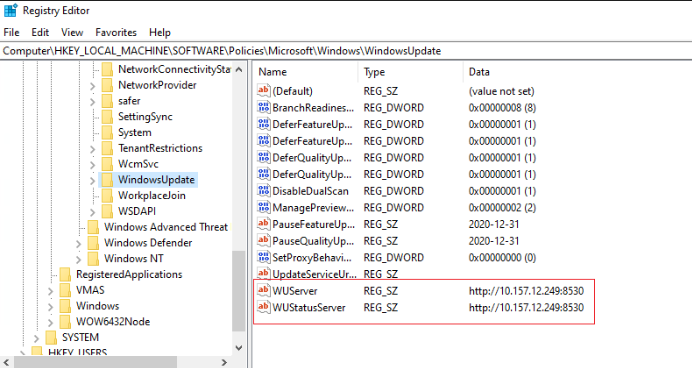
Option B — Endpoints SHOULD use Microsoft Update (cloud).
→ WSUS registry keys must be removed; otherwise scan breaks.
(Many mixed-domain environments break here.)
3. Check Registry on a Sample Machine
Path:
HKLM\SOFTWARE\Policies\Microsoft\Windows\WindowsUpdateLook for:
-
WUServer -
WUStatusServer
If missing AND WSUS is intended → fix.
If present AND the machine should use cloud updates → remove.
4. Apply Fix (Choose A or B)
🛠 A. Remediate for WSUS Environments (Set the server values)
Use this when Tanium Patch relies on your WSUS/SCCM SUP.
PowerShell: Set WSUS server
$WUServer = "http://YOUR-WSUS-SERVER:8530"
$RegPath = "HKLM:\SOFTWARE\Policies\Microsoft\Windows\WindowsUpdate"

If (-not (Test-Path $RegPath)) {
    New-Item -Path $RegPath -Force | Out-Null
}

Set-ItemProperty -Path $RegPath -Name WUServer -Value $WUServer -Type String
Set-ItemProperty -Path $RegPath -Name WUStatusServer -Value $WUServer -Type String

# Required subkey
$AUPath = "$RegPath\AU"
If (-not (Test-Path $AUPath)) {
    New-Item -Path $AUPath -Force | Out-Null
}

Set-ItemProperty -Path $AUPath -Name UseWUServer -Value 1 -Type DWord

# Reload configuration
gpupdate /force | Out-Null
Use when:
✔ Domain-joined
✔ SCCM or WSUS controlling updates
✔ Tanium Patch configured to use internal WSUS
🛠 B. Remediate for Cloud / Internet Update Environments
Use this when:
-
You are using Tanium Cloud Patch only
-
No WSUS/SCCM in the environment
-
Machines should hit Microsoft Update directly
PowerShell: Remove WSUS keys
$RegPath = "HKLM:\SOFTWARE\Policies\Microsoft\Windows\WindowsUpdate"

If (Test-Path $RegPath) {
    Remove-Item -Path $RegPath -Recurse -Force
}

gpupdate /force | Out-Null
Why this works:
Cloud-only environments break when WSUS keys exist but are empty or ghosted.
5. Trigger Update Scan
Run:
wuauclt.exe /detectnowOr simply reboot.
Then re-run the Tanium Patch scan.
6. Validate
Success means:
In Tanium Cloud using Microsoft Update, the ONLY correct configuration is:
✅ No WSUS registry keys at all.
(If they exist, even empty, Windows Update breaks and Tanium Patch errors.)
Below is the clean, safe remediation path for cloud-only environments.
✅ What your environment should look like
The following registry path should not exist:
HKLM\SOFTWARE\Policies\Microsoft\Windows\WindowsUpdateNo:
When these keys exist, the Windows Update agent thinks WSUS is required → But Tanium Cloud doesn’t set WSUS → error appears.
🛠 Final Remediation Script (Cloud Only)
This is the script you should deploy through Tanium Deploy, RMM, or manually.
✔ Safe
✔ MSP-friendly
✔ Removes ONLY WSUS configuration
✔ Leaves all other policies untouched
PowerShell: Remove WSUS Policies for Tanium Cloud
# Path to Windows Update policy key
$RegPath = "HKLM:\SOFTWARE\Policies\Microsoft\Windows\WindowsUpdate"

# Remove WSUS configuration if present
if (Test-Path $RegPath) {
    Write-Host "WSUS policy folder found. Removing it for Microsoft Update compatibility..."
    Remove-Item -Path $RegPath -Recurse -Force
} else {
    Write-Host "No WSUS policies found. Nothing to remove."
}

# Force policy refresh
gpupdate /force | Out-Null

# Force Windows Update detection
Write-Host "Triggering update scan..."
Invoke-Expression "wuauclt.exe /detectnow"

Write-Host "Remediation complete."
🔍 After Running: What You Should See
Within 5–15 minutes:
clean Tanium sensor that detects ANY WSUS configuration on endpoints — perfect for Tanium Cloud + Microsoft Update environments.
It reports:
-
Compliant → No WSUS keys (correct for Tanium Cloud)
-
Non-Compliant → WSUS keys found (will cause patch errors)
-
Includes the actual values found, so you know exactly what to fix.
You can paste this directly into Tanium → Sensors → Create New Sensor.
✅ Tanium Sensor: Detect WSUS Configuration (Cloud Patch Compliance)
Name: WSUS_Configuration_Status
Category: Patch / Compliance
Platform: Windows
Sensor Script (Copy/Paste into Tanium)
# Sensor: WSUS Configuration Status

$regPath = "HKLM:\SOFTWARE\Policies\Microsoft\Windows\WindowsUpdate"
$result = @{}

if (Test-Path $regPath) {
    # WSUS config exists → Non-Compliant for Tanium Cloud
    $values = Get-ItemProperty -Path $regPath | Select-Object *

    $result["Status"] = "Non-Compliant"

    # Extract meaningful values
    $wsusServer      = $values.WUServer
    $wsusStatusServer = $values.WUStatusServer

    if ($wsusServer)       { $result["WUServer"]      = $wsusServer }
    if ($wsusStatusServer) { $result["WUStatusServer"] = $wsusStatusServer }

} else {
    # Ideal state for Tanium Cloud → No WSUS keys
    $result["Status"] = "Compliant"
}

# Output the result in key/value format
$result.GetEnumerator() | ForEach-Object { "$($_.Key)=$($_.Value)" }
🧪 Sample Outputs
✔ Compliant system
Status=Compliant❌ Non-Compliant system (Has WSUS keys)
Status=Non-Compliant
WUServer=http://old-wsus01.contoso.local:8530
WUStatusServer=http://old-wsus01.contoso.local:8530
📊 Recommended Tanium Filter in Grid
You can create a saved Question:
Get WSUS_Configuration_Status from all machinesAdd a filter:
-
Status equals Non-Compliant
This gives you a real-time list of machines that need remediation.
---------------------------------------------------------
✅ Tanium Package: Remove WSUS Configuration (for Tanium Cloud Patch)
clean, safe, Tanium-Cloud-approved remediation package that removes WSUS configuration and forces endpoints back to Microsoft Update, eliminating:
-
WU_E_PT_SUS_SERVER_NOT_SET -
-2145107951
-
Scan failures
-
Patch deployment failures
This is formatted exactly the way Tanium expects so you can paste it directly into Tanium → Packages → Import.
Package Name: Remediate_WSUS_Config_For_Tanium_Cloud
Description:
Removes WSUS policy registry keys so endpoints use Microsoft Update as required for Tanium Cloud Patch. Fixes error WU_E_PT_SUS_SERVER_NOT_SET.
Command: PowerShell
Deploy to: Windows only
📦 PACKAGE CONTENT (COPY/PASTE INTO TANIUM)
1. Command (PowerShell)
Paste the following into the Command field of the package:
# Remediation package for Tanium Cloud - Remove WSUS config

$RegPath = "HKLM:\SOFTWARE\Policies\Microsoft\Windows\WindowsUpdate"

Write-Host "Checking for WSUS policy keys..."

if (Test-Path $RegPath) {
    Write-Host "WSUS configuration detected. Removing..."
    Remove-Item -Path $RegPath -Recurse -Force
} else {
    Write-Host "No WSUS configuration detected. No action needed."
}

# Force Group Policy refresh (non-intrusive)
gpupdate /target:computer /force | Out-Null

Start-Sleep -Seconds 3

# Trigger Windows Update detection cycle
Write-Host "Triggering Windows Update scan..."
Invoke-Expression "wuauclt.exe /detectnow"

Write-Host "WSUS remediation complete."
exit 0
🧪 2. Detection Rule (Optional but Recommended)
This prevents running on clean machines.
Create a detection rule:
IF File Exists → HKEY_LOCAL_MACHINE\SOFTWARE\Policies\Microsoft\Windows\WindowsUpdate
OR (use "Registry Value Exists"):
-
Registry key path:
HKEY_LOCAL_MACHINE\SOFTWARE\Policies\Microsoft\Windows\WindowsUpdate-
Condition: Exists
This ensures only non-compliant machines get the fix.
🔁 3. Post-Action Recommendation
After the package runs, trigger a Tanium Patch "Scan and Deploy" or schedule automatic scanning.
🧩 4. Optional: Reporting Tag
If you want a tag so you know the machine was fixed, add:
New-Item -Path "HKLM:\Software\Tanium\Remediation" -Force | Out-Null
Set-ItemProperty -Path "HKLM:\Software\Tanium\Remediation" -Name "RemovedWSUS" -Value (Get-Date).ToString()
Then you can build a sensor around this.