
Windows Update Error: -2145107951 WU_E_PT_SUS_SERVER_NOT_SET
In the context of Tanium Patch (or patching via Windows Update Agent/WSUS), this means the client is trying to contact a Windows Update Server, but the policy registry key pointing to the server (WUServer) isn’t set or accessible. According to Tanium’s documentation, this is a known error revealed during patch scan/deployment.
✅ What it means in practical terms
-
The machine is configured (or expects) to use a WSUS server (or other internal update source) rather than the public Microsoft Update service.
-
The registry key HKEY_LOCAL_MACHINE\SOFTWARE\Policies\Microsoft\Windows\WindowsUpdate\WUServer (and possibly WUStatusServer) is missing or empty.
Microsoft Learn+1 -
Because the server to use is not set, the Windows Update Agent cannot proceed with patching/scan and reports this error.
-
In Tanium’s context, this shows up on the endpoint patch scan or deployment
loglog, indicating the client cannot obtain the update source.
https://help.tanium.com/bundle/ug_patch_cloud/page/patch/ref_errors.html https://help.tanium.com/bundle/ug_patch_cloud/page/patch/troubleshooting.html
✅ Step-by-Step Checklist for Fixing:
Error: -2145107951 (0x80244011) WU_E_PT_SUS_SERVER_NOT_SET
Meaning: Windows Update Agent expects WSUS, but WUServer is missing or not configured.
1. Identify Affected Machines
In Tanium, filter endpoints where Patch scan shows:
-
WU_E_PT_SUS_SERVER_NOT_SET -
or error:
-2145107951
(If you want, I can give you a sensor to query this.)
2. Determine Intended Update Source
You need clarity:
Option A — Endpoints SHOULD use WSUS / SCCM.
→ They must have:
WUServer
WUStatusServer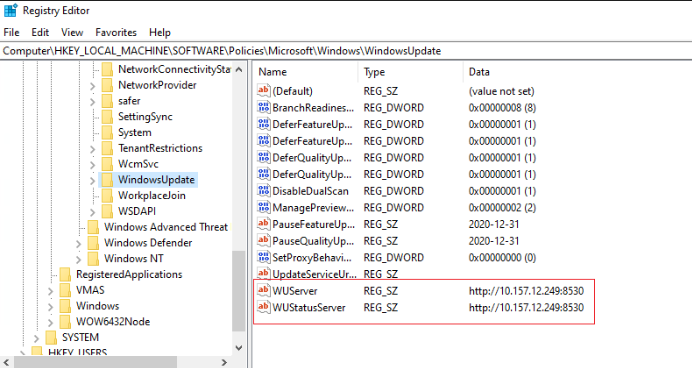
Option B — Endpoints SHOULD use Microsoft Update (cloud).
→ WSUS registry keys must be removed,; otherwise scan breaks.
(Many mixed-domain environments break here.)
3. Check Registry on a Sample Machine
Path:
HKLM\SOFTWARE\Policies\Microsoft\Windows\WindowsUpdateLook for:
-
WUServer -
WUStatusServer
If missing AND WSUS is intended → fix.
If present AND the machine should use cloud updates → remove.
4. Apply Fix (Choose A or B)
🛠 A. Remediate for WSUS Environments (Set the server values)
Use this when Tanium Patch relies on your WSUS/SCCM SUP.
PowerShell: Set WSUS server
$WUServer = "http://YOUR-WSUS-SERVER:8530"
$RegPath = "HKLM:\SOFTWARE\Policies\Microsoft\Windows\WindowsUpdate"

If (-not (Test-Path $RegPath)) {
    New-Item -Path $RegPath -Force | Out-Null
}

Set-ItemProperty -Path $RegPath -Name WUServer -Value $WUServer -Type String
Set-ItemProperty -Path $RegPath -Name WUStatusServer -Value $WUServer -Type String

# Required subkey
$AUPath = "$RegPath\AU"
If (-not (Test-Path $AUPath)) {
    New-Item -Path $AUPath -Force | Out-Null
}

Set-ItemProperty -Path $AUPath -Name UseWUServer -Value 1 -Type DWord

# Reload configuration
gpupdate /force | Out-Null
Use when:
✔ Domain-joined
✔ SCCM or WSUS controlling updates
✔ Tanium Patch configured to use internal WSUS
🛠 B. Remediate for Cloud / Internet Update Environments
Use this when:
-
You are using Tanium Cloud Patch only
-
No WSUS/SCCM in the environment
-
Machines should hit Microsoft Update directly
PowerShell: Remove WSUS keys
$RegPath = "HKLM:\SOFTWARE\Policies\Microsoft\Windows\WindowsUpdate"

If (Test-Path $RegPath) {
    Remove-Item -Path $RegPath -Recurse -Force
}

gpupdate /force | Out-Null
Why this works:
Cloud-only environments break when WSUS keys exist but are empty or ghosted.
5. Trigger Update Scan
Run:
wuauclt.exe /detectnowOr simply reboot.
Then re-run the Tanium Patch scan.
6. Validate
Success means:
In Tanium Cloud using Microsoft Update, the ONLY correct configuration is:
✅ No WSUS registry keys at all.
(If they exist, even empty, Windows Update breaks and Tanium Patch errors.)
Below is the clean, safe remediation path for cloud-only environments.
✅ What your environment should look like
The following registry path should not exist:
HKLM\SOFTWARE\Policies\Microsoft\Windows\WindowsUpdateNo:
When these keys exist, the Windows Update agent thinks WSUS is required →
butBut Tanium Cloud doesn’t set WSUS → error appears.
🛠 Final Remediation Script (Cloud Only)
This is the script you should deploy through Tanium Deploy, RMM, or manually.
✔ Safe
✔ MSP-friendly
✔ Removes ONLY WSUS configuration
✔ Leaves all other policies untouched
PowerShell: Remove WSUS Policies for Tanium Cloud
# Path to Windows Update policy key
$RegPath = "HKLM:\SOFTWARE\Policies\Microsoft\Windows\WindowsUpdate"

# Remove WSUS configuration if present
if (Test-Path $RegPath) {
    Write-Host "WSUS policy folder found. Removing it for Microsoft Update compatibility..."
    Remove-Item -Path $RegPath -Recurse -Force
} else {
    Write-Host "No WSUS policies found. Nothing to remove."
}

# Force policy refresh
gpupdate /force | Out-Null

# Force Windows Update detection
Write-Host "Triggering update scan..."
Invoke-Expression "wuauclt.exe /detectnow"

Write-Host "Remediation complete."
🔍 After Running: What You Should See
Within 5–15 minutes:
clean Tanium sensor that detects ANY WSUS configuration on endpoints — perfect for Tanium Cloud + Microsoft Update environments.
It reports:
-
Compliant → No WSUS keys (correct for Tanium Cloud)
-
Non-Compliant → WSUS keys found (will cause patch errors)
-
Includes the actual values found, so you know exactly what to fix.
You can paste this directly into Tanium → Sensors → Create New Sensor.
✅ Tanium Sensor: Detect WSUS Configuration (Cloud Patch Compliance)
Name: WSUS_Configuration_Status
Category: Patch / Compliance
Platform: Windows
Sensor Script (Copy/Paste into Tanium)
# Sensor: WSUS Configuration Status

$regPath = "HKLM:\SOFTWARE\Policies\Microsoft\Windows\WindowsUpdate"
$result = @{}

if (Test-Path $regPath) {
    # WSUS config exists → Non-Compliant for Tanium Cloud
    $values = Get-ItemProperty -Path $regPath | Select-Object *

    $result["Status"] = "Non-Compliant"

    # Extract meaningful values
    $wsusServer      = $values.WUServer
    $wsusStatusServer = $values.WUStatusServer

    if ($wsusServer)       { $result["WUServer"]      = $wsusServer }
    if ($wsusStatusServer) { $result["WUStatusServer"] = $wsusStatusServer }

} else {
    # Ideal state for Tanium Cloud → No WSUS keys
    $result["Status"] = "Compliant"
}

# Output the result in key/value format
$result.GetEnumerator() | ForEach-Object { "$($_.Key)=$($_.Value)" }
🧪 Sample Outputs
✔ Compliant system
Status=Compliant❌ Non-Compliant system (Has WSUS keys)
Status=Non-Compliant
WUServer=http://old-wsus01.contoso.local:8530
WUStatusServer=http://old-wsus01.contoso.local:8530
📊 Recommended Tanium Filter in Grid
You can create a saved Question:
Get WSUS_Configuration_Status from all machinesAdd a filter:
-
Status equals Non-Compliant
This gives you a real-time list of machines that need remediation.
---------------------------------------------------------
✅ Tanium Package: Remove WSUS Configuration (for Tanium Cloud Patch)
clean, safe, Tanium-Cloud-approved remediation package that removes WSUS configuration and forces endpoints back to Microsoft Update, eliminating:
-
WU_E_PT_SUS_SERVER_NOT_SET -
-2145107951
-
Scan failures
-
Patch deployment failures
This is formatted exactly the way Tanium expects so you can paste it directly into Tanium → Packages → Import.
Package Name: Remediate_WSUS_Config_For_Tanium_Cloud
Description:
Removes WSUS policy registry keys so endpoints use Microsoft Update as required for Tanium Cloud Patch. Fixes error WU_E_PT_SUS_SERVER_NOT_SET.
Command: PowerShell
Deploy to: Windows only
📦 PACKAGE CONTENT (COPY/PASTE INTO TANIUM)
1. Command (PowerShell)
Paste the following into the Command field of the package:
# Remediation package for Tanium Cloud - Remove WSUS config

$RegPath = "HKLM:\SOFTWARE\Policies\Microsoft\Windows\WindowsUpdate"

Write-Host "Checking for WSUS policy keys..."

if (Test-Path $RegPath) {
    Write-Host "WSUS configuration detected. Removing..."
    Remove-Item -Path $RegPath -Recurse -Force
} else {
    Write-Host "No WSUS configuration detected. No action needed."
}

# Force Group Policy refresh (non-intrusive)
gpupdate /target:computer /force | Out-Null

Start-Sleep -Seconds 3

# Trigger Windows Update detection cycle
Write-Host "Triggering Windows Update scan..."
Invoke-Expression "wuauclt.exe /detectnow"

Write-Host "WSUS remediation complete."
exit 0
🧪 2. Detection Rule (Optional but Recommended)
This prevents running on clean machines.
Create a detection rule:
IF File Exists → HKEY_LOCAL_MACHINE\SOFTWARE\Policies\Microsoft\Windows\WindowsUpdate
OR (use "Registry Value Exists"):
-
Registry key path:
HKEY_LOCAL_MACHINE\SOFTWARE\Policies\Microsoft\Windows\WindowsUpdate-
Condition: Exists
This ensures only non-compliant machines get the fix.
🔁 3. Post-Action Recommendation
After the package runs, trigger a Tanium Patch "Scan and Deploy" or schedule automatic scanning.
🧩 4. Optional: Reporting Tag
If you want a tag so you know the machine was fixed, add:
New-Item -Path "HKLM:\Software\Tanium\Remediation" -Force | Out-Null
Set-ItemProperty -Path "HKLM:\Software\Tanium\Remediation" -Name "RemovedWSUS" -Value (Get-Date).ToString()
Then you can build a sensor around this.